
Duplicate SKUs in WooCommerce can cause confusing product matches, failed CSV imports, and problems when syncing inventory with other systems. Missing SKUs can be just as troublesome when your team relies on product codes to identify the correct item or variation.
The good news is that you can audit your product catalog systematically without risking changes to your live store.
This guide explains how to find missing and duplicate SKUs in WooCommerce, review variable products, identify spreadsheet errors, and correct confirmed problems safely. You’ll learn how to perform a manual SKU audit using WooCommerce’s built-in export tools and how a read-only catalog scanner can support regular checks.
Quick answer: For a small store, open individual products and inspect Product data → Inventory → SKU. For larger catalogs, export products to CSV, check blank SKU cells, and use a spreadsheet formula to flag repeated values. Review parent products and variations separately, correct confirmed conflicts in WooCommerce, and verify the results with a fresh export or catalog scan.
Table of Contents
What Is an SKU in WooCommerce?
An SKU, or stock keeping unit, is an internal identifier used to distinguish products and product variations.
For example, TSHIRT-BLK-M might identify a black medium T-shirt, while TSHIRT-BLK-L identifies the large version.
A consistent SKU system makes it easier to:
- Identify products accurately.
- Manage inventory across sales channels.
- Match products against supplier records.
- Process orders and returns.
- Prepare product CSV imports and exports.
- Connect WooCommerce with warehouse or accounting systems.
WooCommerce treats SKU values as optional in its product editor. However, an SKU assigned to a product or variation must be unique across the store.
That distinction is important. A missing SKU is not automatically a WooCommerce error, but it can become an operational problem when your business relies on product identifiers.
Why Missing and Duplicate SKUs Matter
Missing and duplicate SKUs in WooCommerce often become noticeable during product imports, inventory reconciliation, or website migrations.
A product may appear perfectly normal on the storefront while its internal data causes difficulties behind the scenes.
1. Product import conflicts
A CSV import may fail or skip a record when its SKU is already associated with an existing product and the importer is not configured to update that product.
2. Inventory mismatches
When your warehouse system, supplier, or spreadsheet uses SKU codes to identify products, inconsistent identifiers can result in incorrect stock matching.
3. Variation management problems
Products with multiple sizes, colors, or configurations require careful identification. Missing variation-level SKUs can create confusion if your inventory workflow expects each sellable variation to have a separate code.
4. Fulfillment errors
A warehouse team may use SKUs rather than product titles to prepare orders. Incorrect codes can make it harder to select the right item.
5. Migration difficulties
When moving products between stores, inconsistent SKU values can complicate product matching and updates.
Fixing these issues early helps create a more reliable catalog.
Step 1: Check SKUs Manually in WooCommerce
For a smaller catalog, begin with WooCommerce’s product editor.
- Log in to your WordPress dashboard.
- Navigate to Products → All Products.
- Open a product that you want to inspect.
- Find the Product data section.
- Select the Inventory tab.
- Locate the SKU field.
- Compare the value with your internal product records.
For example, imagine that your store sells a ceramic coffee mug.
The product might have the identifier MUG-WHT-001.
If its SKU field is empty, you should determine whether that product requires a code according to your catalog management policy.
If another product already uses the same SKU, investigate which product is supposed to own that identifier.
For stores containing hundreds or thousands of products, checking every item manually is time-consuming.
A CSV export provides a more practical approach.
Step 2: Export Your WooCommerce Products to CSV
WooCommerce includes a built-in product export feature.
You can use it to review product information without making changes to your website.
How to export products
- Open Products → All Products.
- Click Export.
- Select the relevant product types and categories.
- Include the columns required for your audit.
- Click Generate CSV.
For SKU checking, useful columns include:
- Product ID
- Product type
- Product name
- SKU
- Parent product
- Stock status
- Regular price
Make sure your export includes variations if you need to check variation-level SKU values.
Save an untouched copy of your CSV before editing anything.
Open a working copy using Excel or Google Sheets.
Important: Import SKU columns as text. Spreadsheet applications can otherwise remove leading zeros or modify long product identifiers.
For example, the SKU 00125 should not accidentally become 125.
You can learn more from the official WooCommerce Product CSV Importer and Exporter documentation.
Step 3: Identify Missing SKU Values
Once your CSV is open, locate the SKU column.
Use your spreadsheet’s filter function to display blank cells.
For example:
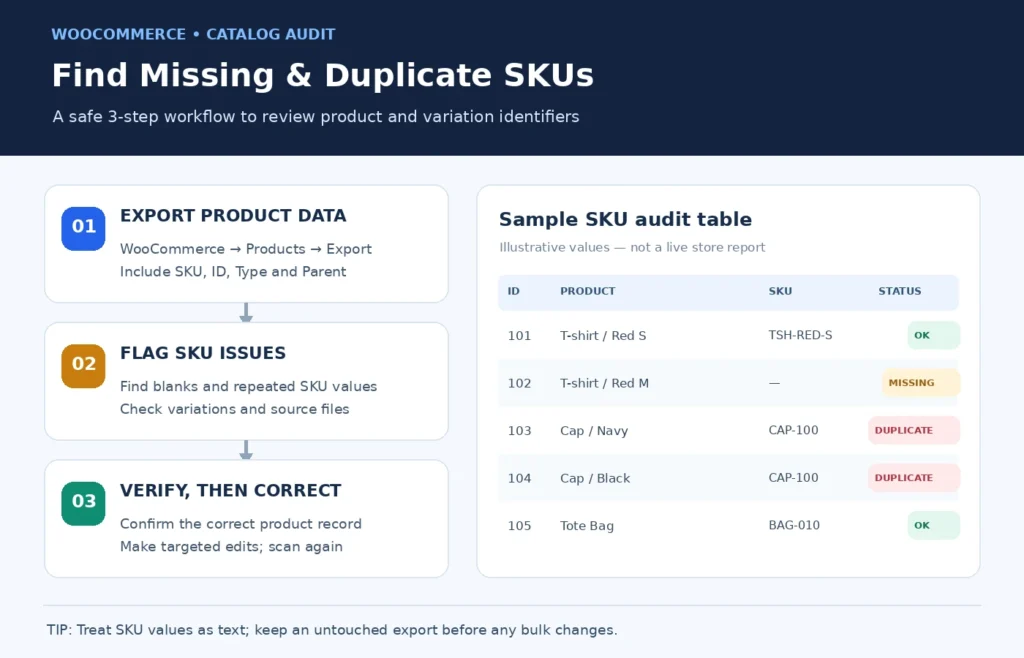
| Product ID | Product | SKU | Result |
|---|---|---|---|
| 101 | Classic Mug | MUG-WHT-01 | OK |
| 102 | Cotton T-Shirt | Blank | Review |
| 103 | Canvas Bag | BAG-010 | OK |
| 104 | Cap – Black | CAP-001 | Possible duplicate |
| 105 | Cap – Blue | CAP-001 | Possible duplicate |
This example contains one blank SKU and two records using the same code.
Before making changes, determine why each issue exists.
Some products may intentionally have blank SKUs. A variation may also inherit the parent product’s SKU when no variation-specific SKU is assigned.
Your objective is to distinguish genuine problems from acceptable configurations.
Also look for cells containing spaces or hidden characters. They may appear blank even though the cell contains data.
Step 4: Find Duplicate SKUs in WooCommerce Using a Spreadsheet
To find duplicate SKUs in WooCommerce, you can use a spreadsheet formula.
Assume that your exported SKU values are in column C, beginning at cell C2 and ending at C1000.
Create a new column named SKU Audit.
Enter this formula:
=IF(LEN(TRIM(C2))=0,"MISSING",IF(COUNTIF($C$2:$C$1000,C2)>1,"DUPLICATE","OK"))
Copy the formula down the column.
The results will show:
- MISSING — The SKU cell is blank or contains only whitespace.
- DUPLICATE — The same SKU value appears more than once in the selected range.
- OK — The SKU is present and not repeated within the selected range.
Adjust the cell range according to the size of your spreadsheet.
Check formatting differences
Exact-value comparisons may not identify every formatting inconsistency.
For example:
CAP-001CAP-001cap-001
These values may require normalization before comparison.
You can use a separate helper column containing:
=UPPER(TRIM(C2))
This removes surrounding spaces and converts letters to uppercase for comparison.
Keep the original SKU values intact while investigating the results.
A spreadsheet warning does not automatically prove that your live store contains two products with identical stored SKU values. Review the original records and import history before making corrections.
Step 5: Review Variable Products and Variations
Variable products require additional attention because each product can contain multiple variations.
For example, a clothing store may sell a T-shirt with the following options:
| Variation | Suggested SKU |
|---|---|
| Black — Small | TSHIRT-BLK-S |
| Black — Medium | TSHIRT-BLK-M |
| Black — Large | TSHIRT-BLK-L |
| White — Small | TSHIRT-WHT-S |
Each variation can have its own SKU, price, image, and stock settings.
To review variations:
- Open Products → All Products.
- Select the relevant variable product.
- Find Product data → Variations.
- Expand each variation.
- Check its SKU and inventory configuration.
- Compare the values with your supplier or internal inventory records.
Important: Parent and variation SKUs
WooCommerce permits a variation SKU field to remain blank.
If the parent product has an SKU, WooCommerce can use the parent SKU as the variation’s default.
This inherited behavior does not necessarily mean someone has explicitly saved the same SKU on multiple products.
However, when your fulfillment or inventory system needs to track individual variations separately, assigning a unique variation-level SKU is usually more practical.
Always consider how the store manages stock before deciding whether a blank variation SKU should be corrected.
Step 6: Correct Missing and Duplicate SKU Problems
Once you have confirmed an issue, make targeted corrections.
How to fix a missing SKU
Open the affected product or variation.
Identify the correct SKU using your supplier records or internal product database.
Enter the SKU in the appropriate field and save the product.
If you are creating a new SKU, follow your documented naming convention.
How to fix a duplicate SKU conflict
First determine whether the two records represent separate products or whether one record is supposed to update an existing item.
If they represent different products, assign a unique identifier to the appropriate record after confirming ownership of the original code.
WooCommerce generally prevents saving duplicate SKU values.
Therefore, an import error may indicate that the incoming CSV contains a code already assigned to an existing product.
It does not necessarily mean two live products were successfully saved with identical SKUs.
Avoid making unnecessary bulk changes
Do not randomly replace product identifiers or regenerate every SKU.
Existing codes may be referenced by:
- Warehouse applications
- Supplier systems
- Accounting software
- Marketplace integrations
- Product feeds
- Historical records
Create a database backup before performing significant updates.
If you are preparing a large import, test a small batch on a staging website before modifying your live catalog.
After making corrections, export the affected products again to verify the changes.
Step 7: Check the Catalog Using Altrix Catalog Readiness Pro
Manually reviewing spreadsheets is useful, but repeated exports can become inefficient for stores with large product catalogs.
A dedicated catalog audit plugin can make regular checks more manageable.
Altrix Catalog Readiness for WooCommerce is designed to identify catalog problems without automatically modifying product data.
The Free edition checks common readiness issues, including missing SKUs, missing images, missing prices, and other product information gaps.
Catalog Readiness Pro adds duplicate-SKU diagnostics, advanced catalog-readiness checks, and CSV reporting options.
The plugin uses a read-only scanning approach.
This means you review the reported issues and decide which changes to make in WooCommerce.
When is a catalog audit useful?
Consider running a catalog audit:
- Before launching a new WooCommerce store.
- After importing a large supplier spreadsheet.
- Before migrating product data.
- After major product updates.
- Before handing a client website over.
- Before a major sales campaign.
Rather than automatically changing your products, the plugin helps you identify records that require attention.
Want a repeatable catalog audit? Explore Altrix Catalog Readiness Pro for WooCommerce to review missing SKUs, check duplicate-SKU concerns, and export Pro audit results for follow-up.
How to Prevent SKU Problems
Finding missing and duplicate SKUs in WooCommerce is only part of good catalog management.
Prevention is just as important.
Use a consistent naming convention
Establish a SKU structure that is easy for your team to understand.
For example:
CATEGORY-PRODUCT-COLOR-SIZE
Keep the structure stable wherever practical.
Maintain one source of truth
Decide whether your supplier system, ERP, or WooCommerce is responsible for creating product identifiers.
Avoid allowing several systems to independently generate conflicting SKU values.
Validate supplier spreadsheets
Before importing supplier updates, review the SKU column for missing values, duplicates, and formatting inconsistencies.
Check incoming codes against existing store records, not just against other rows in the new spreadsheet.
Preserve identifiers during migrations
When migrating products, maintain accurate mappings between old and new product records.
Avoid changing SKUs unnecessarily, especially when third-party integrations rely on them.
Audit regularly
Run SKU checks after major imports or product changes.
A monthly audit may be useful for a store with frequent inventory updates, while a smaller store may only need periodic reviews.
Final WooCommerce SKU Audit Checklist
Before approving a major product update, confirm the following:
- Products requiring SKUs have them assigned.
- Simple products have appropriate unique codes.
- Variation-level identifiers match inventory requirements.
- Duplicate values have been reviewed against existing products.
- Imported SKU values retain leading zeros.
- CSV files use the correct product IDs and parent references.
- Supplier codes have been checked before importing.
- A recent backup is available.
- Corrected products have been verified after saving.
- Your team follows a documented SKU naming convention.
Frequently Asked Questions
Are SKUs required for every WooCommerce product?
No. WooCommerce treats SKUs as optional. However, many businesses use a policy requiring SKUs because inventory, fulfillment, and supplier systems depend on reliable identifiers.
Does WooCommerce allow duplicate SKUs?
WooCommerce generally requires assigned SKUs to be unique and can reject duplicate values during editing or importing. If you encounter duplicate SKU warnings, investigate the existing products, import settings, and data source.
Can WooCommerce variations use the parent SKU?
A blank variation SKU can default to the parent SKU. This is different from explicitly storing an identical SKU on separate product variations. Assign distinct variation codes if your inventory process requires them.
Can I find missing SKUs without installing a plugin?
Yes. WooCommerce provides a built-in CSV export feature. You can export products, filter the SKU column for blank values, and compare records in a spreadsheet.
Does Altrix Catalog Readiness Pro automatically fix duplicate SKUs?
No. The plugin provides read-only diagnostics and reporting. You make any required changes manually in WooCommerce.
How often should I check WooCommerce SKUs?
It depends on your catalog. For stores with frequent imports or variation updates, check after major changes and consider regular monthly audits. Stable catalogs may need less frequent reviews.
Conclusion
Finding missing and duplicate SKUs in WooCommerce is an important part of maintaining accurate and dependable product information.
Start by identifying which records need unique codes, use WooCommerce’s built-in CSV exporter for larger catalogs, review variation settings carefully, and correct confirmed problems only after checking the intended product identities.
A consistent SKU policy can reduce preventable import conflicts and make inventory workflows easier to maintain.
For a repeatable, read-only catalog audit that covers missing SKU values alongside other product-readiness checks, explore Altrix Catalog Readiness for WooCommerce.