
WooCommerce products priced below cost can quietly damage your store’s profitability, even when sales and order volumes appear healthy. A product may sell regularly, receive positive reviews and contribute to revenue while generating a negative product-level margin because its selling price is lower than its recorded cost.
For many WooCommerce store owners, these pricing problems are easy to overlook.
A supplier may increase prices without informing your team. A sale price might accidentally be entered too low. Someone may update a variation incorrectly, or a bulk import may replace the correct product price with an outdated value.
Unless you regularly compare selling prices with product costs, these mistakes can remain unnoticed.
The good news is that you can identify potential problems through a systematic pricing audit.
In this guide, you will learn how to find WooCommerce products priced below cost, calculate product margins, review simple and variable products, identify common pricing mistakes and establish a practical process for protecting your store’s margins.
You will also learn how a dedicated WooCommerce price audit plugin can make routine checks easier.
Table of Contents
What Does Selling Below Cost Mean in WooCommerce?
A product is priced below cost when its selling price is lower than the amount recorded as the cost of acquiring or producing that product.
For example, imagine that you sell a backpack through your WooCommerce store.
- Product selling price: $24
- Recorded product cost: $29
- Difference: -$5
In this situation, the product has a negative gross profit of $5 per unit before considering other business expenses.
If you sell 20 units at this price, the difference between product sales and recorded product costs would be negative $100.
The problem becomes more serious when you consider expenses such as payment processing, shipping subsidies, packaging, advertising and fulfillment.
It is important to distinguish product-level margin from your business’s final net profit. Even a product with a positive margin may become unprofitable after additional expenses.
An accurate pricing audit starts with reliable product cost information.
Why Do WooCommerce Products Get Priced Below Cost?
Below-cost pricing does not always happen intentionally. In many online stores, it results from ordinary administrative mistakes or changing supplier costs.
1. Supplier price increases
Your supplier may increase the wholesale cost of a product from $15 to $19 while your WooCommerce selling price remains $18.
The product that previously generated a positive gross margin is now being sold below its updated cost.
This issue is particularly common when supplier prices change frequently or are maintained in separate spreadsheets.
2. Incorrect sale prices
A store manager might intend to reduce a product from $49 to $39 but accidentally enter $19.
WooCommerce can display the configured sale price, potentially allowing customers to purchase at an unintended amount.
For products with low margins, even a small pricing mistake can create a loss.
3. Variable product pricing errors
WooCommerce variable products can have several variations with different prices and costs.
For example, a clothing product may offer small, medium and large sizes, each sourced at a different cost.
One variation may have the correct selling price while another has been assigned an outdated price.
Because shoppers can purchase individual variations, reviewing only the parent product is not sufficient.
4. Bulk product imports
Bulk imports are useful for updating large catalogs, but an incorrectly mapped column or outdated supplier file can overwrite prices.
A CSV file may contain an old sale price, a zero value or an incorrect product identifier.
After a significant import, a pricing review should be part of your quality-control process.
5. Missing or outdated cost information
A product may appear profitable because its recorded cost has not been updated.
Alternatively, the cost field may be empty, preventing any reliable margin calculation.
A missing cost is not the same as a zero-cost product. It should usually be treated as incomplete information requiring review.
How to Calculate Product Profit Margin in WooCommerce
Before looking for pricing errors, understand the basic margin calculation.
A product’s gross profit is the difference between its selling price and its recorded cost.
Product gross profit = Selling price − Product cost
The product margin percentage is calculated as:
Product margin (%) = ((Selling price − Product cost) ÷ Selling price) × 100
For example, consider three WooCommerce products.
| Product | Selling price | Product cost | Gross margin |
|---|---|---|---|
| Cotton T-shirt | $30 | $18 | 40% |
| Leather wallet | $25 | $28 | -12% |
| Coffee mug | $20 | $16 | 20% |
The leather wallet has a negative product margin because its cost is higher than its selling price.
The cotton T-shirt has a positive 40% margin, while the coffee mug has a 20% margin.
Whether 20% is sufficient depends on the store’s other expenses and financial objectives.
A business may need a higher margin to cover advertising, returns, shipping and general operating costs.
Important: This formula measures product-level margin. It does not automatically include taxes, shipping expenses, payment fees, coupons, refunds or overhead.
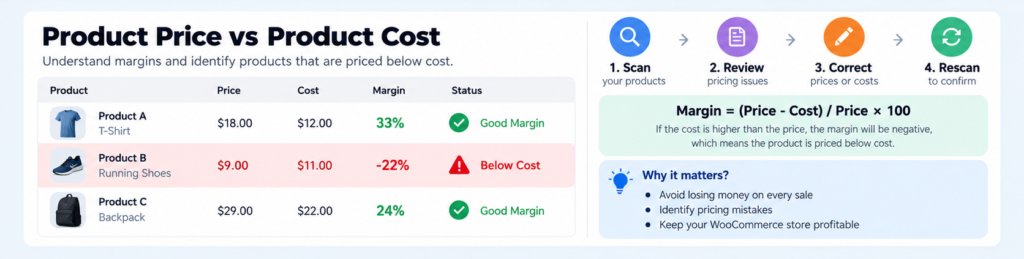
Use the in-article image supplied above.
Suggested caption: Compare product selling prices with recorded costs to identify negative margins and pricing risks.
Step 1: Enable and Review WooCommerce Cost of Goods
To identify WooCommerce products priced below cost, the store must have reliable cost data.
WooCommerce offers native Cost of Goods Sold functionality that can record product costs and support margin analysis.
In supported installations, you can enable it by opening:
WooCommerce → Settings → Advanced → Features → Cost of Goods Sold
After enabling the feature and saving your settings, review the cost values assigned to your products.
For a simple product:
- Open Products → All Products in WordPress.
- Select the product you want to review.
- Locate the product data settings.
- Find the Cost of Goods field.
- Enter or verify the actual product cost.
- Save the product.
The precise interface may vary according to your WooCommerce version and installed extensions.
For variable products, review variation-level costs as well.
WooCommerce supports inherited default costs for variations and allows individual variations to override those values.
Do not assume all variations have the same supplier cost.
For example, different sizes, materials or package quantities may have different acquisition costs.
For official instructions, see the WooCommerce Cost of Goods Sold documentation.
What if your costs are missing?
If cost information is unavailable, start by collecting reliable figures from supplier invoices, inventory records or your accounting system.
Avoid entering arbitrary cost values simply to complete the fields.
A pricing audit based on incorrect costs can be misleading.
Once costs are populated and verified, you will be in a better position to identify genuine below-cost products.
Step 2: Manually Check WooCommerce Product Prices
For a smaller store, a manual review can be a reasonable starting point.
Open your WordPress dashboard and navigate to Products → All Products.
Select a published product and compare its current selling price with its recorded cost.
Pay particular attention to:
- Regular prices that have not been reviewed recently
- Active sale prices
- Products recently updated through CSV imports
- Products affected by supplier price increases
- High-volume products
- Products with unusually low prices
- Individual variations with independent prices
If a product costs $32 and currently sells for $29, its product-level margin is negative.
Before updating the price, verify the cost and check whether the selling price was intentionally reduced.
Some stores occasionally sell products below cost for strategic reasons, such as clearing old inventory.
The goal of the audit is to identify and review risky prices, not automatically assume that every discounted product is a mistake.
Check the effective selling price
The price a customer currently pays may differ from the regular price.
For example:
- Regular price: $45
- Sale price: $25
- Product cost: $30
Although the regular price is higher than the cost, the current sale price is $5 below cost.
This is why pricing checks should consider the effective product price rather than relying exclusively on the regular price field.
Step 3: Review Variable Products Individually
Variable products deserve special attention during a WooCommerce pricing audit.
Suppose a store sells a jacket in three sizes.
| Variation | Current price | Recorded cost |
|---|---|---|
| Small | $49 | $31 |
| Medium | $49 | $35 |
| Large | $29 | $37 |
The small and medium variations have positive gross margins.
However, the large variation sells for $8 below its recorded cost.
A store owner who only checks the parent product’s starting price may not notice the error.
To review variations manually:
- Open the variable product in WooCommerce.
- Go to the Variations section.
- Expand the individual variations.
- Verify regular and sale prices.
- Check any applicable variation-level costs.
- Review unusual differences between sizes or options.
- Correct confirmed mistakes and save the product.
This process can become time-consuming when you manage hundreds or thousands of variations.
A dedicated variation or price audit can help you identify the records that need closer attention.
If you are also checking missing prices, SKUs and attributes, read our guide to finding and fixing missing prices in WooCommerce variations.
Update the internal link above to your published article URL if the slug differs.
Step 4: Check for Zero Prices and Incorrect Discounts
Not every pricing problem involves a negative margin.
Some products may have an empty price or an unintended zero price.
Others may have a sale price that is equal to or higher than the regular price.
These problems can indicate incorrect imports, editing mistakes or incomplete product configuration.
For example:
Example A: Zero price
A product with a regular price of $0 may have been imported incorrectly or deliberately configured as free.
Confirm whether the zero price is intentional.
Example B: Unusual sale price
A product has a regular price of $35 and a configured sale price of $40.
This deserves review because it does not represent a meaningful discount.
Example C: Unexpected price reduction
A product previously sold for $60 but now has an effective price of $25.
If the change was unplanned, it may indicate an administrative mistake.
Price-drop comparisons are particularly useful after catalog imports, supplier updates and promotional changes.
Step 5: Use Altrix Price & Margin Guard for a Faster Pricing Audit
When your store contains many products and variations, manually reviewing every record can become inefficient.
Altrix Price & Margin Guard for WooCommerce is designed to help store owners identify pricing risks without automatically modifying their product prices.
The plugin reviews published simple products and published variations, helping you identify items that require attention.
What can the plugin detect?
Missing and zero prices
Identify published products or variations whose current price is empty or zero.
Products priced below recorded cost
Compare current product prices with native WooCommerce Cost of Goods values when valid cost data is available.
Low product margins
The Pro edition lets you define a minimum product margin threshold and identify items falling below that threshold.
Unexpected baseline price drops
The Pro edition can capture current effective prices as a reference and identify subsequent reductions that meet your configured threshold.
Unusual sale price settings
Flag configured sale prices that are equal to or greater than regular prices.
CSV audit reports
Export scan results for further review, including relevant product information and pricing findings.
The plugin’s purpose is to highlight potential issues. It does not automatically increase or correct product prices.
How to perform a price audit
A practical workflow is:
- Verify that WooCommerce Cost of Goods is enabled and populated.
- Install and activate the appropriate edition of Altrix Price & Margin Guard.
- Configure your audit thresholds if using Pro.
- Capture a price baseline when your current prices are correct, if using that Pro feature.
- Run the audit.
- Review flagged products and variations.
- Open the relevant product records and correct verified issues.
- Run the audit again to check your changes.
This workflow helps focus attention on records with potential pricing problems rather than reviewing every product equally.
Can it prevent below-cost purchases?
The Pro edition includes an optional below-cost cart and checkout safeguard.
When enabled, it compares a product’s current price against a positive recorded product cost and can prevent below-cost products from being added to the cart or checked out.
The safeguard is disabled by default.
It is not a complete profit-protection system because it does not account for order discounts, shipping, payment processing fees or other expenses.
It also does not block products whose costs are missing.
For these reasons, verify cost information carefully before enabling the safeguard.
Explore Altrix Price & Margin Guard for WooCommerce to compare the free and Pro editions.
Step 6: Decide Which Pricing Problems to Fix First
Not every flagged product requires the same response.
A useful pricing review prioritizes the products with the greatest potential financial impact.
Consider these factors:
Negative product margin
A product that sells below its recorded cost should be reviewed promptly.
Confirm the cost, selling price and whether the situation is intentional.
Sales volume
A small loss on a product sold hundreds of times may matter more than a large loss on a product that rarely sells.
For example, losing $2 per unit across 200 sales creates a $400 negative difference before other expenses.
Recent price changes
Products updated through an import or promotional campaign deserve extra attention.
Compare changes against approved pricing records.
Missing product costs
A product without a valid cost should be flagged for data completion rather than assumed profitable.
High-value products
Incorrect prices on expensive products can create significant losses from relatively few transactions.
When you review your findings, maintain a record of the issue, the responsible person, the decision and the correction date.
This makes future audits more reliable.
Step 7: Establish Minimum Product Margin Rules
Checking whether a product sells below cost is only the first stage of price management.
A product may have a positive margin but still generate insufficient profit after business expenses.
For example:
- Selling price: $100
- Product cost: $85
- Gross product profit: $15
- Gross product margin: 15%
That 15% product margin may be inadequate if the business also pays for advertising, fulfillment, transaction fees and returns.
A minimum margin threshold can help identify such products.
However, the appropriate threshold varies by industry, product category, competitive conditions and cost structure.
Avoid applying the same target indiscriminately across every product.
A store selling low-cost accessories may have very different requirements from a store selling high-value electronics.
Use margin thresholds as screening rules that prompt review, not as universal guarantees of profitability.
Step 8: Audit Prices After Major Store Changes
A single WooCommerce price audit is useful, but pricing errors can appear again as the catalog changes.
Consider performing a review after:
- Large product CSV imports
- Supplier cost updates
- Seasonal sales and promotions
- Bulk regular-price changes
- Variation imports or edits
- Store migrations
- Product catalog restructuring
For active stores, a regular weekly or monthly review may also be appropriate.
The frequency should reflect how often your prices, costs and supplier data change.
Remember that a price audit tool only identifies findings when its scan is run. Do not assume your entire catalog is being continuously monitored.
A repeatable process is more useful than relying on occasional manual checks.
Common Mistakes When Auditing WooCommerce Product Margins
Several common mistakes can reduce the accuracy of a pricing audit.
Comparing only regular prices
Always consider the effective selling price. A discounted product may sell below cost even when the regular price is profitable.
Ignoring variation-level costs
Different variations may have different supplier costs. Check the relevant cost for each variation.
Treating missing cost as zero cost
A missing cost does not establish that a product is profitable. It indicates that additional data is needed.
Confusing markup with margin
Markup and margin are different percentages.
If an item costs $80 and sells for $100, its markup on cost is 25%, but its gross margin on selling price is 20%.
Ignoring additional expenses
Product margin is not the same as net profit.
Your actual profitability may also depend on shipping, payment fees, marketing, taxes and other operating expenses.
Changing prices without verification
Do not automatically increase every flagged price. First confirm whether the cost is correct and whether the price change was intentional.
A thoughtful audit combines software-generated findings with informed business decisions.
WooCommerce Product Pricing Audit Checklist
Before completing your audit, work through this checklist:
- Native product cost tracking is enabled where required.
- Product costs are populated and verified.
- Published simple products have been reviewed.
- Published product variations have been checked.
- Missing and zero prices have been investigated.
- Current sale prices have been reviewed.
- Products below recorded cost have been identified.
- Low-margin products have been evaluated.
- Unexpected price changes have been checked.
- Corrected products have been saved and verified.
- Audit findings have been documented.
- A future review date has been scheduled.
Following a consistent checklist helps prevent pricing reviews from becoming incomplete or dependent on one staff member’s memory.
Frequently Asked Questions
How do I find WooCommerce products priced below cost?
First, ensure your products have accurate recorded costs. Compare the current selling price of each simple product and variation with its cost. A WooCommerce price audit plugin can help identify below-cost products more efficiently across a larger catalog.
Can WooCommerce calculate product profit margins?
WooCommerce’s Cost of Goods Sold functionality can record product costs and support margin analysis. Product-level gross margin is calculated by subtracting product cost from selling price and dividing the difference by selling price. A full profitability assessment requires additional expenses to be considered.
Why are some WooCommerce products showing negative margins?
A negative product margin usually means the current selling price is below the recorded product cost. It can result from supplier price changes, incorrect discounts, outdated selling prices or incorrect cost records. Verify both values before making changes.
How can I check margins for WooCommerce variations?
Review the selling price and applicable cost for each variation. Do not rely only on the parent product’s pricing. Different variation costs can produce different margins even when the selling prices are identical.
Does Altrix Price & Margin Guard automatically change prices?
No. The plugin identifies potential pricing risks and provides links for reviewing product records. Store administrators remain responsible for verifying and correcting prices. The Pro edition separately offers an optional below-cost cart and checkout safeguard.
Can a product have a positive margin but still lose money?
Yes. Product-level margin generally compares selling price and product cost. Shipping subsidies, payment fees, advertising expenses, refunds and overhead can make an order or product line unprofitable despite a positive product margin.
How often should I audit WooCommerce product pricing?
Run an audit after major supplier updates, promotional campaigns, bulk imports and significant catalog changes. Stores with frequent pricing updates may benefit from a weekly review, while others may choose a monthly schedule.
Final Thoughts: Protect Your WooCommerce Margins With Better Pricing Checks
Finding WooCommerce products priced below cost is an important part of managing a profitable online store.
Pricing mistakes do not always appear as obvious errors. A product may remain available for purchase, generate orders and contribute to revenue while selling below its recorded cost.
By maintaining accurate product costs, reviewing variations, checking sale prices and investigating negative margins, you can identify potential problems before they continue affecting your business.
For smaller catalogs, a manual review may be sufficient. For stores with many products and variations, a dedicated audit tool can make the process more manageable.
Altrix Price & Margin Guard for WooCommerce helps identify missing prices, below-cost products, low-margin items and other pricing risks, with additional Pro features for price baselines, reporting and an optional below-cost safeguard.
If you want a practical way to review WooCommerce product pricing without automatically changing your catalog, explore the available editions.
View Altrix Price & Margin Guard — Free & Pro Editions
Review your product costs. Check your margins. Correct pricing mistakes before they become expensive.