
WooCommerce variable products not showing correctly can frustrate shoppers and make perfectly good inventory difficult to purchase. A customer might see a T-shirt but not its available sizes, choose a color and receive an “unavailable” message, or find that the price and Add to Cart button never appear. Sometimes the entire product is missing from the shop page.
The good news is that many variation display problems come from settings you can check without writing code. The important part is identifying what is actually missing. A variation may exist but be hidden or unpurchasable; alternatively, the combination the customer wants may never have been created.
This troubleshooting guide explains how to inspect attributes, missing combinations, variation prices, inventory, storefront visibility, caching, and plugin conflicts. It also shows when a variation-readiness scanner can help you audit many products safely.
Table of Contents
Quick answer: why are WooCommerce variable products not showing?
Start with these common causes: the parent product has the wrong type or publication status; its attributes are not used for variations; the needed size-and-color combination does not exist; a variation is disabled or has no price; stock visibility hides the option; or cached pages and theme/plugin conflicts prevent the selection form from working.
If the product itself is missing from a category page, investigate catalog visibility, product status and inventory settings first. If the product page opens but one option is missing, inspect the attribute and variation records. If options appear but the price or Add to Cart button does not update, examine pricing, availability and front-end scripts.
1. Confirm the parent product is a published variable product
In your WordPress dashboard, open Products → All Products, find the affected item and select Edit. Confirm that Product data is set to Variable product, not Simple product. The parent product should also be Published rather than Draft, Pending or Private if ordinary shoppers need to view it.
Open the product URL in a private browser window, not only while logged in as an administrator. This separates public visibility from what privileged users can see. If the direct product page works but the item is absent from shop/category listings, check Catalog visibility and category assignments before editing individual variations.
Avoid changing a working live product blindly. Record its current settings or test on staging when there are many linked variations.
2. Check whether the missing variation actually exists
This is an easy cause to overlook. Imagine a T-shirt with two colors (Blue, Red) and three sizes (S, M, L). You might expect six combinations, but WooCommerce only sells the combinations represented by valid variation records or configurations. Adding a new attribute value does not automatically create every intended combination.
Under Product data → Variations, look for the exact combination the customer cannot select, such as Red / Medium. If it is missing, create that variation manually or use the variation-generation controls after checking which combinations you genuinely sell. Do not generate every theoretical combination when certain options are intentionally unavailable.
After creating a variation, set its price and inventory details, save the variations, and update the product. Check it from the storefront again. If the record exists, move to the next checks instead of creating a duplicate.
3. Make sure attributes are enabled for variations
Go to Product data → Attributes. Review each attribute involved in the product selection: typically Size, Color, Material or another choice. Confirm the expected terms or values are present and that Used for variations is enabled. Save the attributes.
An attribute that is merely visible under Additional Information is not automatically used to build purchasable variation combinations. For example, a Size attribute listing S, M and L can show as descriptive information without being configured for the variation selector.
When you modify attributes after variations have already been generated, inspect the existing variations again. Changing an attribute name, term or set of values can leave old combinations mapped incorrectly. Re-select values where necessary, save the variation records and retest.
4. Inspect variation combinations and attribute values
Open each affected entry under Variations and verify that its attribute choices match the parent product. Look for misspelled terms, outdated values, unexpected “Any” settings or combinations that point to an attribute no longer in use.
For example, the parent may offer Color = Navy, while an imported variation still references an older value such as Dark Blue. That mismatch can make storefront selection behave unexpectedly.
Check whether two records accidentally represent the same intended combination. Correct the data carefully, especially after a CSV import or bulk edit. A record with Any size or Any color may be intentional, so do not replace wildcard options without understanding how that product is configured.
The goal is not to have the greatest possible number of variations. It is to have an accurate, unambiguous set of combinations that represents what customers can purchase.
5. Verify that each purchasable variation has a price
A missing effective variation price is one of the first things to investigate when an option looks unavailable. In Product data → Variations, expand the affected variation and check its Regular price and Sale price settings.
Enter the intended regular price, and use a valid sale price only when applicable. Save changes and update the product. A blank price is different from a legitimate zero-price item: if you intend to offer a free variation, configure a valid zero price rather than leaving the field unset.
If several variations should share one price, WooCommerce bulk actions may help, but review the result before applying changes across a large catalog. A bulk operation should never overwrite intentionally different prices for sizes, materials or bundles.
For a deeper price audit, check existing variation records throughout the catalog instead of assuming that the first visible option represents every size and color.
6. Check stock management, backorders and out-of-stock visibility
Open WooCommerce → Settings → Products → Inventory and review Hide out of stock items from the catalog. Depending on how stock is managed, this setting can also affect which out-of-stock variations appear in product-page dropdowns.
Then inspect the affected variation’s stock settings. Is stock tracked on the variation or at the parent-product level? Is its quantity zero? Is the stock status Out of stock? Are backorders allowed? Those choices matter. With variation-level stock management, no backorders, and the global hide-out-of-stock option enabled, unavailable options can be hidden.
Do not simply mark an unavailable item In stock to make the selector appear. Instead, decide whether customers should see sold-out choices, accept backorders, or select only available inventory. Make the settings consistent with your actual fulfilment policy.
If the entire parent product disappears from the catalog, confirm that at least one sellable variation exists and check the parent product’s visibility settings as well.
7. Check whether a variation is enabled and saved
In the variation editor, verify that the affected option is enabled for sale where that control is available. Review any warnings and make sure changes have been saved inside the Variations panel, followed by updating the parent product.
It is possible to correct a field in the editor but leave the page before the variation data is fully saved. After updating, reload the administration screen and inspect the same variation again. Then test the storefront in a private window.
Also check whether an import, integration or scheduled sync is restoring an old value. If the price or status keeps changing back, the problem may be an automated data feed rather than the product editor itself.
8. Understand the difference between shop listings and variation dropdowns
A common misunderstanding is expecting every color and size to appear as its own product card on the shop page. By default, WooCommerce normally displays the parent variable product in catalog listings. Shoppers choose the individual variation on the single product page.
If you want Red / Medium and Blue / Large to appear as separate searchable catalog items, that is a different requirement. It may involve an appropriate variation-listing extension or custom storefront behavior. It is not necessarily a display error.
First identify the actual symptom: is the parent product missing from the shop, is an individual option absent from its dropdown, or does the selected combination fail to become purchasable? The correct solution depends on that distinction.
9. Clear stale product data and caching safely
If the variation settings look correct but the public page still displays old information, caching is a reasonable next suspect. Clear the relevant page cache, object cache and CDN cache using the tools supplied by your hosting provider or caching plugin. Then reload the page with a fresh private session.
WooCommerce also provides maintenance options under WooCommerce → Status → Tools, including tools for clearing product transients and regenerating product lookup tables. Use only the tool relevant to the symptom, preferably after a backup and first on staging if the site is busy.
Do not indiscriminately clear customer sessions: that can remove active shoppers’ cart data. Likewise, do not delete orphaned variations or run database-repair operations as a routine first step. A careful cache refresh is not the same as a broad database cleanup.
10. Review products with many variations
Large combinations of size, color and material can produce a substantial number of variation records. WooCommerce changes aspects of how the front-end selectors load when a product exceeds its variation threshold (the documentation discusses behavior above 30 variations).
This does not mean that having 31 or more variations is automatically a bug. It means the storefront may use a different approach to retrieving matching variation information, making browser requests, caching and custom theme scripts worth checking.
Test a product with just a few variations alongside an affected product with many options. If only larger products fail, inspect your browser console and any product-option or swatch extensions. Avoid blindly increasing variation thresholds with copied PHP snippets; changing that setting can introduce performance or memory problems.
11. Test for theme, page-builder and plugin conflicts
Themes, variation swatches, quick-view popups, gallery extensions, optimization plugins and page builders can all modify the product page. If the same variation works in the editor but fails in the storefront, perform a controlled conflict test.
Before testing, create a backup and preferably use a staging copy. Update software in a safe order, then try a standard WooCommerce-compatible theme such as Storefront. If the problem disappears, investigate the original theme or its product templates.
If it persists, temporarily deactivate non-essential plugins on staging, leaving WooCommerce and required components active. Re-enable them one at a time while repeating the same test. Keep a record of which change affects the result. Do not disable payments, security or other critical extensions on a busy live store without a maintenance plan.
WooCommerce’s official conflict-testing guidance explains this process in detail: How to test for plugin and theme conflicts.
12. Test the customer journey and investigate JavaScript problems
Finally, test the product exactly as a buyer would. Open its public URL on desktop and mobile. Select every attribute in a valid combination, confirm that the correct price, image and availability appear, and try adding the variation to the cart.
If the selectors are visible but choosing an option does nothing, inspect the browser’s developer console for JavaScript errors. Look for failures related to variation selection, custom swatches, deferred scripts or optimization tools. A script error can interrupt the product form even when every variation record is correct.
Test one change at a time. Temporarily excluding the product page from an aggressive script-optimization rule may help identify a conflict, but the permanent fix should address the incompatible script or template. Once the issue is corrected, verify that cart quantities, stock limits and checkout still work properly.
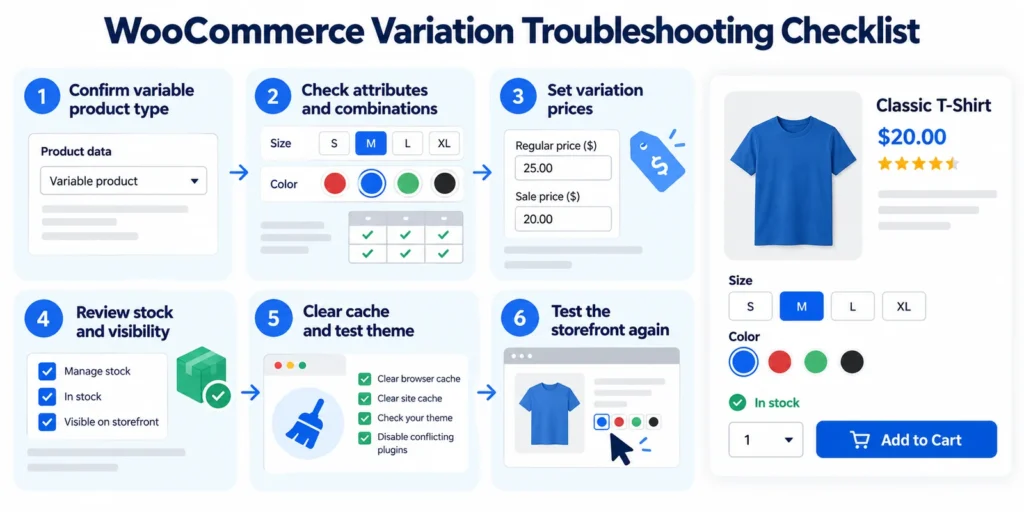
WooCommerce variable product troubleshooting checklist
| What the customer sees | What to check first | Likely next action |
|---|---|---|
| Entire product missing from shop | Publication, catalog visibility, stock | Correct parent product settings |
| Size or color option missing | Attribute setup and variation records | Create or repair the intended combination |
| Option appears but cannot be purchased | Price, stock, enabled status | Correct the affected variation |
| Wrong price after selecting an option | Variation price and caches | Fix price and refresh caches |
| Selection does nothing | Theme, swatches, JavaScript | Run a staging conflict test |
| Options work only on some products | Number of variations, imported data | Compare working and broken products |
How to audit many variable products without editing them individually
Manual troubleshooting is practical for a single product, but it becomes slow when a store has hundreds of variation records. That is where a read-only audit can help prioritize what needs attention.
Altrix Variation Readiness for WooCommerce checks existing variation records for issues such as missing SKUs, missing effective prices and image readiness. The free edition provides those core checks. The Pro edition adds advanced attribute validation, stock warnings and CSV reports for review.
The key distinction is that the scanner does not automatically repair products, generate combinations that do not exist or diagnose every possible front-end JavaScript conflict. You review flagged records, make corrections in the ordinary WooCommerce product editor, and scan again to confirm the relevant data issues were addressed.
For stores with a larger catalog, that scan → review → correct → rescan workflow can help focus attention without automatically changing product information. If your main problem is missing dropdown choices caused by a custom theme, you still need the manual conflict checks described above.
How to prevent missing WooCommerce variations in the future
Establish a brief product-publishing checklist. Before a variable product goes live, confirm that the intended combinations exist, attributes are correctly mapped, every purchasable option has a price, and stock behavior matches your policy. Test the product page in a private browser, including at least one full add-to-cart attempt.
Repeat these checks after bulk CSV imports, inventory synchronizations, major theme changes and WooCommerce updates. Where appropriate, audit variation data regularly and keep a record of what was changed. This is especially useful when different staff members or automated systems update the same catalog.
Treat missing SKUs and variation images as data-quality issues worth reviewing, but remember that a missing SKU or unique variation image does not by itself explain every dropdown visibility problem. Separate catalog readiness from front-end rendering when diagnosing an issue.
Frequently asked questions
Why is my WooCommerce variation not showing in the dropdown?
First confirm that the attribute is enabled for variations and that the exact combination exists. Then check its price, stock and enabled status. If the record is correctly configured, investigate caching or theme and plugin conflicts.
Why does WooCommerce say “Sorry, this product is unavailable”?
The selected combination may not match an available variation, or it may be unavailable under the current pricing and stock configuration. Check the variation record and attribute values before changing front-end code.
Do WooCommerce variations need a regular price?
A variation generally needs a valid effective price to be purchasable. A blank price can cause it to be unavailable. Set a legitimate zero price when a variation is intentionally free; do not leave the price blank.
Why do variations disappear when I mark them out of stock?
When stock is managed at the variation level and the store is configured to hide out-of-stock items, unavailable choices may be hidden from the dropdown. Backorder and parent-level inventory settings can change that behavior.
Can WooCommerce show each variation as a separate product?
Core WooCommerce typically lists the parent variable product in the catalog. Displaying each size or color as its own catalog card generally requires additional functionality or customization.
Will a variation scanner automatically fix missing options?
No. Altrix Variation Readiness is a diagnostic scanner for existing variation data. It can flag supported readiness issues, but product corrections must be made manually and it does not create unconfigured combinations.
Final thoughts
When WooCommerce variable products are not showing correctly, avoid changing random settings in the hope that the dropdown will reappear. First decide whether the product itself is hidden, a variation combination is missing, a record is unpurchasable, or the storefront is failing to render a valid selection.
Work from product type and attributes through price, stock and visibility; then investigate caches, large variation catalogs and theme or script conflicts. For ongoing maintenance, a read-only variation audit can help you find common data issues early, while careful storefront testing verifies that customers can select and buy what you actually sell.
Want a clearer view of existing variation data? Explore Altrix Variation Readiness for WooCommerce, starting with the free edition or choosing Pro for advanced checks and CSV reporting.