
A customer opens your WooCommerce shop, finds a product that looks promising, and sees a blank image or a generic placeholder. They may still read the description, but they cannot properly inspect what they are buying. For an online store, that missing visual information creates unnecessary uncertainty.
Missing product images in WooCommerce can appear after a CSV import, a store migration, an incomplete supplier update, or a rushed product launch. Sometimes an image was never assigned. In other cases, an image is assigned in WordPress but fails to load on the storefront.
The good news is that you can identify these problems systematically. In this guide, you will follow seven practical image checks, inspect individual products, review a larger catalog with Altrix Catalog Readiness for WooCommerce, and verify corrected images on your storefront.
Table of Contents
Types of Missing Product Images in WooCommerce
Not every image problem is the same. Before attempting repairs, identify which type of issue you are seeing.
- Missing main product image: No featured image is assigned to the product. WooCommerce may display a placeholder on shop and product pages.
- Empty product gallery: The main image exists, but additional views are absent. This may be intentional for a simple product; it is not automatically a technical error.
- Missing variation-specific image: A variable product has a parent image, but a color or style option has no dedicated image. WooCommerce may use the parent image as a fallback. Whether a distinct variation image is necessary depends on the product and how it is advertised.
- Broken image display: The image is assigned, but visitors see a blank area or broken graphic because the file, URL, permissions, cache, or delivery system has a problem.
- Wrong image: An image loads successfully but belongs to a different SKU or product variation. A missing-image check alone may not detect this; visual verification is essential.
These differences matter. For example, assigning a new featured image will solve an unassigned main image, but it will not fix a CDN blocking an otherwise valid image URL.
Why do WooCommerce product images go missing?
Most image gaps trace back to a small set of catalog workflows.
1. Products were imported without valid image references
A WooCommerce CSV file might contain product names, SKUs and prices while leaving the image column empty. Sometimes the column contains an external image URL that is no longer accessible. Products can still be created even when the intended photography is incomplete.
2. A migration moved products but not media files
After moving from another store or changing WordPress hosting, product records may point to images that were not copied correctly. The product editor can still reference an old attachment while the actual media file is missing.
3. Suppliers provided incomplete image sets
A supplier spreadsheet may cover 1,000 SKUs but include images for only 850. If the import proceeds without a pre-launch audit, customers may discover those gaps before the store owner does.
4. Variable products share an unsuitable parent image
A blue shirt and a red shirt may both display the same parent photograph. This is not necessarily a missing-image error in WooCommerce, but it can make a color-sensitive product harder to evaluate.
5. Media URLs or thumbnail generation are failing
Changes to file permissions, image optimization, CDN configuration, caching, or theme templates can prevent an assigned image from appearing. These are rendering or delivery problems rather than empty product-image fields.
6. New products were published before the catalog was checked
When multiple team members create products, the description and price may be ready before photography is uploaded. A consistent publication checklist reduces these oversights.
7 Proven Checks for Missing Product Images in WooCommerce
Use these seven checks to narrow down an image problem before making changes. They cover missing assignments, incorrect variant images, and files that fail to display even though a record exists.
- Check the product’s featured image. Open the WooCommerce product editor and confirm that the main image is assigned to the correct product.
- Review product-gallery images. Decide whether the missing secondary views are necessary; an empty gallery is not automatically an error.
- Test color and style variations. Select each important variation on the storefront and confirm that its photograph matches the option customers are buying.
- Open the image file directly. If a featured image is assigned but not visible, test the public URL and look for missing files, permission errors, or blocked requests.
- Verify imported image references. Compare product and SKU records against the CSV source, especially after migrations or bulk supplier updates.
- Run a structured catalog scan. Use a read-only readiness checker to flag parent products without main images, then review the affected records manually.
- Recheck the public storefront. After correcting each issue, view the product, category card, mobile layout, and any connected merchant feed.
These checks help separate unassigned images from theme, CDN, or variation-display problems. Start with the checks that match your symptoms; you do not need to repeat every step for every product.
Find Missing Product Images in WooCommerce Manually
For a small store, reviewing products individually is a reasonable starting point. This method is useful for verifying the problem before changing catalog data.
- Sign in to your WordPress dashboard and open Products → All Products.
- Review the product list and its image thumbnails. A placeholder can indicate that a product needs attention, although the exact display depends on your WordPress and WooCommerce setup.
- Open a product that appears to have no image.
- Find the Product image section of the editor. In the classic product editor, it is generally in the right sidebar; block-based editing interfaces may place the control differently.
- If there is no featured image, choose Set product image, select the correct file from the Media Library, or upload a new image.
- Check the Product gallery if multiple views are important. Save the product by clicking Update or Publish.
- Open the public product URL and its shop or category listing to confirm that the image loads at the intended size.
WooCommerce’s official product-image documentation explains the difference between the main product image, gallery images and catalog thumbnails.
When this approach works well: you have a relatively small catalog, know which products need attention, and want to correct a handful of listings. Its main limitation is that checking hundreds of products by hand is time-consuming and easy to interrupt.
Find Missing Product Images in WooCommerce With a Catalog Audit
For stores with many products, a structured catalog review is more practical than opening every product at random. Finding missing product images in WooCommerce at scale starts with identifying products that have no main image assigned. Altrix Catalog Readiness for WooCommerce is a read-only plugin designed to flag catalog completeness issues, including products without main product images.
It also checks other launch-readiness fields such as missing prices, SKUs, descriptions, useful categories and publication status. The Free Edition already includes the missing-product-image check for parent products. You do not need Pro just to detect that particular issue.
Step-by-step Catalog Audit for Missing Product Images in WooCommerce
- Install the free Altrix Catalog Readiness plugin or use the edition already installed on your store.
- Confirm WooCommerce is active, then navigate to WooCommerce → Catalog Readiness.
- Choose a suitable batch size and select Start Catalog Scan.
- Allow the scanner to work through the catalog. The tool uses sequential batches to make larger reviews manageable.
- Review the results using the readiness statuses, issue filters, search and pagination. Identify parent products flagged for missing images.
- Open each affected record using Edit Product and assign the correct photograph in WooCommerce.
- Save your changes, rerun the scan when appropriate, and check the affected public product pages.
Use the results to create a manageable review list for affected products. The tool does not upload images, repair media files, or automatically change product records. You remain in control of each correction. Scan results are displayed in the browser and clear when the page reloads, so plan your review accordingly.
What does Catalog Readiness Pro add?
The Pro edition is intended for more comprehensive catalog quality assurance. It adds checks such as duplicate SKU diagnostics, shipping-weight and dimension readiness, variable-product readiness, external and downloadable product checks, and CSV exports for all results or problem-only results.
That is valuable when you need a broader pre-launch or pre-migration checklist. However, do not confuse variable-product readiness with a guarantee that every variation image is audited. Inspect variation photography separately when each color or style needs its own picture.
Explore the Altrix Catalog Readiness Free and Pro editions to choose the appropriate level of catalog review.
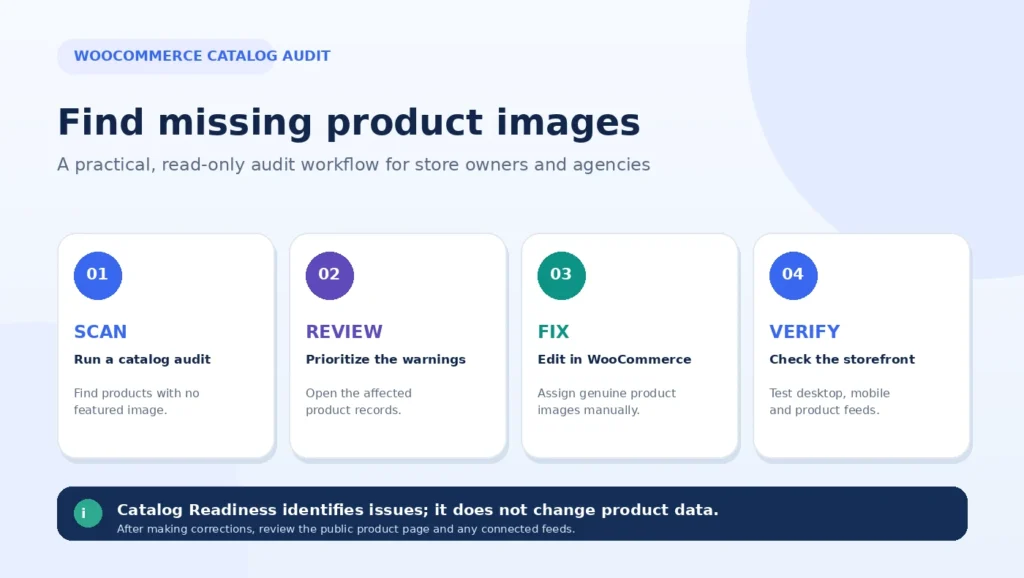
Scan, review, fix and verify: a practical workflow for missing WooCommerce product images.
How to Fix Missing Product Images in WooCommerce
After confirming that missing product images in WooCommerce are caused by unassigned featured images, use this repeatable correction process:
- Confirm the SKU. Match the product name, SKU, color and model to your original supplier or photography record.
- Choose an accurate image. Do not substitute an unrelated stock photo or a generic promotional graphic for the actual item.
- Prepare the file. Use suitable dimensions, appropriate cropping and an efficient image format. WooCommerce recommends uploading product images of at least 800 × 800 pixels for clear presentation in common layouts.
- Assign the main image. Open the product editor and choose Set product image. You can select an existing Media Library image or upload a new one.
- Add gallery views when useful. Apparel, furniture and complex products often benefit from images that show important details or alternate angles.
- Add meaningful alternative text. Describe the visible product accurately, such as “Women’s navy cotton shirt, front view,” rather than repeating a keyword unnaturally.
- Update and test. Confirm the image on the product page, catalog cards, mobile view and any relevant connected feeds.
If you use the same image in several places, avoid making unnecessary duplicate uploads. Reusing an existing Media Library attachment is often simpler to maintain.
How to Check Missing Images on WooCommerce Variations
Variation images deserve a separate check, especially for clothes, shoes, furniture finishes and products whose appearance changes with the selected option. Some apparent cases of missing product images in WooCommerce are actually variations inheriting a parent photo, so check what shoppers see before treating the empty field as an error.
Open Products → All Products, select a variable product, and review Product data → Variations in the classic editor. Expand the relevant variations and inspect their assigned imagery. Choose a correct photograph where the selected variation needs a distinct view, then save your changes.
Next, test the product as a shopper. Select each color or style and confirm that the displayed image represents that choice. A variation without its own image may intentionally inherit the parent image, so do not treat every empty variation-image field as a defect.
Recent WooCommerce versions also provide native variation galleries. If your installation supports them, test image switching and gallery behavior with your active theme. More importantly, ensure the main image accurately represents the option being sold.
For a color-based listing submitted to Google Merchant Center, verify that the submitted product image corresponds to the actual color variant. A technically complete parent image is not always enough for feed accuracy.
What if a WooCommerce product image is assigned but not displaying?
Not every image display failure is caused by an unassigned featured image. An image that disappears on the storefront is a different issue from a missing featured-image assignment. Before uploading replacements, run these checks:
- Open the media file directly. From Media → Library, open the image URL in a private browser window. Check whether it loads or returns an error.
- Confirm the attachment still exists. A database attachment record can remain even if the underlying file was removed during migration or cleanup.
- Check the page on another device. If the image appears in the editor but not on the storefront, inspect theme templates, caching, lazy loading and image-optimization behavior.
- Review CDN and security rules. An image server may block public requests, use an expired URL or serve a different cached asset.
- Investigate thumbnails. If a full-size image loads but catalog thumbnails do not, review image sizes and regenerate thumbnails only when needed, after making a backup.
- Test the exact public URL. A file that loads for logged-in administrators may still be blocked for customers or Google.
A catalog scanner that checks for unassigned images should not be assumed to detect every broken URL, CDN problem or theme-rendering issue. Those conditions require separate technical investigation.
Prevent Missing Product Images in WooCommerce After Bulk Imports
Preventing missing product images in WooCommerce is much easier than fixing hundreds of records after launch. Before importing supplier data or migrating an established store, follow a controlled workflow.
First, validate your input data. Check that each SKU has the expected image reference and that the image file or URL exists. Where your workflow requires variation-specific images, verify those mappings as well.
Second, import a small sample. Select several simple and variable products. Confirm their featured images, gallery images, SKUs and variant behavior before importing the whole catalog.
Third, review the import results. Investigate image download errors and unmapped columns instead of assuming that a successful product import means all images were attached.
Fourth, run a catalog audit. Use Catalog Readiness to identify parent products still missing main images and other essential fields. Complete a separate visual check for wrong-image or variation-image problems.
Finally, check the storefront. Review a selection of shop listings and product pages on desktop and mobile. Keep a record of the problems corrected so future imports can be improved.
Product Image SEO and Google Merchant Center Considerations
Resolving these image gaps affects more than the appearance of an individual product page. It helps shoppers understand a product and gives search engines and shopping platforms usable visual content.
For on-site image SEO, use filenames that describe the item, meaningful alt text, sensible compression and consistently sized product photography. For example, navy-cotton-shirt-front.webp is more descriptive than IMG_00482.webp. Alt text should describe what is visible; it is not a place to repeat “WooCommerce product images” across every file.
Google Merchant Center requires a valid product image URL for product listings. Missing, broken, inaccessible or irrelevant image links can prevent individual products from being approved. Merchant Center also has image dimension, quality and accuracy requirements, including specific guidance for variants. Review its image-link requirements for current specifications before submitting a feed.
Important distinction: The featured and in-article graphics accompanying this tutorial are editorial illustrations. They are not suitable replacements for real product photography in Merchant Center feeds.
A Practical Product-Image Audit Checklist
Use this checklist before launching a store, importing products or publishing a major catalog update. It helps prevent missing product images in WooCommerce from reaching customers:
- Every important published product has an appropriate featured image.
- Images display correctly on shop, category and individual product pages.
- Variable products show the correct visual when an appearance-related option is selected.
- Product photos match SKUs and actual inventory.
- Image URLs are publicly accessible and do not lead to broken files.
- Main product images are large enough, clear and sensibly compressed.
- Descriptive filenames and useful alt text are added where appropriate.
- Google Merchant Center image-link warnings are reviewed if a feed is in use.
- Missing-image findings are corrected manually and checked again on the live store.
For an agency managing several client stores, document the audit date, affected products and corrective actions. This makes launch reviews more consistent and helps explain what was checked during a handover.
Frequently asked questions
How do I find missing product images in WooCommerce?
You can inspect products individually under Products → All Products and look for unassigned featured images. For a larger catalog, a read-only scanner such as Altrix Catalog Readiness can flag parent products that have no main product image assigned.
Can WooCommerce automatically detect every broken product image?
Not by simply checking whether a featured image has been assigned. A product may have a valid attachment reference while the image fails to load because of a missing file, inaccessible URL, cache, CDN or theme issue. Broken-image delivery needs additional testing.
Does Altrix Catalog Readiness Pro automatically fix missing images?
No. Both the Free and Pro editions perform read-only scans. You open the affected product in WooCommerce and decide what to correct. Pro adds broader readiness checks and CSV reporting, not automatic image replacement.
Do I need the Pro edition just to find missing main product images?
No. The Free Edition includes missing-main-image checks for parent products. Pro is useful when you also want advanced catalog diagnostics and exportable reports.
Do all WooCommerce variations need individual images?
Not necessarily. A variation can use a parent image when that image represents the item accurately. But customers should see a correct picture when appearance changes, such as a red-versus-blue option. Merchant Center listings may also require variant-specific images.
Can missing product images affect Google Shopping listings?
Yes. Google Merchant Center requires a valid and accessible image link for each submitted product. Products with missing or invalid image links may be disapproved until the issue is corrected.
How often should I review my WooCommerce product images?
Run an image check after major imports, migrations, supplier catalog updates and significant theme or media changes. For busy stores, make it part of your regular catalog quality-assurance routine.
Conclusion: Check Missing Product Images in WooCommerce Before Launch
Missing product images in WooCommerce are more than a cosmetic issue. They can make it harder for customers to evaluate products, reduce the quality of your storefront and create problems for connected shopping channels. The most reliable approach is to identify the issue, confirm its cause, make the appropriate correction and verify the result.
If you manage a small catalog, start with WooCommerce’s product editor. If you handle hundreds of products or repeated supplier imports, use a structured audit to reduce the amount of manual searching.
Ready to check your catalog? Start with the free Altrix Catalog Readiness for WooCommerce plugin, or explore Catalog Readiness Pro for additional diagnostics and CSV reporting. Both editions help you find problems while leaving the final product edits in your hands.