
A product can look complete in the WooCommerce editor and still disappoint a shopper. A color option may have been renamed, a size combination may never have been created, or a variation may exist without a usable price. These issues are easy to overlook when a store has dozens of variable products or a catalog has just been imported.
If you want to check WooCommerce variation attributes before publishing, the safest approach is to examine the parent product’s attributes, inspect the actual variation combinations, and verify the supporting product data. This guide shows you how to do that manually and how Altrix Variation Readiness Pro can help locate certain issues across a larger catalog without changing your products automatically.
What Are WooCommerce Variation Attributes?
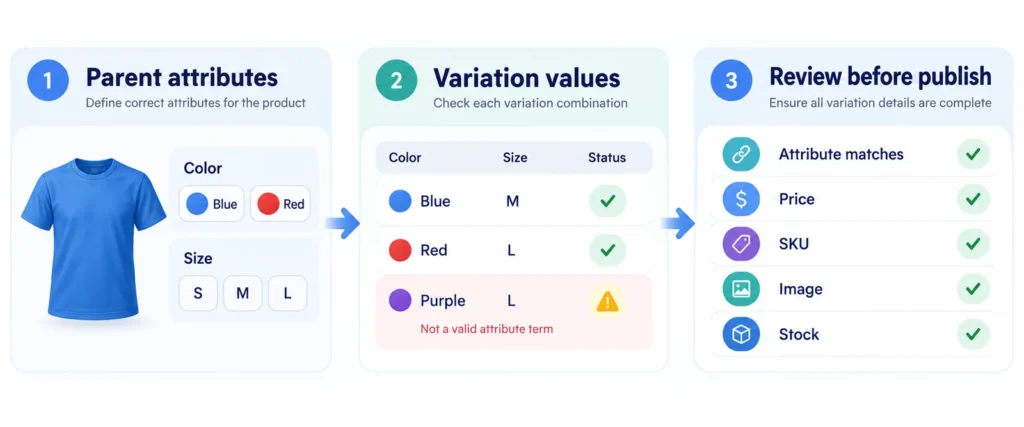
Attributes describe the choices available for a product. For example, a T-shirt may have a Color attribute with Blue and Red values and a Size attribute with Small, Medium, and Large values. WooCommerce uses those values to define individual variations, such as Blue / Medium or Red / Large. Each variation can have its own price, SKU, stock settings, and image.
A parent variable product stores the available attributes and their permitted values. A variation represents a particular combination of those values. The two must agree. If a variation references an old or removed value, its configuration deserves review even when the product appears normal in the admin list.
WooCommerce supports global attributes created at Products → Attributes, which can be reused across multiple products, as well as custom attributes created for an individual product. Consistent global attributes are often easier to maintain in a growing catalog, but either approach can work when configured correctly.
Table of Contents
Why Check Variation Attributes Before Publishing?
Incorrect or incomplete variations can interrupt the shopping experience. A customer might select a color and size but discover that no purchasable variation exists. A listing could display an option that doesn’t match the intended item. Missing prices may prevent a variation from appearing as expected, while inconsistent attribute values can complicate imports and maintenance.
A pre-publish check helps you:
- Confirm that customer-facing color, size, material, or capacity choices are intentional.
- Detect invalid or outdated values carried over from previous edits or imports.
- Check that the variations you intend to sell have actually been created.
- Review prices, SKUs, images, and stock settings alongside the attributes.
- Catch preventable problems before a new product launch, migration, or bulk update.
The goal is catalog accuracy, not simply passing a plugin scan. A tool can highlight records that deserve attention, but only a store administrator can decide whether a particular product option or stock policy is correct for the business.
Step 1: Confirm the Product Type and Parent Attributes
In the WordPress dashboard, go to Products → All Products and open the item you want to check. In the Product data panel, confirm that the type is set to Variable product. If it is set to Simple product, the variation workflow will not behave as expected.
Open the Attributes tab. Review the attribute names and selected terms. For a T-shirt, you might expect:
| Attribute | Allowed values |
|---|---|
| Color | Blue, Red |
| Size | Small, Medium, Large |
Ask three questions: Do the names make sense to the buyer? Are the values spelled and organized consistently? Are the selected values genuinely available for this product? A discontinued color should not remain in the parent attribute list merely because it was offered last season.
If your store uses global attributes, check their terms under Products → Attributes as well. Avoid creating near-duplicate terms such as Grey and Gray unless they represent intentionally different options in your catalog.
Step 2: Make Sure the Attributes Are Used for Variations
For each attribute intended to determine a purchasable option, ensure it is configured for variations in your WooCommerce version. Depending on the interface, this may appear as a Used for variations checkbox or equivalent attribute setting. Save the attributes after making changes.
Not every descriptive attribute needs to create variations. For example, a T-shirt’s fabric composition may be useful information without being a selectable purchase option. By contrast, size and color commonly determine which variation the shopper can buy.
This distinction matters because simply adding an attribute to a product does not necessarily create a purchasable variation. The actual combinations are managed separately in the Variations tab.
Step 3: Review Every Intended Attribute Combination
Open Product data → Variations and compare the existing variation list with your parent attributes. If the parent offers two colors and three sizes, six combinations are mathematically possible—but you should create only the combinations you actually stock or intend to sell.
For example, suppose Blue is available in Small, Medium, and Large, while Red is available only in Medium and Large. Your intended set is five variations, not six. A missing Red / Small entry is not an error when that product is never sold.
On the other hand, if Blue / Medium is advertised but absent from the variation list, the customer cannot buy that exact option until it has been configured. Depending on the situation, use Generate variations or Add manually to create the required combinations. Review any generated variations carefully before saving, especially in a live store.
Also inspect any variation set to Any Color, Any Size, or a similar wildcard option. This can be intentional: a single variation may cover multiple attribute selections. Do not automatically treat a wildcard as invalid. Confirm that its pricing, inventory, and ordering behavior match the store’s intended setup.
Step 4: Check for Invalid or Orphaned Attribute Values
An invalid or orphaned variation value is an explicit variation attribute value that no longer fits the parent product’s current allowed values. This can happen when a team member renames or deletes a term, edits a parent product, or imports variation data from a different system.
Imagine that a parent product allows Blue and Red, but one existing variation still refers to Purple. The old variation deserves investigation because Purple is not among the parent’s current selected color values. Another example is a product whose parent offers Small, Medium, and Large while a legacy variation still references Extra Large.
Check the parent attribute list against each variation’s explicit selections. Correct the parent values or variation assignments according to what the business actually sells. Be especially careful with imports: global attribute terms use slugs internally, so mismatched names and slugs can create confusing results.
After correcting attribute assignments, save the product and reopen the storefront preview. WooCommerce notes that when you modify attributes after variations have been created, existing combinations may need to be redefined.
Step 5: Check the Price of Each Variation
A correct combination of size and color is only part of a sellable variation. Expand each variation and review its Regular price and, where applicable, Sale price. Make sure the active effective price is appropriate for the item. A blank price is not the same as a deliberately free product.
A missing price can cause a WooCommerce variation to be unavailable or not displayed as expected. Review sale-price schedules and make sure prices are not accidentally copied from another size or color during a bulk edit.
For products with different costs or selling prices by size, do not assume that the parent product’s displayed price range proves every variation is configured correctly. Check the individual records that shoppers will select.
Step 6: Review SKUs, Stock, and Backorders
SKUs help staff and connected systems identify products and variations consistently. WooCommerce does not require every variation to have its own SKU in every store, but missing SKUs can be a practical concern for inventory management, fulfillment, reporting, and integrations.
Inspect whether your business expects a unique identifier for every variation. Check for blanks, accidental reuse, and inconsistent naming conventions. If variations have separately managed stock, verify quantities and inventory settings at the correct level.
Also review In stock, Out of stock, and On backorder configurations. These are not automatically errors. A deliberate preorder can be legitimate, while an unexpected out-of-stock setting may prevent a customer from purchasing an otherwise valid option. Treat warnings as prompts for a business decision, not instructions to change every record.
Step 7: Check Variation Images and Parent-Image Fallback
Shoppers often expect the product image to reflect their selected option. A Red T-shirt should ideally show the red item when that option is chosen. Open the variation image settings and confirm that the image represents the correct product where a dedicated image is needed.
WooCommerce can also display a parent product image when a variation has no separate image. This fallback may be acceptable for items where the appearance does not change, but it can be confusing for products distinguished by color, pattern, or finish.
Check three outcomes: dedicated variation image, intentional parent-image fallback, and no usable image. Missing visual assets should be corrected according to your catalog standards; fallback images should be reviewed rather than blindly treated as failures.
Step 8: Test the Customer-Facing Product Page
Admin data checks are not a substitute for a real storefront test. Preview the product on desktop and mobile, open the option selectors, and choose several common and uncommon combinations.
Verify that the correct price and image appear, that the stock message is sensible, and that an intended purchasable combination can be added to the cart. Check the cart line item to confirm that the selected attributes are recorded correctly. If you changed variation data on an established store, clear relevant caches and repeat the test.
For a newly launched product, test at least one variation for each important attribute value and each different pricing or stock behavior. On a larger catalog, use a risk-based sample plus an automated or semi-automated data audit rather than clicking every option manually.
Common WooCommerce Variation Attribute Problems and What to Check
| Problem | Likely area to inspect | Recommended action |
|---|---|---|
| A size or color is missing from the storefront | Parent attributes and variation list | Confirm the option is selected and the intended combination exists. |
| A variation refers to an old value | Parent attribute terms and variation assignment | Compare explicit values and correct the mismatch. |
| An option exists but cannot be purchased | Price, stock, enabled status, or missing combination | Review the actual variation configuration and storefront behavior. |
| Different combinations show unexpected prices | Variation-level pricing | Verify regular and sale prices for each applicable variation. |
| The wrong image appears after choosing a color | Variation image and parent-image fallback | Assign the intended image or confirm fallback is acceptable. |
| A bulk import produces inconsistent options | Attribute mapping, slugs, and imported variation data | Validate the source file and review parent-child attribute relationships. |
| The product behaves differently after an edit | Saved variations and caches | Save changes, check the resulting combinations, and retest. |
Do not resolve these problems by deleting variations indiscriminately. First confirm what the business intended to sell, preserve a suitable backup, and test sensitive changes on a staging copy where practical.
How Altrix Variation Readiness Pro Helps Audit More Variations
Manual checks work well when you have one or two products. They become slower when a catalog contains hundreds of variations imported from suppliers, synchronized from another platform, or edited by multiple administrators.
Altrix Variation Readiness Pro for WooCommerce is a read-only diagnostic plugin intended to help administrators find variation-readiness issues. Its Pro edition checks explicit attribute values against the parent product, helping highlight invalid, inconsistent, or orphaned values for review. It also identifies missing effective prices and missing SKUs, reviews image readiness and parent-image fallback, and presents stock-related warnings.
The Pro edition supports complete and problems-only CSV exports for audit records and team review. Sequential batch scanning is designed to make larger catalogs easier to inspect. The scanner runs within your WordPress environment and does not require sending variation data to an external Altrix Web scanning service.
A practical workflow is straightforward:
- Install and activate the plugin on a supported WooCommerce installation.
- Run a readiness scan and review the results by issue type.
- Open the affected product in the standard WooCommerce editor.
- Decide on the appropriate correction and save the product manually.
- Rescan and perform a storefront spot-check before publishing.
Important: The plugin does not automatically repair attribute terms, create missing combinations, assign prices, or change stock. It also cannot guarantee that every variation is commercially correct. It helps you find records worth reviewing so you can make informed edits.
If you only need basic checks for missing SKUs, effective prices, and image readiness, the free Altrix Variation Readiness plugin on WordPress.org is a useful starting point. Advanced attribute validation and CSV reporting are Pro features.
Pre-Publish WooCommerce Variation Checklist
Use this short checklist before publishing a new variable product or approving a major catalog update:
- The product type is Variable product.
- Attribute names and available values match the real products offered.
- Attributes intended for selection are configured for variations.
- Every intended purchasable combination exists; unoffered combinations are intentionally excluded.
- Explicit variation attribute values are valid for the parent product.
- Wildcard or “Any” values are deliberate and tested.
- Each purchasable variation has an appropriate effective price.
- SKU and inventory settings meet the business’s operating policy.
- Stock and backorder messages reflect actual availability.
- Variation images or parent-image fallbacks are appropriate.
- At least the important combinations work on desktop and mobile.
- The selected variation reaches the cart correctly.
- The product has been saved, reviewed, and rechecked after changes.
Frequently Asked Questions
How do I check WooCommerce variation attributes?
Open Products → All Products, edit a variable product, and review Product data → Attributes. Confirm the available terms, then inspect Variations to check that each explicit variation value corresponds to an allowed parent value. Review prices, stock, SKUs, and images before testing the customer-facing page.
What does “Used for variations” mean in WooCommerce?
It tells WooCommerce that an attribute helps define purchasable variation choices. A descriptive attribute can exist without determining a variation, but a size or color selector normally needs to be configured for variation use.
Why are some WooCommerce variations not showing?
Possible causes include an uncreated variation combination, an unavailable or missing price, stock visibility settings, incorrect parent attributes, or caching and plugin conflicts. Start by confirming that the intended combination actually exists in the Variations tab.
Is a blank variation attribute always an error?
No. A blank or Any selection may intentionally act as a wildcard. Review whether it makes sense for the product and whether its pricing and stock behavior are correct before treating it as a problem.
Can Altrix Variation Readiness Pro fix invalid attributes automatically?
No. The plugin is read-only. It flags relevant readiness issues and provides reporting; an authorized administrator makes corrections in the ordinary WooCommerce product editor and then rescans.
Should I scan variations only before a new product launch?
No. Repeat a readiness review after bulk imports, supplier updates, migrations, changes to global attributes, and other edits that could affect variation data. Regular checks are particularly useful for stores with many variable products.
Final Thoughts: Review First, Publish with Confidence
Taking a few minutes to check WooCommerce variation attributes before publishing can prevent confusing options, incomplete variation records, and unnecessary product maintenance later. Start with the parent attributes, confirm each intended combination, and finish with price, SKU, stock, image, and storefront checks.
For larger catalogs, a read-only audit can reduce the time required to locate potential issues while keeping product-editing decisions in your hands. Explore Altrix Variation Readiness Pro for advanced attribute validation and CSV reporting, or start with the free plugin for the core SKU, price, and image checks.
For additional information about WooCommerce’s built-in configuration, consult the official WooCommerce variable-products guide.