
A WooCommerce Google Merchant Center feed can make your products eligible for additional Google shopping experiences, but a feed is only as reliable as the product information behind it. Missing images, outdated prices, unclear variation details and incorrect identifiers can lead to warnings, limited visibility or product disapprovals.
Before connecting a WooCommerce store to Google Merchant Center—or resubmitting products after errors—review the catalog itself. That means checking the details saved in WooCommerce, the information exported by your feed tool, and what shoppers actually see on the product page and at checkout.
This practical WooCommerce product feed checklist explains what to inspect, which mistakes to prioritize and how to repeat the process without changing products blindly. It also shows where Altrix Merchant Feed Readiness for WooCommerce can help with a read-only catalog audit.
Quick answer: Start with accurate titles, descriptions, working product URLs, suitable images, prices, availability and product identifiers. Then inspect variations, shipping and returns, structured data and account-level requirements. A clean catalog scan is useful preparation, but it does not guarantee Google Merchant Center approval.
Table of Contents
Why WooCommerce Google Merchant Center feed readiness matters
Google Merchant Center uses product data to understand what you sell and how an offer should appear on eligible Google surfaces. Depending on your account, product and country, those surfaces may include free listings and Shopping ads. Google’s product data specification describes the relevant attributes and their requirements.
A product may look complete inside the WooCommerce editor yet still have a feed problem. For example, a T-shirt could have a strong parent-product description while its blue, large variation has no effective price. Or a sale price in the feed could remain active after the promotion has ended on the website.
These differences matter because Google evaluates both submitted data and the shopping destination. A technically valid feed cannot compensate for an inaccessible product page, contradictory prices or a policy issue affecting the merchant account.
Think of feed readiness as three connected checks:
- Catalog quality: Are the WooCommerce product and variation fields accurate and complete?
- Feed consistency: Does the feed or integration send the right values for the correct offer?
- Store and account readiness: Can shoppers see truthful information, complete checkout and find the business policies they need?
The essential product data checklist
Use the following overview before examining individual products. Not every attribute is mandatory for every country, category or product type, so apply the current Google requirements for your target market.
| Product detail | What to verify | Example problem |
|---|---|---|
| Product ID | Each submitted offer has a stable, unique identifier | Two variants are exported with the same ID |
| Title and description | Clear, factual information matches the item | Missing title or copied generic description |
| Link and image link | URLs work and identify the advertised product | Broken image URL or wrong variant landing page |
| Price and sale price | Correct currency, amount and promotional status | Feed says $29 while the page says $39 |
| Availability | Feed, product page and checkout agree | Out-of-stock item appears in stock |
| Brand, GTIN and MPN | Correct manufacturer identifiers when applicable | Invented barcode or absent known GTIN |
| Variations | Size, color and other options are mapped correctly | Blue variation opens the red product option |
| Shipping and returns | Account settings and website policies are accurate | Unexpected shipping charge at checkout |
A WooCommerce SKU is useful for internal catalog management, but an SKU is not automatically a GTIN. Keep these concepts separate when auditing your data.
1. Review product titles and descriptions
A useful product title identifies what is being sold without keyword stuffing or unsupported promotional claims. Review the product name in WooCommerce and the actual title transmitted by your feed tool. Some integrations transform or supplement titles, which means the exported result may differ from the WordPress editor.
For example, “Men’s Cotton Crew-Neck T-Shirt — Navy — Large” is more informative than “Best Quality T-Shirt at Cheapest Price.” The exact format should fit your merchandise and Google’s category-specific guidance; there is no single title formula for every store.
Check that your descriptions explain relevant features, material, compatibility, dimensions or other details shoppers need. Avoid copying unrelated marketing text across hundreds of products. If a product has only a short description, check what your feed integration exports and whether that output provides enough accurate information.
Checklist:
- Product name is present, readable and specific.
- Product description matches the item and landing page.
- Important variant details are represented correctly.
- Promotional text does not replace factual product information.
- Text is free from broken formatting and misleading claims.
2. Verify product URLs and landing pages
Every submitted product needs a suitable landing page on the verified store domain. Open product links on desktop and mobile, including in a private browser window. Check whether they load without login requirements, redirect loops or intrusive pop-ups that conceal the offer.
If the feed advertises a specific variant, test whether its URL opens with that option selected and displays the matching price and availability. A page that always defaults to another variation can create inconsistencies even when the feed fields themselves appear correct.
Also confirm that customers can purchase the advertised item through a functional checkout process. A feed readiness review should never stop at the WooCommerce product editor.
3. Inspect product images and image accessibility
Product imagery is one of the most visible parts of a Shopping listing. Verify that the featured image shows the actual product, is clear, loads reliably and matches the product or variation offered.
Google’s Merchant Center image rules prohibit many promotional overlays, placeholders and watermarks in the primary product image. Do not confuse a decorative blog illustration with an acceptable product photograph for a Merchant Center feed.
Important upcoming requirement: Google has announced that a minimum 500 × 500-pixel resolution will be enforced for Merchant Center product images beginning January 31, 2027. Review smaller images in advance, and prefer genuine high-resolution source photographs rather than enlarging poor-quality thumbnails. See Google’s image requirements.
For each product, inspect whether the main image exists, is accessible to Google, represents the correct item and is large enough. For variants that differ visibly, use the appropriate variant imagery where supported. Also check that image URLs are not blocked from crawling.
4. Check regular prices, sale prices and currencies
Price discrepancies can cause products to be rejected or flagged. Compare the regular and sale prices stored in WooCommerce against the feed output, the live product page and the checkout experience.
Pay particular attention to scheduled sales, tax configuration, currency conversion and variations with different prices. A store-wide sale can expose problems that were not visible during the original feed setup.
For example, if a backpack is advertised at $45.00 in Merchant Center but the customer sees $49.00 on its landing page, investigate which system has the outdated value. Correct the source, refresh the feed through your usual integration and verify consistency again.
An audit tool can identify certain missing-price or sale-price conditions in WooCommerce, but only a full feed-to-page comparison can establish whether Google’s submitted value matches the public offer.
5. Match availability and stock information
Check stock status for simple products and each sellable variation. If a size is out of stock, make sure the submitted availability reflects that specific offer. Review whether backorders and preorders are handled correctly by the feed integration and the store’s actual purchasing flow.
Do not rely on a parent product’s generic “In stock” label when a selected variation has a different status. Inspect recent product updates and confirm that changes have reached your connected data source.
Price and availability should also remain consistent in any product structured data on the landing page.
6. Audit brand, GTIN, MPN and SKU information
Manufacturer identifiers help Google distinguish products, but the right data depends on the item. A GTIN is a globally recognized trade item number, while an MPN is a manufacturer part number. A brand identifies the manufacturer or brand owner. An internal SKU is the store’s own stock-keeping reference and does not replace a real GTIN.
If a manufacturer has assigned an identifier, submit the genuine value according to Google’s rules. Do not create a random barcode simply to clear a warning. For custom-made or genuinely unbranded goods without assigned identifiers, follow the applicable guidance for unavailable identifiers instead of fabricating them.
For products with several sellable variants, identifiers may differ by variant. Review these records individually rather than assuming the parent value applies to every variation.
Altrix Merchant Feed Readiness Pro includes configurable mapping for brand, GTIN and MPN and offers GTIN validation checks. These features help identify catalog concerns; they do not assign authentic manufacturer identifiers to products automatically.
7. Inspect WooCommerce variable products carefully
Variable products deserve a separate pass because each child variation may have its own size, color, price, image, SKU and stock information.
Consider a shirt with three colors and four sizes. The parent product might look complete while one of the twelve purchasable combinations has no price or an unavailable image. A parent-level check alone may miss that condition.
Review the variations that your feed actually submits. Make sure they are uniquely identified, grouped appropriately where required, described with the right attributes and connected to landing pages that show the advertised selections. Also confirm that your feed integration exports the correct product-level and variant-level fields.
This is a particularly useful area for a deeper catalog audit: the Pro edition of Altrix Merchant Feed Readiness adds variation-level scanning to its parent-product checks.
8. Review Google product categories and relevant attributes
Product classification and additional attributes can affect how Google understands an item. Review the feed’s Google product category where appropriate, along with attributes relevant to your inventory, such as color, size, gender, age group, material or condition.
The fields required or recommended can differ between apparel, electronics, home products and other merchandise. Do not fill every possible attribute with guessed values. Accurate, category-relevant data is more useful than a spreadsheet that looks complete but contains unreliable entries.
Remember that product categories are often controlled by the feed integration or Merchant Center configuration rather than a default WooCommerce field. Confirm where the value is mapped and inspect the actual output.
9. Check shipping, taxes, returns and business transparency
A well-organized catalog can still encounter Merchant Center problems when business information or checkout policies are inconsistent. Review shipping settings for the target country, delivery charges, return details, contact information and the availability of meaningful customer support.
Verify that customers can understand the total purchase cost before placing an order. Make sure refund and return information is accurate and accessible. Certain product categories, countries and marketing methods may have additional rules.
These are store-level and account-level responsibilities. A product-data scanner does not independently verify every Google Shopping policy or guarantee account approval. For policy review, consult Google’s Merchant Center misrepresentation guidance.
10. Compare feed data with product structured data
A WooCommerce store may publish Product and Offer structured data through its theme or SEO plugins. This markup can help Google understand prices, availability and other product information on the page.
Compare the information in your Merchant Center source with the values visible to shoppers and represented in structured data. Inconsistent offers can trigger issues. Avoid overlapping plugins that create conflicting markup for the same product.
Google explains that using both valid product structured data and Merchant Center data sources can broaden eligibility for certain search experiences. Neither markup nor a feed guarantees display or ranking; see Google’s product structured data introduction.
11. Check the feed generator or integration separately
WooCommerce’s catalog fields are only one part of the process. Whether you use a dedicated feed plugin, a channel integration or another export workflow, inspect the resulting product data source before relying on it.
Make sure mappings point to the intended fields, product exclusions are intentional, the update schedule is appropriate, and errors do not prevent recent changes from reaching Merchant Center. Review both the source file and the product details shown in Merchant Center.
Do not confuse auditing with feed generation. Altrix Merchant Feed Readiness is an independent, read-only WooCommerce auditing utility; it does not replace your existing feed creator, automatically repair product records or submit products to Google.
How to perform a WooCommerce feed readiness audit
The most efficient approach is a repeatable scan → review → correct → rescan process, followed by a separate feed and account check.
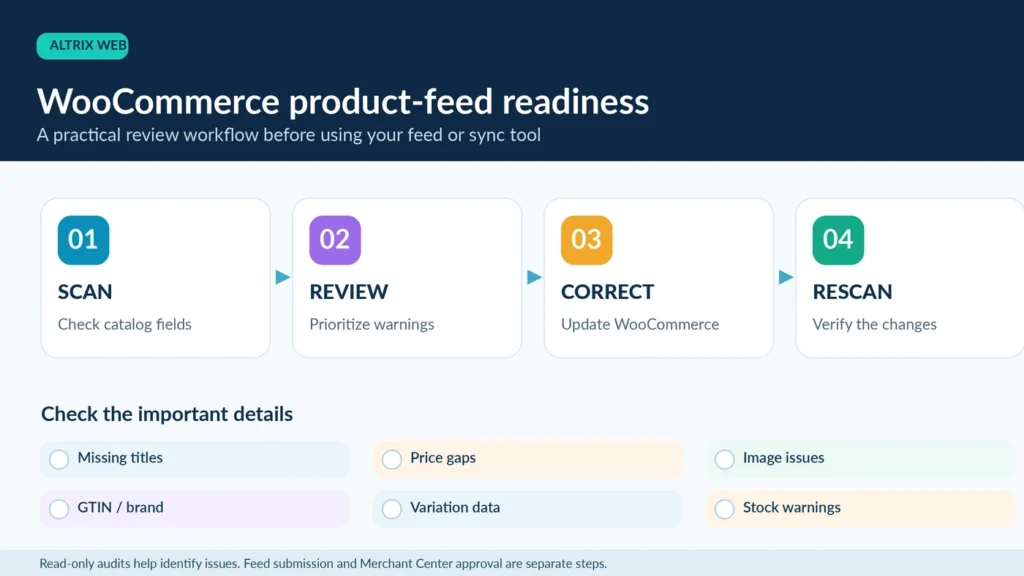
Step 1: Scan published WooCommerce products
Start with a catalog review covering essential product fields. Identify missing titles, descriptions, prices, images and SKU warnings. Record which products require attention instead of changing many unrelated records at once.
Step 2: Review and prioritize findings
Group issues according to their likely impact. Missing prices or images on important products deserve attention before minor wording improvements. Pay special attention to high-selling items and variants that you actively advertise.
Step 3: Correct product information in WooCommerce
Open the affected product or variation and verify the real source information. Obtain authentic manufacturer data where required, replace unsuitable images, complete product details and correct price or stock configuration. Do not enter invented information merely to make warnings disappear.
Step 4: Rescan the catalog
Run the same checks again to confirm that the expected issues have been addressed. Save a record of what changed, especially when several people manage the store.
Step 5: Refresh the feed and inspect Merchant Center
Use your existing feed tool to regenerate or synchronize the data. Then review Products → Needs attention in Merchant Center for feed, landing-page, account and policy issues. Google’s interface identifies problems that a WooCommerce-only scan cannot see. Recheck after Google has processed the updated source.
Where Altrix Merchant Feed Readiness Pro fits
For stores with many products, manually opening every WooCommerce record takes time. Altrix Merchant Feed Readiness provides a dashboard for identifying common catalog-readiness concerns without automatically modifying your store’s products.
The Free version checks published parent products for missing titles, descriptions, prices, images and SKU warnings, with search, filtering, pagination and sequential batch scanning.
The Pro version adds variation-level auditing, configurable brand/GTIN/MPN mapping, GTIN validation, more detailed image checks, sale-price checks, stock and backorder warnings, and CSV reporting. These documented features are particularly relevant when reviewing larger or more complex catalogs.
The tool is designed to run alongside your preferred feed-generation plugin. It does not send catalog scan data to Altrix Web for remote analysis, automatically update products, ensure Google policy compliance or guarantee Merchant Center approval.
Want to make the initial catalog review more systematic? Compare the Free and Pro versions of Altrix Merchant Feed Readiness and choose the level of auditing that fits your WooCommerce store.
Common feed problems: three practical examples
Example 1: A missing variation price. A shoe has five sizes. Four variations have valid prices, but the fifth does not. The parent product looks fine, so a basic visual check misses the problem. The correction is to open that variation, verify the intended selling price and check the exported offer after updating it.
Example 2: A misleading barcode. A store imports a supplier spreadsheet where the internal SKU was copied into the GTIN column. The numbers appear populated, but they are not authentic GTINs. The correction is to obtain the manufacturer’s real identifier where one exists, remap the data accurately and refresh the feed.
Example 3: A sale-price mismatch. A sale expires on WooCommerce, but an infrequently refreshed feed still advertises the discounted price. The correction is to check the sale schedule, ensure the feed updates appropriately and verify the public page, checkout and Merchant Center data agree.
These examples are illustrative, not diagnoses of a particular store or guarantees that any single change will resolve a Google account issue.
Final pre-submission checklist
Before calling your feed ready, confirm the following:
- Product titles and descriptions identify the actual items.
- Each submitted offer has a stable, unique ID and working landing page.
- The principal image is accurate, accessible and meets applicable requirements.
- Prices, currencies and sale details match the website and checkout.
- Availability is accurate for each submitted offer or variation.
- Authentic brand, GTIN and MPN information is supplied when applicable.
- Product variants and relevant attributes are mapped correctly.
- Shipping, returns, business information and checkout are transparent.
- Product structured data does not contradict the public offer.
- Feed export settings and synchronization have been checked.
- Merchant Center’s Needs attention area has been reviewed.
- Outstanding account-level and policy issues have a separate action plan.
Frequently asked questions
Does WooCommerce automatically create a Google Merchant Center feed?
Not by itself in every installation. You need an appropriate integration, feed-generation tool or other supported method to provide product data to Merchant Center. Confirm exactly how your chosen integration handles variation fields and updates.
Is SKU mandatory for every Google Merchant Center product?
No. SKU is an internal WooCommerce inventory identifier; it is different from Google’s offer ID and manufacturer identifiers such as GTIN. Missing SKUs can still be useful catalog-quality warnings, but the applicable Merchant Center requirements should determine what must be submitted.
Can I submit products without a GTIN?
Some products legitimately have no manufacturer-assigned GTIN. Follow Google’s rules for that product and category, provide genuine identifiers when they exist, and never fabricate values. Whether other identifiers are needed depends on the circumstances.
Will a clean audit guarantee Google Merchant Center approval?
No. Google evaluates the submitted data, landing pages, account information, product eligibility and applicable policies. A WooCommerce audit helps uncover catalog issues, but it cannot promise approval, impressions or sales.
What is the difference between Altrix Merchant Feed Readiness Free and Pro?
Free focuses on basic published parent-product readiness checks. Pro expands the audit to variations, identifier mapping and validation, more detailed image and sale-price checks, stock warnings and CSV exports. Both versions are read-only and work alongside a separate feed integration.
How often should a store review its feed readiness?
Review the catalog before the first submission, after bulk imports or major catalog changes, and whenever Merchant Center reports new issues. Stores with frequently changing prices or stock should also verify their feed update cadence and synchronization more often.
Conclusion: fix product data before chasing feed errors
A successful WooCommerce Google Merchant Center feed workflow starts with dependable product information and ends with careful verification in Merchant Center. Review catalog completeness, check variant data and manufacturer identifiers, verify live prices and availability, and make sure customers encounter accurate shipping, returns and checkout information.
A structured audit can reduce avoidable mistakes and make the correction process easier to manage. Use Altrix Merchant Feed Readiness for WooCommerce to identify supported catalog-level issues, then use your feed integration and Merchant Center’s own reports for the remaining checks.
Start with accurate data, review what is actually submitted, and keep monitoring after publication.