
Shopify product CSV import errors can turn an ordinary catalog update into hours of troubleshooting. A spreadsheet may look perfectly organized but still contain an incorrect column header, a broken image link, inconsistent variants, or formatting that Shopify cannot interpret. Worse, a file might import while overwriting information you intended to keep.
Whether you are launching a new store, updating hundreds of listings, or moving products from another platform, the safest approach is to review the source data before clicking Import. This guide explains the common problems, shows how to check a CSV methodically, and introduces a practical pre-import review tool for store owners and agencies.
Table of Contents
What is a Shopify product CSV file?
A CSV (comma-separated values) file stores information in rows and columns as plain text. Shopify can use a product CSV to create new products or update existing ones, including titles, handles, prices, variant options, SKUs, and image references. It is useful for bulk changes because you do not need to open every product manually.
However, a CSV is not simply an Excel workbook with a different extension. Column names, separators, character encoding, related variant rows, and field dependencies all matter. A supplier spreadsheet or a CSV exported from another e-commerce platform might need conversion before Shopify can import it.
Start with Shopify’s current product CSV format documentation and its downloadable sample. Use Shopify’s current column names as your reference: older exports and tutorials sometimes use legacy headings such as Handle, Variant SKU, or Image Src, while current documentation uses URL handle, SKU, and Product image URL. Shopify supports certain older headers, but mixing formats without checking is risky.
7 Common Causes of Shopify Product CSV Import Errors
Most import problems fall into four groups: file structure, product information, variant relationships, or external resources such as product images. Other failures arise because an update conflicts with products or variants already in the store.
A bad CSV does not always produce one clear message. Shopify might reject the upload, ignore particular rows, import only some products, or apply an unexpected update. That is why an import-preview and small test batch are as important as a spreadsheet review.
Reviewing Shopify product CSV import errors before the upload helps you distinguish file-format failures from product-data warnings. Here are seven issues to investigate first.
1. Incorrect column headings or missing required columns
Shopify expects recognized headers with the correct spelling and capitalization. A supplier might provide Product Name, Retail, and Photo, while Shopify expects its own column names. Those labels must be mapped to the appropriate Shopify fields before import. Extra unsupported columns may also need to be removed.
The minimum fields depend on the operation. For new products, Shopify’s current documentation identifies Title as the only required column; if the product has variants, URL handle is also required. For updating existing products, URL handle and Title are required. Additional fields become necessary when they depend on other data, such as option columns associated with variant updates.
Compare the header row to a fresh sample from Shopify. Incorrect headers are among the Shopify product CSV import errors you can prevent with a quick template comparison. Do not assume that every blank SKU, description, or price automatically violates Shopify’s minimum requirements; some omissions are readiness concerns rather than hard import errors.
2. Malformed CSV structure and character encoding
A description containing a comma is normal, but the comma needs to remain inside a properly quoted CSV field. Unescaped quotation marks, an extra delimiter, or a row with a different number of cells can cause values to shift into the wrong columns.
For instance, a product description of Lightweight, breathable cotton must be exported with the correct CSV quoting rather than split into two columns. Shopify also recommends UTF-8 encoding. If accented characters appear corrupted or Shopify reports illegal quoting, reopen the file in a suitable editor, review the problem rows, and export again as CSV UTF-8 with comma separators.
Remember that opening a CSV in a spreadsheet application can convert text identifiers into numbers or dates. Treat SKU fields as text so values such as 00125 do not accidentally become 125. When Shopify product CSV import errors appear across several unrelated columns, inspect the actual raw CSV delimiters and quoting before changing individual values.
3. Duplicate or missing SKUs
A stock keeping unit, or SKU, is an internal identifier used to manage inventory and reconcile records. A blank SKU is not universally prohibited for Shopify products, and two rows can sometimes intentionally use the same identifier. Nevertheless, unexplained duplicate SKUs can create confusion for warehouse staff, suppliers, and later spreadsheet updates.
Imagine two different shirt variants carrying TSHIRT-001, even though they need separate inventory tracking. A pre-import audit should flag the repeated value so someone can confirm whether it is deliberate. Check for leading spaces, inconsistent capitalization, accidental duplicates, and lost leading zeros.
If you use a custom fulfillment service, verify Shopify’s additional SKU requirements for that setup. When reviewing Shopify product CSV import errors involving inventory data, remember that a repeated SKU is sometimes a business-data warning rather than a Shopify import rejection. Never automatically rename every duplicate without understanding how the store uses those identifiers.
4. Missing, invalid, or misleading prices
A cell containing $29.99 is different from a plain numeric value such as 29.99. Shopify’s current Price field expects a monetary amount without a currency symbol. Non-numeric text, negative values, or misplaced separators also deserve attention.
Check selling prices alongside compare-at prices. When Shopify product CSV import errors involve pricing, start by checking currency symbols, decimal formats, and column alignment. If your listed compare-at price does not exceed the selling price, the intended discount presentation may be incorrect. A zero price can be legitimate for a free product, but can also be an overlooked placeholder. A practical checker should flag suspicious values for review, not assume every zero price means the import must fail.
5. Duplicate or inconsistent product variants
Variant records are particularly easy to damage during bulk updates. A shirt might use Size and Color options, with combinations such as Medium / Blue and Large / Blue. Repeating the same combination for one product can trigger a uniqueness conflict. Changing option names or values can also affect existing variant relationships.
For each shared product handle, review option names, option values, and duplicate combinations. Make sure related rows stay together when sorting or splitting a large file. Shopify warns that changing certain option values during an overwrite can replace existing variant IDs; third-party integrations that rely on those IDs can be affected.
Important: Shopify product CSV import errors related to variants can be more consequential during an overwrite. Do not remove option columns from an update simply because you are only changing an SKU or another variant field. Shopify documents dependencies between variant fields and option columns, and omitting them can cause existing variants to be replaced or removed.
6. Product image URLs that cannot be accessed
A value such as shirt-front.jpg is only a filename. For product images imported from a CSV, Shopify generally needs an accessible image URL such as https://example.com/images/shirt-front.jpg. Images hosted behind a login, behind a temporary link, or on an unavailable server might not import successfully.
Check that image references use valid absolute URLs and then separately verify that the image actually opens without a login. Also review the relationship between image-only continuation rows and the correct product handle. Shopify’s product CSV guidance explains how additional image rows are organized.
For Shopify product CSV import errors involving images, a local CSV checker can identify malformed image URL formats, but it cannot necessarily confirm that remote image files exist. The Altrix Product CSV Checker checks syntax, not live image availability.
7. File size and unintended overwrites
Shopify currently limits product CSV uploads to 15 MB. Split a larger file into smaller batches and keep each product’s related rows together. Test your smallest representative batch before importing a complete catalog.
More importantly, understand the Overwrite products with matching handles option. When enabled, values in included CSV columns can replace existing product information. A blank cell in a column you included can clear a value that was previously present. A column you intentionally omit may be handled differently. Export a backup and check the preview before choosing this option.
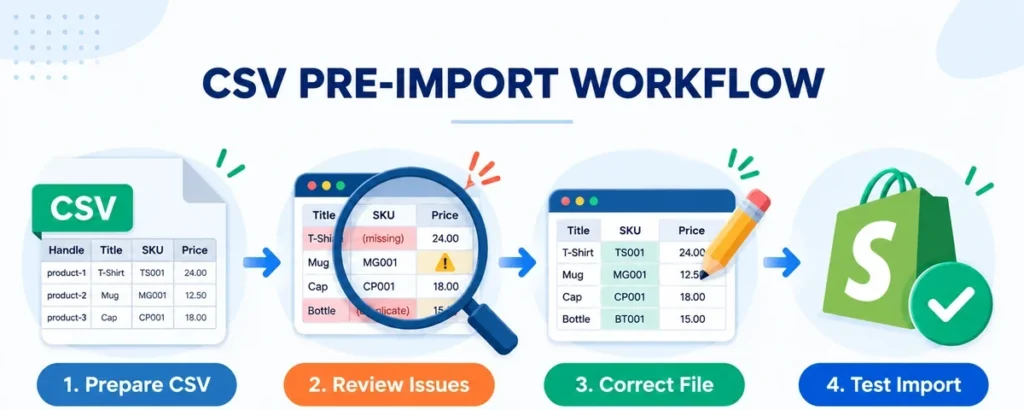
7 Essential Checks to Prevent Shopify Product CSV Import Errors
A consistent checking process is faster than randomly editing rows after an error message. The seven checks below help you isolate Shopify product CSV import errors before they affect a live catalog. Use this sequence whenever you create products, update an existing store, or receive files from a supplier.
Step 1: Keep the original file untouched
Save the original export or supplier file in a dated backup folder. Create a separate working copy with a descriptive name such as shopify-products-review-2026-10.csv. This gives you a reliable way back if a spreadsheet operation changes data unexpectedly. For an existing Shopify store, export current product data as an additional backup.
Step 2: Confirm the purpose of the import
Determine whether you are creating new products, changing prices, adding variants, refreshing images, or migrating a complete catalog. This decision affects which warnings matter. A partial price update may intentionally omit images and descriptions, while a new store launch requires much more thorough content review.
Step 3: Match columns to the Shopify template
Review the headers against Shopify’s current sample. Confirm the Title, URL handle, SKU, Price, option fields, and relevant image URL columns. Do not add made-up field names or combine headers from several templates. If your source is a WooCommerce or supplier export, map its fields deliberately rather than importing it unchanged.
Step 4: Review the structure before individual products
Check commas, quoted descriptions, blank headers, repeated headers, encoding, and rows with inconsistent field counts. Structural errors come first because they can make otherwise correct product data appear wrong. This is especially valuable when Shopify product CSV import errors seem to affect many products simultaneously. Re-export as UTF-8, then reopen the saved CSV to confirm the format survived.
Step 5: Audit product and variant data
Inspect duplicate SKUs, empty titles, suspicious prices, repeated variant combinations, and mismatched option names. A structured pass helps identify Shopify product CSV import errors along with related catalog-quality issues. Consider missing images, descriptions, and categories according to your actual project. Record the source line and the planned correction rather than editing blindly.
Step 6: Make corrections and recheck
Correct errors in your working CSV using a spreadsheet or text editor. Keep leading zeros, use appropriate numeric formats, and verify that product and variant groups still match. Re-run your review after each significant change. A second scan matters because a well-intended fix can accidentally create another issue.
Step 7: Test a small import in Shopify
Use Shopify Admin → Products → Import and select your revised file. Review the import details before proceeding. If you are modifying an established catalog, test with a carefully chosen set of products or an appropriate development store where possible. Inspect actual products, options, prices, images, inventory behavior, and collection placement afterward.
Remember: Shopify states that a product import started from a CSV cannot be canceled once it begins. Do not use your full catalog as the first test.
How Altrix Product CSV Checker helps with pre-import reviews
When a file contains hundreds of rows, manually investigating Shopify product CSV import errors becomes slow and inconsistent. Altrix Product CSV Checker is a standalone, downloadable tool that reviews your local product file and creates findings you can use to guide corrections.
Its Shopify profile recognizes common current and legacy column names, groups rows by product handle, and supports selected Shopify-related checks. Its Generic profile lets you map relevant fields when a supplier spreadsheet uses different headings. You can inspect missing or repeated SKUs, suspicious selling prices, some compare-at price issues, variant inconsistencies, malformed CSV structure, and image URL formatting.
The workflow is straightforward: extract the downloaded ZIP, open START-HERE.html in a supported desktop browser, choose your file, confirm field mappings, run the selected checks, and export findings as CSV or a printable summary. The tool processes data locally and does not require Shopify admin credentials. You then correct the original file yourself and test it in Shopify.
This is a read-only readiness review, not a complete Shopify validator. It does not repair files automatically, import products, check remote images for availability, compare against the live store, or validate every inventory, metafield, tax, or fulfillment rule. A clean report does not guarantee a successful Shopify import. The product is independently developed by Altrix Web and is not affiliated with Shopify.
Want a more repeatable CSV review? Explore Altrix Product CSV Checker — $29 one-time purchase. Review the features and limitations on the product page to decide whether it fits your workflow.
Practical pre-import checklist
Before clicking Import, confirm the following:
- The original CSV and current product export are safely backed up.
- The purpose of the import—new products or updates—is clear.
- Column headings match a current Shopify product CSV template.
- Related option fields are included where variant updates require them.
- Data is saved with suitable UTF-8 encoding and comma-separated CSV formatting.
- Product handles and related variant rows are grouped correctly.
- Repeated or blank SKUs have been reviewed in context.
- Selling prices and compare-at prices reflect the intended values.
- Duplicate option combinations have been resolved where unintentional.
- Product image URLs are complete and their availability has been checked separately.
- The CSV is within Shopify’s current file-size limit, or has been split carefully.
- The overwrite setting has been considered and a small test import is planned.
Shopify Product CSV Import Errors: Frequently Asked Questions
Why does Shopify say my CSV headers are invalid?
The file may contain missing, misspelled, incorrectly capitalized, or unsupported column headings. Compare the first row with a current Shopify sample CSV. If your spreadsheet contains supplier-specific labels, map them to the accepted Shopify fields before uploading.
Is SKU required for every Shopify product?
No. A blank SKU is not universally an import error. But SKUs are important for inventory workflows, and some setups, including custom fulfillment services, have additional requirements. Review missing and duplicate SKUs as operational warnings rather than assuming all must be rejected.
Can I import an Excel XLSX file directly as a product CSV?
For the product CSV workflow, export your spreadsheet to a compatible CSV UTF-8 file first. Check the separator settings and reopen the result before uploading. Altrix Product CSV Checker also requires a supported delimited text file rather than a raw XLSX workbook.
Why are some products or variants missing after import?
Possible reasons include invalid rows, incorrect product handles, duplicate option combinations, missing dependent fields, or changes made using the overwrite option. Some Shopify product CSV import errors become visible only when you compare the imported result with the original file. Review Shopify’s import messages and compare a small sample with your backup before attempting another large update.
Can Product CSV Checker automatically fix my Shopify file?
No. It identifies selected potential issues, shows the source line and suggested review action, and lets you export findings. You edit the original CSV, run another check, and then use Shopify’s own import workflow.
Does a clean CSV scan guarantee that Shopify will accept my file?
No. The tool does not implement every Shopify rule, inspect your live store, or verify that remote image links work. Use Shopify’s current documentation, its import preview, and a small test import as the final checks.
Final thoughts: review first, import second
Shopify product CSV import errors are easier to manage when you separate formatting problems from business-data decisions. Fix malformed headers and structure first, then inspect handles, SKUs, prices, variants, and image references. Keep the original safe, test a small sample, and verify the result in your store before proceeding with a large update.
A structured review will not eliminate every possible import issue, but it makes mistakes easier to find and corrections easier to explain. For a local, repeatable first pass, see how Altrix Product CSV Checker works. If you need hands-on data preparation or migration support, explore Altrix Web’s e-commerce catalog management service.
Further reading: Shopify product CSV format · Shopify product import steps · Shopify common import issues