
Duplicate SKUs in Shopify can be easy to miss when you manage hundreds of products, work with suppliers, or prepare a large catalog import. Two different variants may accidentally share the same stock keeping unit (SKU), even though they represent different items. That can create confusion during inventory checks, order fulfillment, reporting, and third-party synchronization.
The good news is that you can find duplicate SKUs in Shopify product CSV files before importing them. Learning how to identify duplicate SKUs in Shopify is especially useful when preparing supplier files, updating variants, or migrating an existing catalog. You do not need to inspect every row manually. Excel, Google Sheets, and a dedicated CSV checking tool can help you identify repeated identifiers and decide what needs correcting.
This guide explains how SKU duplication works, how to check your exported file, when repeated values might be intentional, and how to review your data safely. It also shows how to use Altrix Product CSV Checker as an additional pre-import review step.
Table of Contents
Quick Answer: How Do You Find Duplicate SKUs in a Shopify CSV?
Export your products from Shopify, make a backup, and locate the SKU column in the CSV. Older Shopify exports might label the equivalent field Variant SKU.
In Excel or Google Sheets, highlight repeated nonblank values using conditional formatting or a COUNTIF formula. Then compare the affected product handles, variant options, titles, and inventory records before deciding whether an SKU should change.
For a more structured review, open the file with a CSV checker, confirm the correct column mapping, run the duplicate-SKU check, and export a list of warnings.
A repeated SKU is a review signal, not always proof that an import will fail.
What Is a Shopify SKU?
SKU stands for stock keeping unit. It is an internal identifier used to distinguish items you sell, stock, pick, pack, and report on.
An SKU might combine a product family, color, and size, such as TSHIRT-BLK-M for a black medium T-shirt.
In Shopify, each sellable product variant can have its own SKU. A T-shirt offered in black and white, each in three sizes, has six distinct variants. For clean inventory tracking, each of those six variants should generally have a separate identifier.
SKUs are not the same as product handles, barcodes, or variant IDs.
A product handle is primarily used to identify a product in Shopify and its URL-related records. Many CSV rows can share that handle because they describe variants or additional images for the same product.
A barcode is another identifier, often based on retail standards. A variant ID is Shopify’s own record identifier. Changing one does not automatically change the others.
Shopify recommends unique SKUs for accurate inventory tracking, while acknowledging that certain bundle or other specialized workflows may deliberately reuse an SKU.
Its guidance warns that repeated SKUs can interfere with some integrations and inventory processes. See Shopify’s SKU best practices.
Why Are Duplicate SKUs Worth Checking?
An accidental duplicate does not always stop a Shopify CSV import. The larger concern is that two different physical or digital items can appear to have the same inventory identifier.
That can lead to several practical problems:
- Inventory confusion: A warehouse employee may struggle to tell which size, color, or model a repeated identifier represents.
- Fulfillment mistakes: Picking instructions or external fulfillment software may match the wrong product.
- Supplier update errors: A price or stock spreadsheet may be difficult to reconcile when the same SKU describes unrelated items.
- Unreliable reporting: Reports grouped by SKU may combine activity from different variants.
- Integration warnings: Inventory connectors and other apps may expect a unique identifier for each sellable variant.
Reviewing duplicate SKUs in Shopify before a large product import can help prevent confusion between similar variants and improve the reliability of inventory records.
The goal is not to delete every repeated value automatically. It is to identify the records, understand the intended SKU convention, and correct genuine mistakes before they spread into other systems.
Understand Your Shopify CSV Before Searching for Duplicates
Shopify product CSV files contain columns for product details, variants, pricing, images, and other information.
The exact column names depend on when the file was created and whether you use a newer or legacy template. Shopify’s current product CSV documentation uses SKU, while some older examples and exports use Variant SKU.
A single product can occupy several CSV records. For example, a shirt with different sizes may have one row for each variant.
The product handle might repeat on each row, and some continuation rows may have empty title fields. Extra image-only rows can also occur in exports.
Repeated handles are normal; repeated SKUs deserve context.
Before checking, make sure you are comparing actual variant SKU values rather than treating every repeated handle or blank continuation row as a duplicate product.
For official field definitions, refer to Shopify’s product CSV guide.
Before You Begin: Prepare a Safe Working Copy
First, in Shopify admin, open Products → Export and export the relevant products.
If you already have a supplier or migration CSV, use that file instead. Keep an untouched backup and work on a copy with a descriptive filename such as products-sku-review.csv.
When opening the file in a spreadsheet program, be careful with SKU formatting.
A value such as 001245 is an identifier, not a number. Some spreadsheet tools may remove leading zeros, transform long numbers, or reinterpret strings as dates.
Import the SKU column as text/plain text whenever possible.
Do not sort one column by itself. A Shopify CSV depends on product rows staying aligned with their variant data, handles, image URLs, and option values.
If you sort, select the entire table and keep related records together.
Method 1: How to Find Duplicate SKUs in Shopify Using Excel
Excel is useful when your team already edits product CSV files in spreadsheets. You can spot duplicate identifiers visually or create a helper column for repeat counts.
Step 1: Open the CSV and Identify the SKU Column
Import the CSV into Excel and find the header named SKU or Variant SKU.
For this example, assume the values are in column D, starting at D2, with the header in D1. Your real file may use a different column.
Step 2: Highlight Repeated Values
Select the SKU data range, such as D2.
Go to Home → Conditional Formatting → Highlight Cells Rules → Duplicate Values.
Select a highlight style and confirm. Excel will mark values it considers duplicates.
This is a quick visual check, but empty cells and text-comparison rules may need additional attention. A dedicated formula lets you ignore blank values.
Step 3: Add a Duplicate Count Formula
In an empty helper column, enter:
=IF(D2="","",COUNTIF($D$2:$D$1000,D2))
Fill the formula down the rows.
A result greater than 1 means the SKU appears multiple times within the selected range. Filter that helper column to show values greater than 1, then examine the affected records.
If your data extends beyond row 1000, increase the formula’s range accordingly.
Excel’s COUNTIF is generally case-insensitive, so SHIRT-001 and shirt-001 can be counted together.
Excel provides a straightforward way to identify duplicate SKUs in Shopify exports without installing additional applications.
Decide whether your catalog treats differently capitalized identifiers as the same SKU.
Step 4: Investigate Before Editing
Compare the product handle, option names and values, current SKU, title, vendor, and price.
Two rows with the same SKU and different sizes may reflect an accidental copy-and-paste error.
Two rows from a deliberately repeated bundle workflow may require no change.
If you decide to edit identifiers, save a revised copy, confirm the CSV structure, and test a small import before updating the full store.
Method 2: How to Find Duplicate SKUs in Shopify Using Google Sheets
Google Sheets is convenient for collaborating with a catalog assistant or reviewing a moderate-sized export.
Step 1: Import Your Shopify CSV
Open a new Google Sheets spreadsheet and choose File → Import to load a working copy of your CSV.
Find the SKU or Variant SKU column. Take care to preserve identifiers as text, especially when they contain leading zeros.
Step 2: Create an SKU Count Column
Assuming the SKU column is D, create a helper heading such as SKU occurrences.
Enter the following formula in row 2:
=IF(D2="","",COUNTIF($D$2:$D,D2))
Fill the formula down and filter the helper column to values greater than 1.
Step 3: Highlight Duplicate SKU Values
You can also apply Format → Conditional formatting and use a custom formula such as:
=AND(D2<>"",COUNTIF($D$2:$D,D2)>1)
Apply the rule to the appropriate SKU range.
Google Sheets will highlight repeated nonblank identifiers within that selection.
Step 4: Review the Flagged Records
Compare every flagged SKU with the corresponding product handle, title, size, color, and other variant details.
Google Sheets is another practical option for reviewing duplicate SKUs in Shopify when several team members need access to the same working spreadsheet.
As with Excel, a count alone cannot decide whether duplicate SKUs are intentional.
Also remember that a formula analyzing one imported file cannot detect an SKU already used by a product that is not present in that file.
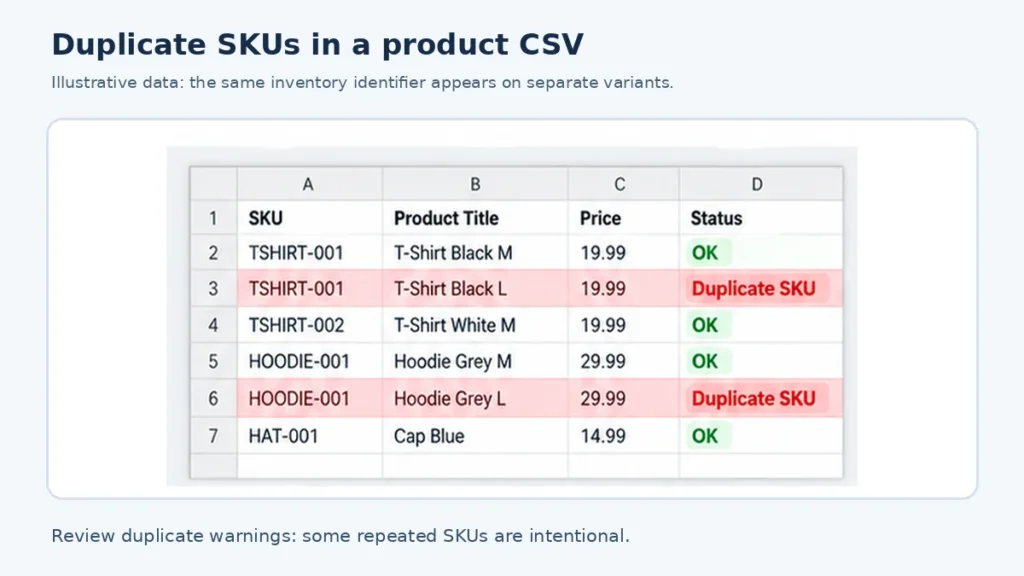
Example: Identifying an Accidental Repeated SKU
Imagine the following simplified variant records. This table is an illustration, not a complete Shopify import template.
| Product handle | Variant | SKU | Review result |
|---|---|---|---|
cotton-tee | Black / Medium | TEE-BLK-M | Expected unique SKU |
cotton-tee | Black / Large | TEE-BLK-M | Possible duplicate |
cotton-tee | White / Medium | TEE-WHT-M | Expected unique SKU |
hoodie-zip | Black / Medium | HOOD-BLK-M | Expected unique SKU |
The two black T-shirt sizes share TEE-BLK-M.
If they are separate sellable variants, assigning the large variant a distinct SKU such as TEE-BLK-L may resolve the ambiguity, provided that the new value matches your supplier and inventory records.
A repeated SKU should prompt a review, not an automatic deletion or replacement.
You want the correct identifier across Shopify, your warehouse, and any connected business systems.
Method 3: How to Find Duplicate SKUs in Shopify with Altrix Product CSV Checker
If you receive supplier spreadsheets frequently or manage multiple Shopify catalogs, a repeatable report can be easier to work with than manually scanning highlighted rows.
For repeated catalog checks, Altrix Product CSV Checker helps flag duplicate SKUs in Shopify CSV files and export findings for manual review.
Altrix Product CSV Checker is a downloadable, standalone tool designed to review product CSV data before import.
It supports a Shopify-specific checking profile and a generic mapped-column profile.
It can identify repeated SKUs, blank mapped values, suspicious prices, variant inconsistencies, and selected file-structure problems.
How to Check a File
- Obtain the tool from the Altrix Product CSV Checker page.
- Extract its ZIP package and open
START-HERE.htmlin a supported desktop browser. - Choose the product CSV file you want to review.
- Select the Shopify CSV profile and confirm the suggested mappings, particularly the SKU, handle, title, and option columns.
- Run the checks and filter the findings to inspect repeated SKU warnings.
- Review each warning alongside the affected source record and its context.
- Export the findings as CSV if you need to assign corrections to a colleague or supplier.
- Correct your working copy of the original spreadsheet, save it properly, and rerun the checks.
The checker processes the selected file locally in your browser and does not automatically modify your source file or Shopify store.
It does not inspect records already in your store unless those records are included in the CSV you give it.
Its warnings help you decide what to investigate; they are not a replacement for Shopify’s own import preview.
The tool also offers optional case-sensitive SKU matching, which can be useful when your team needs to distinguish or normalize values such as ITEM-100 and item-100.
For detailed capabilities and limits, use the product page rather than assuming every Shopify validation rule is included.
How to Fix Duplicate SKUs Without Damaging Your Catalog
Once you identify a duplicate, compare the rows and determine which situation applies.
Two Different Variants Accidentally Share an Identifier
Confirm the correct SKU with the supplier or your stock master, update the incorrect record, and keep a record of the change.
The Same Item Appears Twice in an Imported Working File
Decide whether the second row is needed.
Do not remove it until you understand whether it contains a valid variant, an additional image, or an intended update.
A Bundle or Special Inventory Workflow Intentionally Reuses an Identifier
Document that rule and confirm the behavior of any connected fulfillment or inventory software.
Shopify can warn about duplicate SKUs without making every duplicate an automatic import failure.
Only Capitalization or Spacing Differs
Define a consistent SKU convention.
Before standardizing values, verify that another system will not interpret the changed string as a different item.
The SKU Must Also Change in the Live Store
Update the affected variant in Shopify admin and coordinate changes with downstream systems.
A changed SKU is not the same as a changed Shopify variant ID, but integrations may still rely on that SKU text.
Keep a change log with the previous SKU, new SKU, affected product, responsible person, and confirmation date.
This makes later stock reconciliation much easier.
Common Mistakes to Avoid When Reviewing Shopify CSVs
Mistake 1: Assuming Duplicate SKUs Always Cause Import Failure
Shopify generally recommends unique SKUs, but some repeated identifiers are allowed and can trigger warnings rather than outright rejection.
Treat duplication as a risk to evaluate, not an automatic diagnosis.
Mistake 2: Confusing Repeated Product Handles with Duplicate SKUs
Several rows can share the same product handle because they describe variants or images.
Product handles and variant SKUs serve different purposes.
Mistake 3: Counting Blank SKU Cells as Duplicates
Some product records, continuation rows, and intentionally incomplete updates have blank mapped fields.
Filter or handle blanks separately so your duplicate count reflects actual identifiers.
Mistake 4: Breaking the Product-to-Variant Relationship
Sorting only the SKU column, stripping out option fields, or changing product handles without understanding their role can affect imports.
Shopify notes that when updating variant-related fields such as SKU, related option-name and option-value fields may also be required.
Mistake 5: Checking One File and Assuming the Entire Store Is Clean
A local CSV audit can compare only the records it receives.
A new supplier file may contain an SKU that already exists in Shopify, even if the new file has no duplicates within itself.
Compare against a recent full catalog export when you need a store-wide check.
Final Checklist Before Importing Corrected Products
Before uploading an edited CSV, use this review sequence:
- Keep an untouched backup of the original file and the corrected version.
- Confirm that all relevant SKU columns were checked, including legacy header names.
- Verify every flagged duplicate against the actual product and variant.
- Preserve leading zeros and consistent capitalization where required.
- Keep Shopify product handles, variant options, and image data aligned.
- Save the file as UTF-8 CSV with the correct column headers and quoting.
- Check for missing prices, malformed rows, and other unrelated catalog issues.
- Review Shopify’s import settings carefully, particularly Overwrite products with matching handles.
- Use the import preview and test a small group of products before a large update.
- Recheck inventory and fulfillment integrations after any live SKU changes.
Shopify warns that changing option values can create new variant IDs and potentially disrupt integrations, so avoid unrelated option edits while performing an SKU cleanup.
Review the official Shopify import instructions before a large operation.
Frequently Asked Questions
Does Shopify Allow Duplicate SKUs?
Shopify recommends unique SKUs for effective inventory tracking and may show warnings for repeated identifiers.
Some specialized workflows intentionally reuse SKUs, so duplicate values are not universally prohibited.
Check the requirements of your fulfillment service and connected apps.
Can I Find Duplicate SKUs Without Installing an App in Shopify?
Yes. Export your product CSV and review the SKU column in Excel or Google Sheets.
You can also use a standalone CSV checker that runs in your desktop browser without connecting to the Shopify store.
Is a Duplicate SKU the Same as a Duplicate Shopify Product?
No. Two unrelated variants can share an SKU while remaining separate products or variants.
Conversely, a repeated handle in a product CSV may simply represent additional variants or images of one product.
What If the CSV Says Variant SKU Instead of SKU?
You are probably using a legacy export format.
Identify the SKU field according to that template, preserve the other import fields, and verify the mapping before running a duplicate check.
Shopify documents backward compatibility for many older column names.
Will Altrix Product CSV Checker Fix Duplicate SKUs Automatically?
No. It identifies repeated SKU values and other potential issues for review.
You make any necessary corrections in your working source file, then rerun the check and use Shopify’s import process separately.
Can a Checker Detect Duplicates Across Different CSV Files?
A single-file review cannot detect matches in another file or your live Shopify store unless those records are included in the data being checked.
For a full-catalog assessment, work from a consolidated or recent export when practical.
Make Duplicate SKU Checks Part of Every Product Import
Finding duplicate SKUs in Shopify product CSV files is one of the simplest ways to reduce preventable catalog confusion.
Making duplicate SKUs in Shopify part of your regular catalog quality checks can reduce avoidable mistakes before supplier updates and product imports.
Whether you use Excel, Google Sheets, or a dedicated validator, the best workflow is the same: preserve a backup, identify repeated nonblank SKUs, investigate the related variants, correct genuine errors, and test the import carefully.
If you want a reusable pre-import review process for supplier files, product launches, and migration projects, explore Altrix Product CSV Checker.
It provides a local, read-only review with duplicate-SKU warnings and downloadable findings—so your team can resolve issues while staying in control of the final Shopify import.