
Shopify variant CSV errors can turn an otherwise straightforward product import into hours of troubleshooting. A T-shirt offered in three sizes and four colors looks simple on a storefront, but its spreadsheet must identify the right product, preserve each option combination, and carry the correct details for every sellable variant. A repeated combination, missing option value, or misplaced column can interrupt the import—or introduce catalog data you did not intend.
The good news is that many problems can be identified before you upload anything. This guide explains how Shopify product variant rows work, the most common CSV mistakes, how to review a file safely, and when a local product-data checking tool can help.
It is intended for store owners, catalog managers, freelancers, and agencies preparing new products or updating an existing catalog.
Table of Contents
What is a Shopify product variant CSV?
A product variant is a purchasable version of a product—for example, a navy shirt in size Medium. Shopify products can have up to three option types, such as Size, Color, and Material. Different combinations of those values represent different variants.
A Shopify product CSV stores product information in rows and columns. For products with variants, related rows use the same product identifier, called a URL handle in Shopify’s current template.
Each variant row provides the values that distinguish it, along with applicable fields such as SKU and price.
You might encounter older exports with headers like Handle, Variant SKU, and Variant Price. Current and legacy Shopify templates can differ, so always check the file format you are actually importing.
Imagine a shirt with two variants:
| Product handle | Size | Color | SKU | Price |
|---|---|---|---|---|
linen-shirt | M | Navy | LIN-M-NV | 29.00 |
linen-shirt | L | Navy | LIN-L-NV | 29.00 |
This is a simplified review table, not a complete Shopify import template. In an actual Shopify CSV, Size and Color are represented by option-name and option-value columns. The file also needs the appropriate Shopify headers and product details.
Why Shopify variant CSV errors happen
Most variant issues originate while product information moves between systems. A supplier sends an Excel workbook; a staff member rearranges the columns; another person combines it with an older catalog export.
The result may look normal in a spreadsheet even though the underlying records are inconsistent.
Another source of confusion is the difference between creating products and overwriting existing products.
Importing changes into a live store can affect records that apps, fulfillment integrations, and reports depend on. Shopify warns that changing existing variant option values can recreate variant IDs.
That is why backing up the existing catalog and testing a small batch matter as much as identifying visible CSV errors.
1. Duplicate variant option combinations
One of the clearest Shopify variant CSV errors is a repeated combination of option values within the same product.
Suppose linen-shirt includes two separate rows for Size M + Color Navy. The second row does not describe a new purchasable combination; it duplicates one already present.
Shopify documents an “options are not unique” validation error for this situation.
When you investigate, group records by product handle and compare the full combination of option values—not just one field.
Two size-M shirts are perfectly valid when their colors differ. Two size-M, navy records under the same product handle deserve review.
What to do: Confirm whether one row is accidental duplication, belongs to a different product, or should use a different option value. Correct the source data only after checking the intended catalog.
2. Missing option names or option values
An option should have a meaningful name and a corresponding value.
For example, Option1 name may be Size, while Option1 value may be M.
If a row supplies a size value without the associated option name, or introduces an option name without a value, Shopify may not interpret the variant as intended.
Check that all rows belonging to one product use consistent option definitions.
If the first rows call the option Color and later rows unexpectedly call the same position Material, investigate before importing.
Also watch for gaps: a file using a second or third option position without a clear preceding structure may need correction.
What to do: Review option-name and value pairs across the entire product group. For existing products, do not casually remove variant-related columns: Shopify warns that omitted dependencies can alter existing variants.
3. Blank, negative, or incorrectly formatted prices
Prices imported from a supplier spreadsheet may contain currency symbols, thousands separators, formulas, text, or accidental negative values.
For example, $29.00 is not the same file value as 29.00. Shopify’s current product CSV guidance shows numeric prices without currency symbols.
A blank price needs careful interpretation.
Shopify documentation describes default values in some import situations, while its troubleshooting guidance also includes a “price can’t be blank” error.
The behavior depends on the relevant record, columns, and import operation.
Rather than assuming that every blank price must fail, review whether a zero-price item is intentional and whether an update might overwrite a valid selling price.
What to do: Check the relevant price column, correct malformed numeric entries, and compare the intended selling price against supplier records. Pay attention to compare-at prices as well; they should reflect your actual pricing policy.
4. Missing, renamed, or mismatched CSV headers
A file may look complete but still fail because its column names do not match the expected format.
Shopify documents import problems caused by incorrect and case-sensitive CSV headers.
Manually renaming Title to Product Name, for example, does not guarantee Shopify will recognize that data as the product title.
Shopify’s modern documentation uses names such as URL handle, Option1 name, Option1 value, SKU, and Price.
Older templates use some different labels.
The safest approach is to export a sample from your own store or use Shopify’s official sample file for the workflow you are performing.
What to do: Compare the first CSV row with the intended template. Check duplicate headings, blank headings, spelling, and extra delimiters. Avoid mixing columns from unrelated platform templates without mapping them first.
5. Duplicate or missing SKUs
A stock keeping unit, or SKU, is the identifier many merchants use to coordinate inventory, suppliers, and fulfillment.
A repeated SKU can accidentally associate distinct items with one identifier, especially when products were copied from an earlier spreadsheet.
However, Shopify does not universally require every variant to have a unique, nonblank SKU.
A blank SKU or repeated value can be intentional depending on the merchant’s workflows.
The real question is whether the file matches your inventory and fulfillment conventions.
What to do: Filter by SKU and inspect repeats across products and variants. Confirm with the supplier or inventory manager before replacing identifiers, because changing SKUs can affect downstream systems.
6. Incorrect product handles and continuation rows
The URL handle groups rows that belong to the same product.
If a variant row accidentally uses a different handle, Shopify may not associate it with the product you expect.
Conversely, reusing one handle for unrelated products can create conflicts.
For a multi-variant product, Shopify’s instructions say to put the main product details in the first row and use the same handle on following variant rows, normally leaving certain product-level cells such as Title and Description blank.
Those intentional blank cells should not automatically be treated as missing product data.
What to do: Sort or filter cautiously by handle, keeping variant and image rows together. Never sort only one spreadsheet column. Compare each group against the intended parent product and distinguish valid continuation rows from genuinely incomplete records.
7. Malformed quotation marks, commas, or character encoding
CSV is a text format, not simply an Excel workbook with a different file extension.
Commas within descriptions need correct quoting; quotation marks inside fields require proper escaping.
If a spreadsheet export breaks these rules, values may shift into neighboring columns or an importer may report an illegal quoting error.
Encoding matters too.
Shopify recommends UTF-8 to preserve characters such as accented letters and non-English product names.
A file saved using a different encoding may display garbled text after import.
What to do: Save a working copy as CSV UTF-8. If a row seems to have more or fewer columns than the header, inspect its delimiters and quotation marks in a text editor or a CSV-aware validator. Avoid deleting punctuation from legitimate product descriptions just to silence a parsing error.
8. Image filenames instead of accessible image URLs
Product image columns generally need web-accessible image URLs, not local filenames.
A value such as shirt-front.jpg does not tell Shopify where to fetch an image.
A direct, publicly accessible URL is needed when importing images from an external source.
What to do: Review image URL formatting and test the links in a browser.
Remember that confirming a URL has the right syntax is different from proving the image is online, accessible, and compatible with Shopify.
9. Inventory and fulfillment data in the wrong file or context
Inventory quantities can be confusing when a store has multiple locations.
Shopify notes that the product CSV’s inventory quantity field is intended for single-location stores; merchants with multiple locations should use the appropriate inventory CSV workflow.
Fulfillment settings also have dependencies.
Do not assume that copying stock figures or fulfillment service values between stores will reproduce the same location assignments or tracking behavior.
What to do: Verify how your store tracks stock, which locations fulfill orders, and whether you are importing product information or location-specific inventory.
Use Shopify’s documented inventory process for the latter. Product-data checking tools may not cover these store-side rules.
10. Overwriting variants without reviewing existing data
Perhaps the highest-risk mistake is not a malformed value but a valid-looking file used in the wrong import operation.
If you select Overwrite products with matching handles, included CSV columns can replace existing product details.
Blank cells in included columns can also clear existing values in some cases.
Shopify specifically warns that changing option values can delete existing variant IDs and create new ones.
Apps and external systems referencing those IDs may be affected.
Similarly, removing required option dependencies from an update file can change existing variant structures.
What to do: Export a backup, keep an untouched original, document the fields you intend to update, and test the revised file against a small controlled set.
Check not only the import confirmation but the resulting product pages, variant choices, prices, and dependent integrations.
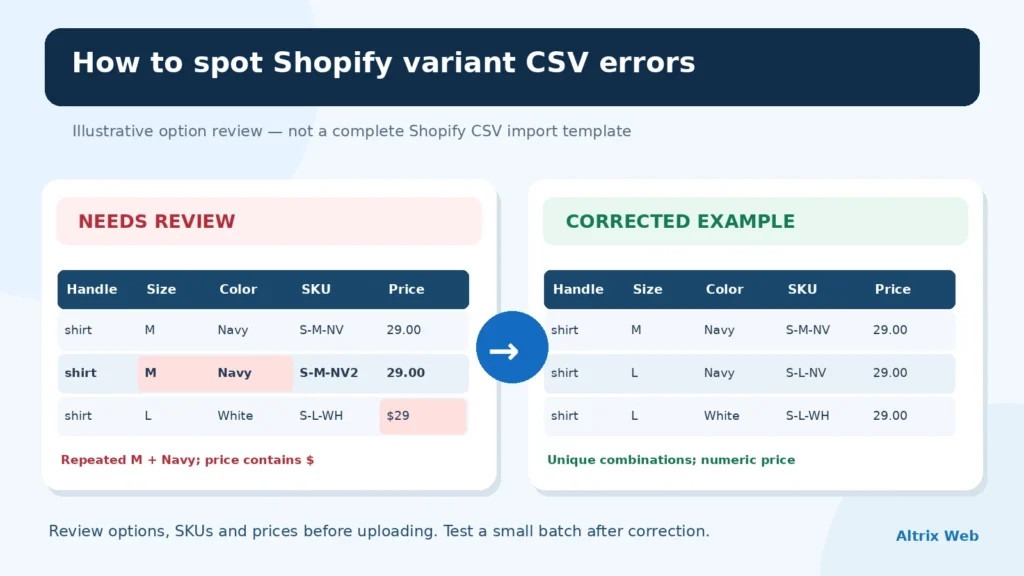
Example: how to spot a duplicate Shopify variant
Consider this simplified export review:
| Handle | Size | Color | SKU | Price | Review |
|---|---|---|---|---|---|
linen-shirt | M | Navy | LIN-M-NV | 29.00 | Distinct variant |
linen-shirt | L | Navy | LIN-L-NV | 29.00 | Distinct variant |
linen-shirt | M | Navy | LIN-M-NV-2 | 29.00 | Duplicate option combination |
linen-shirt | S | White | LIN-S-WH | $29 | Price-format issue |
The third row demonstrates an important distinction: even with a different SKU, Size M + Color Navy repeats within the same handle.
A SKU check alone would miss the duplicated variant combination.
The fourth row uses a currency symbol that should be reviewed for the destination’s expected number format.
A practical pre-import checklist for Shopify product CSV files
Here is a review process you can apply to a small or large catalog.
Step 1: Back up your current catalog
Export the existing products before making changes.
Preserve an unchanged copy of the supplier file or export you received.
Use a new filename for your working revision so you can compare versions later.
Step 2: Identify the correct Shopify CSV template
Determine whether you are creating new products, updating existing products, or importing a file prepared by another platform.
Use the template and field definitions appropriate to that operation.
Do not assume an older export’s headers match the latest example exactly.
Step 3: Check CSV structure first
Confirm the file opens correctly, has one usable header row, preserves text encoding, and contains consistently parsed records.
Fix malformed quoting and delimiter problems before examining product-level warnings; shifted columns make the remaining review unreliable.
Step 4: Group variants by product handle
Look at each product as a group.
Verify that its option names are consistent, all intended option values are represented, and no size/color/material combination repeats by mistake.
Check that continuation rows are assigned to the correct handle.
Step 5: Review SKUs, prices, and images
Look for missing or repeated SKUs that conflict with your business rules, nonnumeric prices, unintended zero prices, and image fields that contain filenames rather than full URLs.
Decide which warnings actually require corrections.
Step 6: Use a structured CSV review tool if needed
If your file contains hundreds or thousands of rows, manual scanning becomes tedious.
The Altrix Product CSV Checker performs selected checks for missing mapped fields, repeated SKUs, suspicious prices, duplicate variant combinations, and file structure.
Its Shopify profile can group records by handle and recognize certain continuation-row patterns.
The tool runs locally in a desktop browser, does not connect to the store, and exports a findings report.
It is a read-only checker: it does not automatically repair your CSV, verify live image availability, inspect your store’s existing products, or guarantee a successful Shopify import.
Step 7: Correct, recheck, and test a small import
Edit the working spreadsheet, export it as CSV UTF-8, and review the corrected file again.
Then use Shopify’s import preview and test with a small group of products before uploading the full catalog.
Confirm that actual product and variant details match your expectations.
When should you use Altrix Product CSV Checker?
A local checker is particularly useful when you receive supplier catalogs in different formats, prepare a store migration, manage client imports, or need a reproducible way to hand correction notes to colleagues.
Instead of saying “something is wrong in the CSV,” you can share a report showing which source records and fields deserve attention.
Altrix Product CSV Checker supports Shopify-style files and generic mapped product data.
It includes checks for CSV structure, selected product-field completeness, SKU repetition, price formatting, and variant consistency.
The source CSV remains unchanged, allowing you to decide the right correction rather than accepting automatic edits.
It is best used alongside Shopify’s official requirements, your store’s own catalog rules, and a small test import—not instead of them.
See the Product CSV Checker overview for supported checks, limitations, and usage details.
Frequently asked questions
Why does Shopify say “options are not unique”?
This normally means the same product contains repeated variant option combinations.
For example, two rows under one handle both represent Medium / Navy.
Compare all option values within that handle, not just the SKU.
Does every Shopify product variant need a unique SKU?
Not as a universal import rule.
Still, duplicate or blank SKUs may cause confusion for merchants, integrations, or warehouse processes.
Use identifiers that fit your own inventory procedures.
Can a CSV checker fix Shopify import errors automatically?
Not necessarily.
Altrix Product CSV Checker identifies selected potential issues and exports review findings; it does not rewrite the source file.
You correct the data and test the import yourself.
Why are some product title cells blank in a variant CSV?
Shopify can use continuation rows for additional variants under the same handle.
Certain product-level fields are intentionally omitted from these rows.
Evaluate blanks in the context of the whole product group, not as isolated cells.
What file format should I use for Shopify product imports?
Use Shopify’s documented product CSV format and UTF-8 encoding.
Obtain a current template from Shopify, and check the specified field names, dependencies, and file-size limits before importing.
Can I safely reimport a file to update existing variants?
It can be done, but proceed carefully.
Review overwrite settings and any changes to option values or dependent fields.
Back up the original catalog, test a small batch, and verify product IDs and integrations where relevant.
Final thoughts: review the data before you import
Shopify variant CSV errors are easier to address in a controlled working file than after they affect a live catalog.
Start by checking variant combinations and option consistency, then examine prices, SKUs, handles, formatting, images, and import settings.
Never treat a warning as proof of failure without considering your actual store requirements.
If you regularly prepare Shopify product files, a repeatable pre-import check can save manual investigation.
Explore Altrix Product CSV Checker to see how its local, read-only review can help you identify records worth correcting before you upload.
Useful official references: Shopify product CSV format · Shopify product import instructions · Shopify common CSV import problems.