
A product photo might look excellent on your computer but become difficult to manage when you have hundreds of products to upload. Some photographs are enormous, others have mismatched dimensions, and filenames such as IMG_4098.jpg tell your catalog team very little.
If you want to resize and compress product images for Shopify without editing each file individually, a repeatable batch process can make your catalog preparation far more manageable.
The goal is not simply to create the smallest possible files. Your images must still show details customers need to judge color, shape, texture, and product quality. Good preparation balances visual clarity, consistent presentation, manageable file sizes, useful filenames, and the requirements of your chosen Shopify theme.
In this guide, you’ll learn which image dimensions and formats to consider, how to choose between resizing and cropping, how to compress a batch safely, and how to prepare SKU-based filenames. We’ll also walk through a local browser-based workflow using the Altrix Product Image Preparation Tool—without confusing image preparation with Shopify upload or automatic product linking.
Table of Contents
Quick Answer: How to Prepare Shopify Product Images in Bulk
If your product photos are ready, follow this simple sequence:
- Back up the originals. Keep untouched source images in a separate folder.
- Choose a consistent target size and aspect ratio. Base the choice on your storefront layout, not an arbitrary number.
- Select an appropriate file format. JPEG or WebP often suits product photographs; PNG is useful when transparency is necessary.
- Resize and compress a small test batch. Compare detail, edges, and the resulting file sizes at realistic storefront display sizes.
- Rename files consistently. Use product identifiers or SKUs with sequence numbers for alternative angles.
- Inspect the results before uploading. Check dimensions, names, image order, background appearance, and a few representative products in Shopify.
A tool can automate much of the processing, but the final quality check still matters.
Why Bulk Image Preparation Matters for Shopify Stores
A catalog of ten products can often be handled manually. A catalog of 500 products with three photographs each is a different story. That is 1,500 images that may need consistent sizing, format choices, file naming, and checks for accidental duplicates.
Unprepared image libraries create several practical problems.
Collection grids can look uneven when images use very different ratios. Extremely large source files can slow the upload and asset-handling workflow. Random filenames make it harder for staff to match a photo to its product or variant. Cropping without review can cut off shoes, furniture legs, bottle caps, labels, or other selling details.
Preparing images in a single organized workflow helps your team keep consistent standards.
That does not guarantee higher Google rankings or faster loading by itself: Shopify also optimizes and delivers images according to the storefront and browser. It does, however, improve control over the source files you supply and makes catalog quality assurance more repeatable.
Shopify Product Image Size: What Should You Use?
Shopify’s current product media guidance allows product and collection images up to 5,000 × 5,000 pixels or 25 megapixels, with each image under 20 MB.
These are upload limits, not recommendations to make every photo enormous.
Shopify also states that 2,048 × 2,048 pixels usually displays well for square product photographs.
Check the official Shopify product media requirements before a major upload because platform requirements can change.
Choose the dimensions based on the actual presentation:
| Image use | Sensible starting point | Important consideration |
|---|---|---|
| Square catalog or product photo | 2,048 × 2,048 px | Useful when your theme shows square product tiles and enables zoom |
| Portrait fashion or lifestyle photo | Keep a consistent portrait ratio | Verify the theme does not crop important product details |
| Wide contextual image | Use the ratio required by the section | Avoid forcing wide images into a square thumbnail without review |
| Small supporting thumbnail | Export for the required display role | Keep a high-quality original for future uses |
These are planning guidelines, not fixed Shopify requirements. A 2,048-pixel source cannot create detail that was missing from a 600-pixel original. Equally, a 5,000-pixel file is not automatically better for a small thumbnail.
Practical rule: Start with the highest-quality original available, pick one aspect-ratio standard per product-image group, then test in your own storefront theme on desktop and mobile.
JPEG vs PNG vs WebP for Shopify Product Photos
File format affects visual quality, transparency, and how much compression is possible. Shopify accepts several product image formats, including JPEG, PNG, and WebP. For everyday catalog preparation, compare these three first.
JPEG: Reliable for photographs
JPEG is a practical option for photos of clothing, footwear, furniture, cosmetics, food, and other detailed products.
It supports lossy compression: lower-quality settings generally produce smaller files but can introduce visible artifacts. It does not preserve transparent backgrounds.
Use it when photographs have a normal background and broad compatibility is useful.
PNG: Useful when transparency matters
PNG can retain transparent backgrounds and crisp graphic edges.
It is especially useful for logos, simple illustrations, and some product cutouts. Photographic PNGs can be considerably larger than a well-compressed JPEG or WebP file, so avoid choosing PNG for every catalog photograph without testing.
WebP: Worth testing for compact images
WebP supports efficient compression and can also support transparency.
For some photographs it produces a smaller file at comparable visible quality, but outcomes depend on the source image and export settings.
Shopify’s own image-delivery system may choose modern formats for visitors, so converting every original to WebP is not mandatory.
Best approach: Compare two or three exports of the same representative image. Open each at actual storefront size, zoom into important details, and select the smallest version that still looks good. Keep the originals so that you can revise the choice later.
Understand the Three Image Resize Modes
The correct resizing method matters as much as the output pixel dimensions. Three common modes are particularly useful for e-commerce work.
1. Fit Within Maximum Dimensions
This method scales an image down so it fits within a chosen width and height while preserving its original aspect ratio.
A wide image stays wide, and a tall image stays tall.
It is a good choice when retaining the complete photo is more important than producing identical canvas dimensions.
2. Center Crop to an Exact Size
A center crop fills a fixed-size output frame and removes anything extending beyond the chosen boundaries.
This helps create a neat, uniform square collection grid.
But it can cut off a product that is not centered, or remove an accessory near the edge. Test several images before applying the crop to the entire batch.
3. Contain the Whole Image on a Fixed Canvas
The contain method fits the full photograph inside your requested dimensions and fills the remaining space with a background.
It can be useful when you want consistently sized output images without discarding parts of the product.
Check that the chosen background suits your brand and that any original transparency is handled as intended.
For catalog photography, there is no universal winner.
A shoe store with centered studio shots may favor square crops. A furniture seller may prefer fitting whole images. A marketplace seller may need a fixed canvas with extra space around each item.
How to Resize and Compress Shopify Product Images in Bulk
You can prepare a small number of files in an image editor. For larger catalogs, the key is to standardize decisions before processing hundreds of photographs.
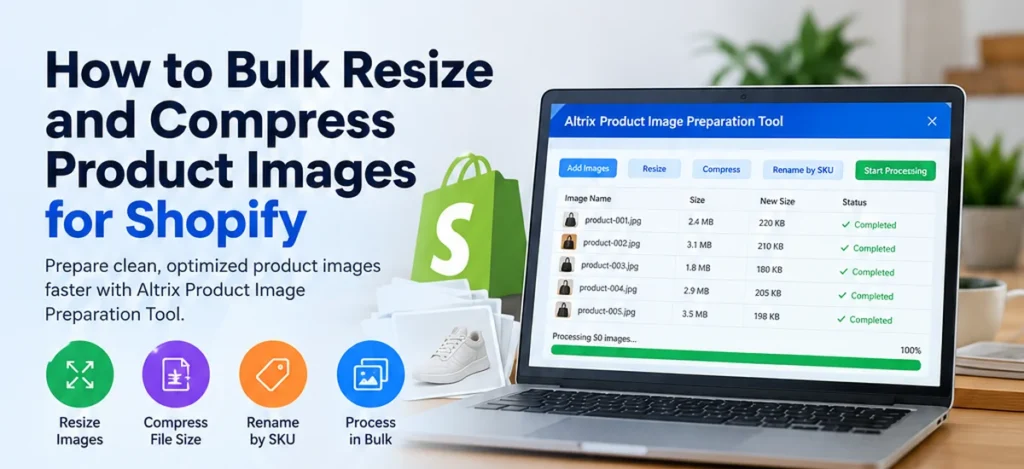
Here’s a repeatable workflow using the Altrix Product Image Preparation Tool.
Step 1: Organize and Back Up the Source Images
Create a source folder and a separate folder for final exports.
If multiple suppliers supply photos, divide them by product line or source.
Do not overwrite or delete the original photographs before reviewing the processed versions.
If possible, verify that each image belongs to the correct SKU or variation.
Step 2: Open the Local Image Preparation Tool
The Altrix tool is a downloadable application that runs in a current desktop browser.
Extract its downloaded ZIP and open the included index.html file.
It does not require a Shopify login, WordPress installation, store API, or cloud image-processing account.
Files are processed locally in the browser.
Step 3: Choose Output Dimensions and Format
Choose a target width and height that suit your catalog.
Then select whether images should fit within maximum dimensions, receive an exact center crop, or sit inside a fixed canvas.
Decide whether to preserve each original file format or convert the batch to JPEG, PNG, or WebP.
For JPEG or WebP, select the desired export quality and test the result.
Step 4: Add and Review Your Images
Add JPEG, PNG, or WebP source images.
The Altrix tool supports up to 200 files per batch.
Before processing, inspect the image list and review the SKU values detected from filenames.
Correct any values that are ambiguous, incomplete, or associated with the wrong product.
Step 5: Set SKU-Based Output Names
Choose an output naming rule, including SKU and sequence-number options if a product has several photos.
For example, a bag with SKU BAG-204 could be organized as:
BAG-204-01.webpBAG-204-02.webpBAG-204-03.webp
This is an example naming convention, not a requirement imposed by Shopify.
Use the format supported by your own product-data workflow.
Step 6: Process and Download the ZIP
Run the batch and download the generated image files in one ZIP.
The tool creates new copies rather than altering your source images.
Extract the ZIP, inspect samples from different product types, and verify that the names match the intended catalog entries.
The tool prepares the files; it does not upload them to Shopify or automatically link photos to products.
How Much Should You Compress Product Images?
There is no single JPEG or WebP quality setting that works for every product.
White-background photographs with large smooth areas may compress differently from detailed textiles, fine jewelry, dense patterns, or product labels.
Strong compression can create blurring, blocks, ringing around edges, or loss of texture.
Run a small comparison before committing to an entire catalog.
Export one file at a high-quality setting and another at a moderately compressed setting.
Compare them at 100% zoom, but also view them at the size customers will actually see.
Look closely at stitching, small print, gradients, metallic surfaces, and hair or fabric detail.
Choose the smaller version only when the differences are acceptable for that product.
For example, if a test image is visibly softer after compression, keep a higher-quality output for that item.
Don’t rely on a generic promise such as “reduce every image by 80% without quality loss.”
Results vary, and some already optimized files may barely shrink at all.
Rename Shopify Product Images by SKU Without Creating Confusion
A good file naming system helps staff review, replace, and identify images.
Consider filenames such as:
TSHIRT-BLACK-M-front.webpTSHIRT-BLACK-M-back.webpMUG-117-01.jpgMUG-117-02.jpg
Keep names meaningful, reasonably short, and predictable.
Use product identifiers that your team recognizes, and confirm whether separate variations need separate photos.
Don’t insert irrelevant search keywords into every filename.
A helpful filename is one supporting signal for image discovery, but Google places greater weight on the image’s actual context and descriptive alt text.
One additional Shopify consideration: its file-management documentation cautions against filenames ending in certain size words such as small, medium, large, or thumb, because they can be confused with image transformation conventions.
Use numbered views or clear descriptors instead, and check the latest Shopify file guidance if your catalog depends on automated naming.
Prepare Alt Text and Image Context After Uploading
Image compression and search optimization are related but different jobs.
A small file alone does not tell Google what product appears in the photo.
After importing images into Shopify, write concise, accurate alternative text for meaningful product photos.
For example, instead of best shoes cheap sneakers sale, describe the actual product:
“White low-top leather sneaker photographed from the side.”
For a rear view, use:
“Back view of the white leather sneaker showing heel detail.”
This improves accessibility and helps search engines understand the image.
Where appropriate, also include descriptive product titles, useful product-page copy, accurate variant details, and consistent filenames.
Google recommends descriptive filenames and alt text, but warns against keyword stuffing.
Read its image SEO best practices.
Do not replace a product-specific alt description with an identical promotional phrase on every image in the store.
How to Upload Prepared Images to Shopify Safely
After extracting and checking the new images, use the normal Shopify product-editing or catalog-import workflow that fits your store.
Start with a few products rather than changing the entire live catalog at once.
For a manual update, open the product in Shopify, add the appropriate media, check the order and appearance, and verify the result on the storefront.
For a larger import, confirm the current CSV template or integration requirements first.
Some import methods expect accessible image URLs rather than local filenames, so a ZIP of prepared images does not by itself establish the CSV image references.
If you are working with a large product spreadsheet, the related Altrix Product CSV Checker can help flag selected problems such as missing data, repeated SKUs, variant inconsistencies, and malformed image-URL values before import.
It is a separate review tool: it does not upload images, visit image URLs to test accessibility, or rewrite your product CSV automatically.
Common Bulk Image Optimization Mistakes to Avoid
Cropping off important details. A uniform grid looks tidy, but it should not remove the features shoppers are trying to see. Preview edge-to-edge products before using center crop.
Converting every image to JPEG. JPEG does not preserve transparency. If your product catalog needs transparent cutouts, test PNG or WebP as appropriate.
Upscaling small originals. Increasing pixel dimensions cannot restore lost photographic detail. Request better source photography when a low-resolution image is visibly inadequate.
Compressing until textures disappear. A smaller file is not always a better file. Keep enough detail for shoppers to assess product quality.
Renaming files without checking SKUs. An incorrect identifier can cause confusion in image assignment, especially when variations share similar names.
Uploading every file without testing. Inspect several representative products in Shopify first, including mobile presentation, zoom behavior, alternate angles, and image order.
Assuming source compression guarantees faster pages. Shopify’s image delivery and theme implementation also affect performance. Evaluate actual storefront loading and layout rather than treating a reduced ZIP size as a complete speed optimization.
A Final Quality-Control Checklist Before Publishing
Before you upload a large batch, confirm that:
- Your source photos are backed up separately.
- The chosen ratio suits the theme’s product and collection layouts.
- Important product details are still visible after resizing or cropping.
- Transparency and backgrounds look correct.
- File sizes are reasonable and the images are not visibly over-compressed.
- SKU names and view numbers are correct and unique.
- The target products and variants are clearly identified.
- A sample of uploaded images has been checked on desktop and mobile.
- Images have useful, accurate alt text where appropriate.
- Old product images are not deleted until the new presentation has been verified.
This short review can prevent a small batch-processing mistake from spreading across hundreds of listings.
Frequently Asked Questions
What is the best Shopify product image size?
For square product images, Shopify’s guidance says 2,048 × 2,048 pixels usually displays well.
The ideal choice for your store depends on the product, theme layout, image zoom, and aspect ratio.
Do not confuse Shopify’s maximum upload limits with a recommended size for every product.
Can I resize 200 Shopify product images at once?
The Altrix Product Image Preparation Tool supports batches of up to 200 JPEG, PNG, or WebP source images.
If you have more, work in multiple batches and review each downloaded ZIP.
It prepares the files locally but does not send them directly into Shopify.
Should I use WebP or JPEG for Shopify?
Both can work.
JPEG is a familiar choice for photography, while WebP can often reduce file size at comparable visual quality.
Shopify already performs its own image delivery optimizations, so test actual results rather than converting files solely because a format sounds newer.
Preserve transparency when it is important.
Does compressing product images automatically improve Shopify SEO?
No.
Sensible source images can help your media workflow, but organic visibility also depends on useful content, crawlability, product descriptions, page experience, relevant links, and many other factors.
Shopify’s responsive image delivery means a smaller original does not guarantee a proportional improvement in customer-facing load time.
Can I rename product images automatically using SKUs?
Yes.
Altrix’s image tool can derive an initial SKU from a filename, let you edit that value, and build output names using SKU and sequence tokens.
Review the names before using them in a migration or upload so photographs are associated with the correct products.
Will the tool change my original photographs or need store access?
No.
Its workflow produces new copies in a ZIP, and its product documentation states that processing runs locally in a desktop browser without a Shopify login, store API, or external image-upload function.
Keep your source files as a separate backup and inspect the final results before publishing.
Make Image Preparation a Repeatable Part of Catalog Management
If you’re preparing a new Shopify launch, migrating a catalog, or updating supplier photographs every month, consistent image handling saves repetitive manual decisions.
Start with a documented standard for dimensions, crop mode, file type, quality, and SKU naming.
Test that standard on a few real products, then apply it to your remaining images in manageable batches.
The Altrix Product Image Preparation Tool brings batch resizing, compression, file-format conversion, and SKU-based renaming together in one locally run browser tool.
You can process up to 200 images at a time and download a single ZIP of prepared copies.
It is available as a $29 one-time purchase, with no recurring subscription for the listed version.
Explore the Altrix Product Image Preparation Tool and build a cleaner, more consistent image-preparation workflow before your next Shopify upload.