
A growing e-commerce catalog creates a surprisingly ordinary problem: product photographs arrive with filenames that tell you almost nothing about the products they represent. One supplier sends IMG_0041.jpg; another uses final-photo-2.png; a photographer delivers hundreds of camera-generated names. Those files may look fine, but they become difficult to identify, review, and match to the correct product or variant.
Learning how to rename product images by SKU in bulk gives your team a repeatable way to organize the files before uploading them to Shopify, WooCommerce, or another selling platform. Instead of guessing which picture belongs to a product, you can use its stock keeping unit (SKU) as the basis for a predictable filename. A sequence number can distinguish front, back, and detail photographs belonging to the same product.
This guide explains how to plan a practical naming convention, avoid common mistakes, rename batches with the Altrix Product Image Preparation Tool, and check the resulting images before uploading them. The important distinction is that renaming local files does not automatically attach them to products in your store. Matching, uploading, and gallery ordering still need to be verified in the destination system.
Table of Contents
What Does It Mean to Rename Product Images by SKU?
An SKU is an identifier a business uses to track an item or product variant. For example, a blue medium-sized shirt might use SHIRT-BLU-M, while another size uses a different SKU. The exact format depends on your inventory system; the important requirement is that the identifier consistently refers to the intended item.
SKU-based image renaming uses that identifier in the image filename. Consider three photographs of the same shirt:
| Original filename | Product SKU | Example renamed filename |
|---|---|---|
IMG_0041.jpg | SHIRT-001 | SHIRT-001-01.jpg |
IMG_0042.jpg | SHIRT-001 | SHIRT-001-02.jpg |
IMG_0043.jpg | SHIRT-001 | SHIRT-001-03.jpg |
The new names are easier to scan in a folder, send to a catalog assistant, or reference in a product-data workflow. The two-digit suffix makes the files distinct. It may also express your intended order, although Shopify, WooCommerce, and import tools can apply their own gallery-order rules. Never assume that -01 will automatically become the featured image.
Why Organize Product Images Before a Bulk Upload?
Faster product matching. With a clear SKU in the filename, the person preparing a catalog can check a photograph against an inventory record without repeatedly opening unrelated files. This is especially helpful when different colors, sizes, or supplier models look similar.
Fewer avoidable mix-ups. Generic camera names and filenames such as final-final.jpg make it easier to select the wrong file. Naming conventions do not eliminate mistakes, but they make inconsistencies more visible during review.
Simpler team handovers. A supplier, photographer, virtual assistant, and store manager can work with the same documented naming rule. New team members can identify products more quickly if the SKU already exists in the product spreadsheet.
More predictable repeat work. When new photographs arrive next month, the team can use the same SKU and numbering system instead of creating a new convention for every upload.
A modest image-search benefit. Google recommends descriptive image filenames because they provide a little information about an image. However, a filename containing only an internal SKU may not describe the visible product to search engines. Descriptive alternative text, relevant surrounding text, image quality, and crawlable pages matter as well. SKU naming is primarily an operational practice, not an SEO shortcut.
Decide on a Naming Convention Before You Start
For most small and medium-size catalogs, a pattern such as SKU-01.jpg, SKU-02.jpg, and SKU-03.jpg is easy to understand. The SKU identifies the product or variant; the suffix identifies a separate photograph. If your existing workflow distinguishes views with words, a pattern such as SHIRT-001-front.jpg can also be useful, provided your renaming method supports that pattern.
Choose one approach and document it. Decide whether SKU letters should be uppercase or lowercase, whether leading zeros are required, and whether the final filename should include part of the original name. Keep extensions accurate: converting a picture to WebP requires a real format conversion, not simply changing .jpg to .webp in the name.
Avoid forbidden filesystem characters, unnecessary spaces, very long names, and accidental duplicate identifiers. Be particularly careful with variations: a red shirt and a blue shirt might share a parent product but require distinct variant SKUs. Do not name every image with the parent SKU if you need to match photographs to individual variants later.
If your SKU spreadsheet contains leading zeros, such as 000512, check that your spreadsheet application has not converted it to the number 512. A filename built from the shortened value may no longer match your inventory record.
How to Rename Product Images by SKU in Bulk Using Altrix
The Altrix Product Image Preparation Tool is a downloadable, browser-based utility for preparing local product photographs. Its published features include SKU-based renaming, editable SKU values, configurable {sku}, {index}, and {original} filename tokens, batch resizing and compression, and ZIP export. It supports JPEG, PNG, and WebP images with batches of up to 200 images at a time. It works with local files rather than signing in to Shopify or WooCommerce.
Step 1: Check the Product SKU List
Open your product inventory or catalog spreadsheet and establish the correct SKU for each product or variant. Confirm that similar-looking products do not share the same identifier by mistake. If multiple images belong to one SKU, agree on which is the main photograph, which is the back view, and which shows a detail.
This reference spreadsheet is for your manual checking. Do not assume the image tool imports an SKU mapping CSV or automatically matches photographs to rows in your store. Its documented workflow detects a starting SKU from the filename and allows you to edit it for each image.
Step 2: Keep a Backup of the Original Files
Create a source folder that contains the unmodified photographs and, if helpful, a separate destination folder for the finished batch. Keep your original downloads or supplier delivery intact until the images have been verified on the store. That way you can reprocess a group if you discover an incorrect SKU, undesirable crop, or accidental sequencing error.
Step 3: Download and Open the Application
Visit the Product Image Preparation Tool page to review the current product details. At the time of writing, the published introductory price is $29 as a one-time purchase, with no recurring subscription for that version. After purchase, download the package, extract its ZIP, and open index.html in a current desktop browser such as Chrome, Edge, Firefox, or Safari.
The software runs in your browser using local image files. You do not need to install it as a WordPress plugin, connect a Shopify account, or provide store credentials. The product page states that it has no external image-upload or analytics function.
Step 4: Choose Your Output Rules
Before adding a large batch, decide on the name pattern. For example, combining the supported {sku} and {index} tokens can produce distinct filenames for multiple photographs of one item. Choose the casing and sequence digits that match your documented convention. If you include {original}, inspect the preview so that camera-generated names do not make filenames unnecessarily long.
The same tool can resize and compress images, but renaming and resizing solve different problems. Set the output dimensions, crop or fit mode, and format only if those adjustments are needed. A center crop can remove an important product detail; using a contain mode on a fixed canvas may be preferable for some catalog photography. Check the destination platform’s current specifications rather than assuming one image size suits every marketplace.
Step 5: Add a Small Test Batch
Start with three to ten images, including a product with multiple views and, ideally, two similar variants. Drag or select the supported JPEG, PNG, or WebP files. Once the naming rule has worked for the sample, you can process larger groups up to the tool’s 200-image batch limit.
A short test is worth the effort. It is easier to correct the rule for five files than to discover that the wrong SKU was repeated throughout a finished batch.
Step 6: Review and Correct Each Detected SKU
The tool derives an initial SKU from each existing filename. Review that value for every photograph and edit it if necessary. This is the stage that protects against supplier conventions, misspelled identifiers, and images whose original names contain no reliable SKU at all.
For a product with three views, confirm that every photograph uses the right SKU and receives a distinct sequence value. If two separate variants have different SKUs, do not accidentally group them together merely because the product looks similar. Use the displayed filename preview to inspect the exact proposed names before exporting.
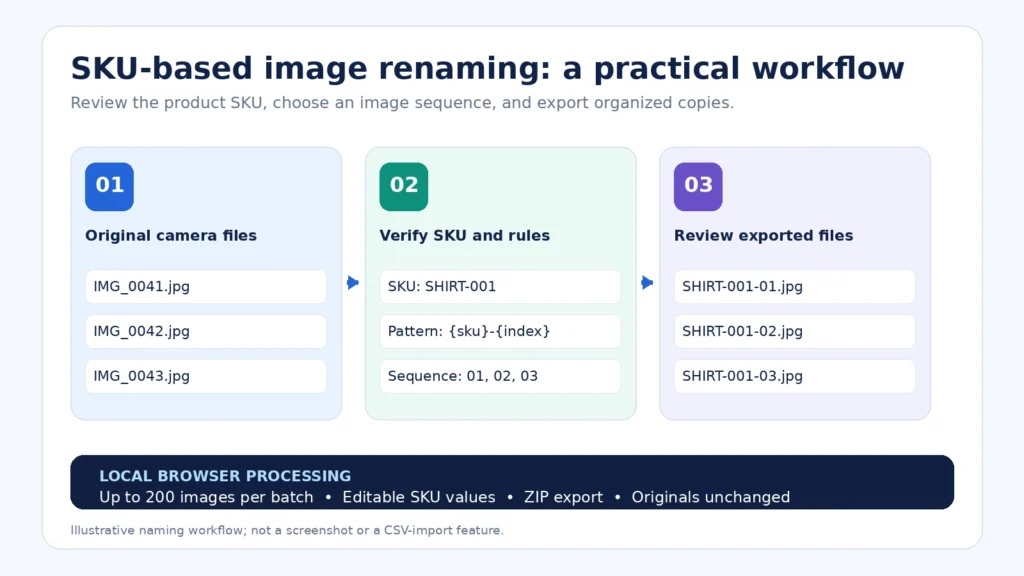
Illustrative workflow: original camera filenames → manual SKU verification and naming rule → organized exported filenames. This is not an application screenshot or a CSV-import feature.
Step 7: Process the Images and Download the ZIP
When the names and image settings look right, process the batch. The tool generates prepared copies and offers a single ZIP download containing the output images. Its documented behavior makes duplicate output filenames unique automatically, but that is a safeguard rather than a substitute for reviewing your SKU mapping.
Do not close the process until the download is complete. Save the output ZIP with a meaningful batch name, such as autumn-catalog-images-2026.zip, so it is easy to distinguish it from another supplier or seasonal collection.
Step 8: Perform a Visual and Filename Quality Check
Extract the completed ZIP and open a representative sample. Check product identity, photo orientation, image dimensions, any resizing or cropping, and the file extension. Confirm that the intended SKU and sequence number appear in each filename. Compare the group with your product sheet and inspect any renamed files that received duplicate-name suffixes.
Remember that the tool creates new copies and does not overwrite the originals. Also note that its product page says embedded EXIF metadata is removed during re-encoding; if your workflow depends on particular embedded metadata, verify that requirement before processing.
Step 9: Upload and Link Images in Your Store
Your prepared images can now enter the correct Shopify, WooCommerce, or marketplace workflow. A renamed file is not automatically assigned to the matching SKU simply because the filename contains that value. In a manual workflow, open the relevant product or variant and upload the correct image. In a CSV or migration workflow, check how the destination expects image references, URLs, and gallery associations to be provided.
If the destination expects a public image URL, a local filename alone is not a substitute. Upload the asset using an appropriate image-hosting or store-media workflow, then use the resulting accessible URL where required. Test a few products before processing the entire catalog.
Shopify and WooCommerce: What Changes After Renaming?
Shopify. Renaming your local files may help you organize the upload process, but Shopify does not automatically associate images with a SKU based only on the filename. Check how your specific product editor, import file, or application handles media. Verify gallery images, alt text, variant relationships, and storefront display after upload. Shopify’s current product-media documentation also notes that supported formats and image dimensions have platform-specific requirements.
WooCommerce. The same principle applies: organized names make the media library and team workflow easier to manage, but they do not attach images to products on their own. Ensure that the main product image and gallery entries point to the correct media. Variable products may also need variant-specific image assignments.
For both platforms, take care when replacing images already published on your website. Existing image URLs might be referenced in products, content, or other systems. Uploading a newly named image does not automatically redirect an old image URL or fix a broken reference.
Image Filenames and SEO: What Actually Matters?
Google’s image SEO guidance recommends short, descriptive filenames, helpful alt text, and images placed near relevant page content. A filename such as SHIRT-001-01.jpg is easy for your catalog team to identify, but it may convey less product meaning to a shopper or search engine than navy-cotton-polo-shirt-front.jpg.
This is not a reason to abandon SKU-based filenames. It is a reason to use them for catalog operations while writing meaningful, accurate alternative text in your store. For example, the alt text “Navy cotton polo shirt, front view” describes the actual picture better than a repeated string of SKUs and keywords. Keep product photographs sharp, reasonably sized, and consistent in aspect ratio where appropriate. Avoid promising that filename changes alone will improve search rankings.
If your workflow allows descriptive tokens or a sensible original filename, you can consider including useful product context while keeping the result readable. Prioritize accurate SKU matching and consistent handling over squeezing keywords into every file.
Common Bulk Image-Renaming Mistakes to Avoid
Using the wrong variant SKU. Compare images with the actual color and size variant, not just the parent product’s name.
Repeating a filename for several views. Give each image a distinct suffix so that different photographs do not overwrite or conflict with each other when moved between folders.
Assuming sequence numbers control gallery order. A store or import system may maintain a separate media order. Verify the displayed order after upload.
Renaming extensions without converting the image. A .webp filename should contain a real WebP image. Use a supported export or conversion operation where needed.
Over-compressing product photos. A smaller file is not worth losing fabric texture, labels, stitching, or important details. Inspect the results at the size shoppers will see.
Treating an SKU as proof of a correct match. An inaccurate SKU-based filename makes the wrong association look more organized. Visual review is still necessary.
Replacing live images without checking references. Renaming a local picture does not update links or image references already stored in your website, spreadsheet, feed, or application.
A Practical Checklist Before Every Catalog Upload
- Confirm that product and variant SKUs are accurate in the source catalog.
- Keep an untouched copy of the original photographs.
- Choose one naming rule and consistent sequence-digit length.
- Test a small sample before processing the full batch.
- Review and edit detected SKU values for each image.
- Inspect the proposed names for duplicates and unintended suffixes.
- Check image format, dimensions, crop, readability, and clarity.
- Extract and inspect the finished ZIP before uploading.
- Confirm the destination’s required media format and reference method.
- Review product assignment, gallery order, and alt text on the live store.
Keep this checklist with your catalog operating procedure. The same quality checks are useful whether you manage fifty products or thousands spread across several imports.
Frequently Asked Questions
Can I rename hundreds of product images at once?
Yes, using an appropriate batch-renaming workflow. The Altrix Product Image Preparation Tool supports up to 200 images per batch. Divide larger catalogs into smaller groups, keep a record of processed batches, and inspect the output before upload.
Can the tool automatically match every image to a Shopify SKU?
No. The tool works with local images, derives a starting SKU from the filename, and allows you to edit the SKU. It does not connect to your Shopify store, import a product-data CSV as an automatic mapping source, or automatically assign photographs to store products.
Which image formats can I use?
The tool supports JPEG, PNG, and WebP input files. It can preserve original formats or produce supported converted formats. Check the destination’s supported types and inspect converted images for acceptable quality.
Does renaming a product image improve SEO?
A clear, descriptive filename can offer search engines some context, but its impact is limited. Relevant product content, descriptive alt text, image quality, technical accessibility, and the overall usefulness of the page also matter. Renaming is not a ranking guarantee.
Can several images use the same SKU?
Yes. A product may have front, back, lifestyle, and close-up photographs. Give those files distinct names using sequence numbers or another supported suffix, and confirm which file should be displayed first by your store.
Does the tool modify my original photos?
No. It creates processed copies for download. Keep the originals as a backup and inspect the new ZIP before using the images in a live store.
Can I use it for WooCommerce, Amazon, or other marketplaces?
You can prepare local JPEG, PNG, and WebP files for workflows involving different selling platforms. However, each platform has its own image, import, and listing rules. The tool does not connect to or guarantee acceptance by those services.
Make Product Image Preparation More Predictable
A consistent SKU-based naming process turns an untidy supplier folder into a catalog asset that your team can understand and review. Start with accurate identifiers, choose a straightforward filename pattern, verify the results, and then attach the right photographs to the right products.
If you regularly prepare batches of product photography, the Altrix Product Image Preparation Tool combines editable SKU-based renaming with image resizing, compression, supported format conversion, and ZIP export in one local-browser workflow. Review its features and current purchase details to see whether it fits your catalog-preparation process.
For a related pre-import task, you can also use the Altrix Product CSV Checker to review product-data issues. It checks selected CSV fields and image URL syntax, but it does not upload images, confirm that URLs are reachable, or assign images to products.