
Migrating an online store is an important step for any growing e-commerce business. Whether you are moving from Shopify to WooCommerce, rebuilding an existing store, or transferring thousands of products to a new platform, maintaining accurate product information is essential.
A successful product import does not automatically mean that every product has been transferred correctly.
Some products may be missing. Prices might have changed unexpectedly. Stock quantities could be different, or duplicate product identifiers may prevent records from matching correctly.
This is why learning how to compare product CSV files before and after a store migration is an essential part of a reliable e-commerce migration process.
By comparing the original product export with the destination store export, you can identify important catalog differences, investigate unexpected changes, and document the results before completing the project.
In this guide, we explain seven practical checks for validating product CSV files, common problems to avoid, and how the Altrix Migration Comparison Tool can simplify the process.
Why Should You Compare Product CSV Files After Migration?
A product CSV (Comma-Separated Values) file is a structured text file that can store product-related information in rows and columns.
Depending on the e-commerce platform and export settings, this information may include:
- Product names and identifiers
- Stock Keeping Units (SKUs)
- Product prices
- Inventory quantities
- Product variations
- Categories and descriptions
- Image references
- Product visibility and availability settings
CSV files are commonly used for importing, exporting, backing up and updating product catalogs.
However, differences between e-commerce platforms, export settings and data structures can make migrations difficult to verify.
For example, imagine an online store containing 4,000 sellable products and variations.
After migration, the destination store also reports 4,000 records. At first glance, the migration appears successful.
But what happens if 20 original products are missing and 20 unexpected records have been added?
The total count remains unchanged, even though the catalog is not identical.
A proper product CSV comparison helps you look beyond record counts and determine whether the expected identifiers and selected values have been preserved.
It also creates a clearer review trail for store owners, developers and agencies.
Before You Start: Prepare Your CSV Migration Comparison
Before comparing files, make sure you have two suitable exports.
Source CSV: The original product data exported from the old store before migration.
Destination CSV: The corresponding product data exported from the new store after migration.
Both files should represent comparable catalog coverage and ideally be created as close together in time as practical.
If the source export contains every product but the destination export contains only active products, the comparison may incorrectly suggest that unpublished products are missing.
Similarly, differences in currency, taxation or stock-reporting settings can produce misleading results.
Keep an untouched backup of each original export and perform your comparison on copies where possible.
Check 1: Export Product CSV Files From Both Stores
The first step is to obtain a reliable product export from each platform.
Exporting products from Shopify
Shopify provides product CSV export options for backing up catalog information and moving product data.
To begin:
- Sign in to your Shopify administration panel.
- Navigate to Products.
- Select Export.
- Choose the products you want to export.
- Select the appropriate CSV export option.
- Save the exported file securely.
Use the official Shopify product export documentation for current export procedures and limitations.
Depending on your inventory setup, location-specific stock details may require a separate inventory export rather than the standard product CSV.
Exporting products from WooCommerce
WooCommerce also includes a built-in product CSV exporter.
To export product data:
- Sign in to your WordPress dashboard.
- Open Products → All Products.
- Click Export.
- Select the required product types and columns.
- Include relevant variations where applicable.
- Generate and save the CSV file.
You can find detailed instructions in the official WooCommerce Product CSV Importer and Exporter documentation.
Important: CSV column names and structures may differ between platforms. Do not assume that an export from Shopify and an export from WooCommerce will use identical column headings.
Check 2: Prepare Both CSV Files for Accurate Comparison
Before running the comparison, review the structure of both files.
A useful CSV file should contain a header row followed by product records.
For example:
| SKU | Product Name | Price | Stock |
|---|---|---|---|
| SHIRT-001 | Cotton T-Shirt | 19.99 | 50 |
| MUG-002 | Coffee Mug | 12.50 | 30 |
| BAG-003 | Canvas Tote Bag | 24.00 | 15 |
Your destination export may contain different column names, such as Variant SKU, Regular price, Inventory quantity or other platform-specific labels.
The objective is to identify which columns represent the same type of information.
Before proceeding, check that:
- The files use a consistent text encoding, preferably CSV UTF-8.
- Header names are present and unique.
- Rows contain a consistent number of fields.
- Matching columns contain usable product identifiers.
- Prices use a consistent currency and tax basis.
- Numeric fields do not contain unexpected currency symbols.
- Product identifiers have not been accidentally reformatted.
Be particularly careful when opening CSV files in spreadsheet applications.
For example, a product identifier such as 000123 should not be automatically converted into 123.
A missing leading zero can prevent a product from matching its original record.
If you suspect that a source file contains structural errors, consider checking it before proceeding with your migration validation.
AltrixWeb also offers a Product CSV Checker for product-data readiness checks.
Check 3: Match Products Using a Stable Identifier
Matching the correct records is one of the most important parts of any CSV comparison.
Product names alone are usually not reliable identifiers.
Consider these two examples:
- Old product name: Men’s Cotton T-Shirt
- New product name: Cotton T-Shirt for Men
Both records may describe the same item even though the names are different.
Using the product title for matching could incorrectly identify these records as separate products.
A stable SKU or another suitable identifier is generally a better choice.
Why SKU matching is useful
SKUs are commonly used to identify individual sellable products or variations.
If a product has the SKU TSHIRT-BLK-M, that identifier can help match its source and destination records even if the product name changes.
However, accurate matching requires the identifier to remain consistent.
If SKUs are changed during migration, the original SKU may appear missing while the replacement SKU appears as a new record.
What about product variations?
Products with multiple sizes or colors may contain several variation records.
For example:
- TSHIRT-BLK-S
- TSHIRT-BLK-M
- TSHIRT-BLK-L
Each variation should have an appropriate unique matching identifier.
Using only a shared parent product identifier could lead to duplicate matches.
In cases where one identifier is insufficient, a composite key—such as SKU plus location—may help distinguish records.
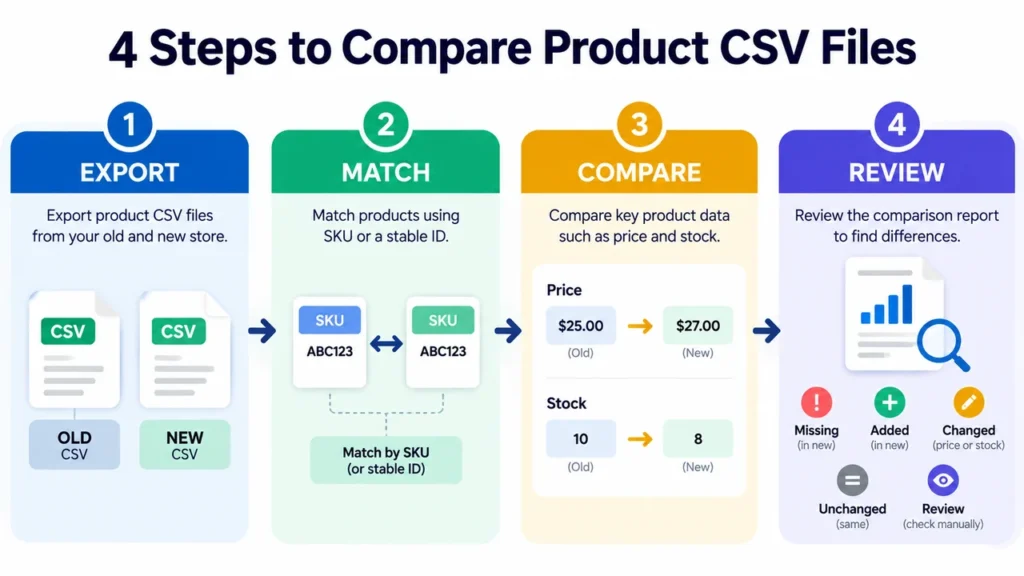
Check 4: Identify Missing and Newly Added Products
Once the records are matched, examine which identifiers appear in only one file.
This process helps you identify two important groups.
Missing products
A missing product is an identifier present in the original export but absent from the destination export.
For example:
| Original CSV | Destination CSV | Result |
|---|---|---|
| SKU-101 | SKU-101 | Present |
| SKU-102 | SKU-102 | Present |
| SKU-103 | Not found | Missing |
SKU-103 requires investigation.
Possible explanations include an incomplete import, an export filter, an intentionally removed product, or a changed identifier.
Do not assume that every missing identifier represents a failed migration.
Newly added products
An added product appears in the destination export but not in the original export.
This might be expected if new products were created during migration.
However, unexpected additions can also result from duplicate imports or changed matching identifiers.
Review each unusual result before approving the migration.
For large catalogs, manually searching thousands of CSV rows can be time-consuming.
A comparison application can organize missing and added identifiers into a clearer reviewable report.
Check 5: Compare Product Prices Before and After Migration
Pricing accuracy directly affects revenue, customer trust and profitability.
An incorrect price may cause a product to sell below its intended value or appear unexpectedly expensive.
Consider the following example:
| SKU | Old Price | New Price | Difference |
|---|---|---|---|
| SKU-101 | $29.00 | $29.00 | $0.00 |
| SKU-102 | $45.00 | $49.00 | +$4.00 |
| SKU-103 | $18.50 | $17.50 | -$1.00 |
SKU-102 and SKU-103 require review if no price changes were intended.
Watch for rounding differences
Some migrations introduce minor rounding differences.
A price of $29.99 might become $30.00 because of import settings or rounding behavior.
Depending on your requirements, you may want to allow small numerical differences.
For example, an absolute price tolerance of $0.01 allows differences of up to one cent to be treated as equivalent for comparison purposes.
A zero tolerance requires exact numerical agreement.
The Altrix Migration Comparison Tool supports an adjustable absolute price tolerance for mapped price columns.
Confirm currency and tax settings
Before comparing prices, confirm that both exports use the same currency and tax basis.
A price including tax should not be compared directly against a price excluding tax without the appropriate adjustment.
Likewise, comparing USD values with values converted into another currency will not produce meaningful results without currency normalization.
A CSV comparison tool can highlight differences, but it cannot determine whether every business-related price change is appropriate.
That decision remains with the store owner or catalog manager.
Check 6: Verify Stock Quantities and Inventory Differences
Inventory discrepancies can cause operational problems after migration.
An incorrect stock quantity may lead to overselling, missed orders or unnecessary out-of-stock listings.
For example:
| SKU | Old Stock | New Stock | Result |
|---|---|---|---|
| SKU-101 | 50 | 50 | Unchanged |
| SKU-102 | 30 | 24 | Changed |
| SKU-103 | 15 | 0 | Changed |
A difference does not always mean the migration failed.
If six units of SKU-102 were sold between the two exports, the reduction from 30 to 24 may be legitimate.
This is why export timing matters.
For more reliable inventory comparisons:
- Use snapshots taken at comparable times.
- Account for sales, returns and stock adjustments.
- Check whether inventory is tracked at product or variation level.
- Verify whether multiple inventory locations are involved.
- Investigate blank or invalid stock values rather than treating them as zero.
Inventory across multiple locations
If you use multiple warehouses or stock locations, a single product may appear in more than one inventory record.
Matching only by SKU can become ambiguous.
Where suitable location columns exist in both exports, a composite identifier such as SKU and location can help compare corresponding inventory records.
Keep in mind that comparing location-specific records is different from calculating a total quantity across all locations.
The Migration Comparison Tool performs record-level comparison; it does not automatically aggregate stock totals.
Check 7: Review the Comparison Report and Validate the Live Store
The final step is to investigate your findings and determine whether the migration is ready for approval.
Instead of relying on a successful import message, prepare a structured review of product presence and important numeric values.
A useful comparison report should help distinguish between records that are:
- Missing from the destination
- Newly added to the destination
- Changed in selected fields
- Unchanged under the comparison rules
- Uncertain and requiring manual review
For example, a duplicate SKU may make it impossible to identify which source row should match which destination row.
Such records should be investigated rather than automatically paired.
Do not ignore ambiguous records
Blank identifiers, duplicate keys and invalid numeric values can reduce comparison accuracy.
Resolve the underlying issue or establish an appropriate matching rule before treating the results as final.
Export and retain the results
An exportable CSV report is useful for internal quality checks and agency-client handovers.
For accountability, retain the source exports, comparison settings, date of review, identified issues and decisions made.
A clear record also makes it easier to repeat the check after corrections.
Finish with manual store verification
A product CSV comparison is only one part of migration testing.
After reviewing your product identifiers, prices and stock quantities, check other important areas separately:
- Product images and galleries
- Product descriptions and categories
- Product URLs and redirects
- Variation selection on product pages
- Storefront product visibility
- Cart and checkout functionality
- Payment and shipping configurations
- Customer accounts and order history, where relevant
An unchanged CSV comparison result does not certify that the entire store migration is complete.
It only establishes that the selected comparison fields match under the configured rules.
Example: Understanding a Product CSV Migration Report
Imagine that your old store contains the following records:
| SKU | Price | Stock |
|---|---|---|
| A-001 | 29.00 | 10 |
| A-002 | 45.00 | 20 |
| A-003 | 15.00 | 5 |
| A-004 | 12.00 | 8 |
After migration, the destination export contains:
| SKU | Price | Stock |
|---|---|---|
| A-001 | 29.00 | 10 |
| A-002 | 49.00 | 20 |
| A-003 | 15.00 | 3 |
| A-005 | 18.00 | 7 |
With a price tolerance of zero, the comparison identifies several findings:
| SKU | Finding | Explanation |
|---|---|---|
| A-001 | Unchanged | Price and stock match |
| A-002 | Changed | Price increased by 4.00 |
| A-003 | Changed | Stock decreased by 2 |
| A-004 | Missing | Not present in the new export |
| A-005 | Added | Not present in the old export |
These findings provide a practical list of records requiring confirmation.
Before changing any product data, the store owner can determine whether the differences were intentional.
This example also demonstrates why checking only the number of records would be insufficient.
Both CSV files contain four rows, yet the product identifiers and numeric values are not identical.
Common Mistakes When Comparing Product CSV Files
Even a well-planned comparison can produce misleading results when the input data is unsuitable.
Comparing different product selections
An old export containing all products should not be compared against a new export filtered to a single category without accounting for the difference.
Using product names instead of stable identifiers
Product titles may change because of SEO improvements, catalog cleanup or platform-specific formatting.
Use reliable identifiers wherever possible.
Ignoring variations
A variable product may contain several individual sellable variations.
Make sure your comparison covers the records relevant to the migration.
Changing SKU formatting accidentally
Spreadsheet programs may alter long numbers, remove leading zeros or reformat identifiers.
Preserve the original SKU values.
Comparing different currencies
A difference caused by currency conversion does not necessarily represent an incorrect migrated price.
Normalize the data first.
Treating all stock changes as errors
Stock quantities may change because of real transactions.
Investigate the cause before reversing inventory values.
Assuming the comparison validates everything
Matching prices and inventory quantities does not verify product images, descriptions, categories, SEO metadata or checkout behavior.
These require additional checks.
Simplify the Process With Altrix Migration Comparison Tool
Manually comparing two small CSV files may be manageable in a spreadsheet.
However, when a store contains hundreds or thousands of product and variation records, comparing each identifier and numeric value becomes more difficult.
The Altrix Migration Comparison Tool is standalone browser-based software designed to compare old and new product CSV exports.
It helps identify important catalog differences without automatically modifying your product files.
What the tool can check
The software supports:
- Matching records using SKU or another stable identifier
- Using two matching columns where appropriate
- Identifying missing and newly added records
- Comparing selected product prices
- Applying optional price tolerance
- Comparing selected stock quantities
- Flagging blank and duplicate identifiers
- Identifying invalid numeric values requiring review
- Filtering findings by status
- Exporting complete or filtered CSV comparison reports
The application processes selected files locally in your browser.
You do not need to provide store passwords, connect an API or upload catalog data to an external comparison service.
How to use the application
- Obtain the downloadable application package.
- Extract the ZIP file.
- Open
index.htmlin a desktop or laptop browser. - Choose the original and destination product CSV files.
- Confirm the matching identifiers and comparison columns.
- Select the appropriate decimal format and optional price tolerance.
- Run the comparison and review the findings.
- Export the report and make corrections separately in your store.
The current version supports compatible CSV files containing up to 100,000 data rows and 20 MB per file, subject to the application’s requirements and your device’s resources.
It is suitable for comparable Shopify, WooCommerce and other product exports when the required identifiers and numeric fields are available.
It is not a store migration service, WordPress plugin, CSV importer or automatic product repair tool.
For detailed specifications, compatibility information and purchase options, visit the Altrix Migration Comparison Tool product page.
Frequently Asked Questions
1. How do I compare two product CSV files?
Export the original and destination catalogs, identify a shared product key such as SKU, and compare record presence and relevant values. Use a spreadsheet for small datasets or a specialized comparison tool for a structured report.
2. Can I compare Shopify and WooCommerce product CSV files?
Yes, provided the exports contain compatible stable identifiers and suitable fields for comparison. You may need to map different column names. This does not mean that all Shopify and WooCommerce data structures are equivalent.
3. What if products have different IDs after migration?
Platform-generated product IDs frequently differ between systems. Use another stable identifier, such as an unchanged SKU, when available. If no shared key exists, reliable automated matching may not be possible without additional data preparation.
4. Can I identify missing products after a store migration?
Yes. Compare identifiers from the original and destination exports. An identifier found only in the source file is a candidate missing product. Check export filters, intentional removals and identifier changes before concluding that it was lost.
5. How do I check whether prices changed during migration?
Map corresponding price columns, ensure both files use the same currency and tax basis, and compare the values for matched products. Use an appropriate price tolerance if minor rounding differences are acceptable.
6. Does a matching CSV report prove the store migration was successful?
No. A comparison validates only the selected data and rules. You must separately check product presentation, URLs, images, descriptions, checkout, payments and other business-critical functionality.
7. Can the Altrix Migration Comparison Tool fix errors automatically?
No. The application identifies differences and exports findings. The user reviews those findings and performs any necessary corrections through the relevant store or catalog workflow.
Final Thoughts: Verify Product Data Before Completing Your Migration
A successful store migration should involve more than confirming that a product import has finished.
Taking time to compare product CSV files before and after migration helps identify missing identifiers, unexpected additions, changed prices, inventory discrepancies and ambiguous records.
By following these seven checks, store owners and developers can complete a more structured review and avoid overlooking important catalog differences.
For a practical way to review old and new exports, explore the Altrix Migration Comparison Tool.
Compare your files, investigate the findings and keep a clear report before approving your next e-commerce migration.