
A product data quality checklist is one of the simplest ways to prevent a bulk catalog update from becoming a costly cleanup project. A product spreadsheet can look correct at a glance and still contain duplicate SKUs, mismatched variants, missing titles, malformed prices, and image references that the destination store cannot use.
These problems are especially easy to overlook when you are importing hundreds of products, merging supplier catalogs, moving to Shopify, or updating an existing WooCommerce store. An import may fail immediately, skip certain rows, or succeed while introducing inaccurate product information. All three outcomes create extra work.
This practical e-commerce product data quality checklist covers 17 checks to complete before a bulk import, explains which issues need manual review, and shows how the Altrix Product CSV Checker can help identify selected CSV problems without connecting to your store.
Table of Contents
Why product data quality matters before a bulk import
A bulk import saves time only when the source data is dependable. Poorly prepared spreadsheets can create duplicate records, incorrect prices, unavailable product options, misleading listings, and avoidable customer support requests. They may also interfere with downstream systems such as inventory reconciliation, order fulfillment, marketplace feeds, and analytics.
A successful upload message is not a guarantee that every product is correct. Some platforms accept a file but skip records or apply updates in unexpected ways. That is why your pre-import process should include both a structural CSV review and a business-level product check.
Before you begin, keep an untouched backup of the original export and define whether the task is a new-product import, a partial update, or a migration. The answers change what counts as a genuine error.
The 17-point product data quality checklist
1. Check the destination platform’s required CSV columns
Start with the exact import template or current CSV schema supplied by your destination platform. Shopify, WooCommerce, and third-party import tools do not necessarily use the same headers or record structures. A column labeled Product Name in a supplier file may need to map to Title in another workflow.
Check spelling, capitalization, required columns, and whether each field belongs to the product or an individual variant. Do not assume a CSV exported from one platform will import unchanged into another. When possible, start from a fresh export or official sample file and map supplier data into that structure.
2. Validate delimiters, headers, and CSV quoting
A CSV is not simply a spreadsheet renamed with a .csv extension. Commas, semicolons, or tabs separate fields; quotation marks allow descriptions and titles to contain punctuation without splitting a record into extra columns.
Look for blank or duplicate headers, inconsistent field counts, unmatched quotation marks, and accidental line breaks. For example, a description containing a comma must be quoted correctly in a comma-delimited file. Fix these structural problems first. Otherwise, later checks may report misleading errors because values have shifted into the wrong columns.
3. Save using UTF-8 and preserve special characters
International catalogs often contain accented letters, non-English text, typographic punctuation, and symbols. Incorrect encoding can turn readable titles into replacement characters or cause import failures.
Save your final file as CSV UTF-8 using a supported editor. Reopen a copy to confirm characters still display correctly. Be careful when spreadsheet software auto-converts product identifiers, dates, or long numbers. For example, 001245 should not silently become 1245 if leading zeros are part of your SKU format.
4. Verify product IDs, handles, and record grouping
Product IDs and handles tell an importer which rows belong to a product and, in some cases, which existing product should be updated. A mistyped identifier may attach data to the wrong item or create an unexpected new listing.
Check for missing handles where they are required, inconsistent handle spelling, and rows that appear under the wrong product group. If a platform permits image-only continuation rows or multiple variant rows, make sure those rows follow the expected pattern. Never regenerate identifiers indiscriminately during an update; first determine how the platform matches existing records.
5. Find blank, reused, or suspicious SKUs
SKUs are frequently used to connect catalog records with purchasing, warehousing, suppliers, and fulfillment. A blank SKU can make reconciliation more difficult, while the same SKU assigned to unrelated sellable items can cause confusion.
Look for missing SKUs, duplicates, accidental spaces, inconsistent capitalization, and leading-zero changes. A repeated SKU is a review warning, not automatically proof of a bad import: some stores or workflows intentionally reuse identifiers. Confirm the business rules before changing them. The Product CSV Checker can flag blank and repeated values in mapped SKU columns for investigation.
6. Review product titles for completeness and consistency
A useful product title should identify the item accurately. Missing titles produce weak listings and can be particularly troublesome when a migration file mixes parent products with variant or image rows.
Review empty titles, placeholder text such as TBD, spelling inconsistencies, unintended duplicates, and titles that conflict within the same product group. Keep legitimate continuation rows in mind: a blank title on one Shopify-style image or variant continuation row may be intentional. Judge completeness at the product-group level rather than requiring every row to repeat the title.
7. Inspect descriptions without breaking HTML or punctuation
Descriptions should communicate what buyers need to know: size, material, compatibility, contents, care instructions, or other product-specific information. Supplier descriptions often contain boilerplate, missing measurements, obsolete claims, or unwanted markup.
Review empty descriptions where your launch requires them, duplicated text across unrelated products, unsupported HTML, and punctuation that might break CSV quoting. Do a visual check in a staging catalog, too. A CSV checker can help with mapped missing-description warnings, but judging the accuracy, originality, and readability of copy still requires human review.
8. Check selling prices and numeric formatting
Prices deserve special attention because a file can contain syntactically valid numbers that are still commercially wrong. Look for blanks, negative amounts, unexpected zeros, misplaced decimal separators, and values containing currency symbols or thousands separators when the import expects plain numeric fields.
For example, 29.00 may be appropriate for a numeric selling-price column, while $29.00 can trigger a formatting warning. A price of 0 may represent an intentional free product, not a mistake. Compare unusual values with the approved price list before editing. Altrix Product CSV Checker can identify several mapped price-format issues; it cannot decide your correct selling price.
9. Review compare-at and promotional prices
A compare-at price can support a discount display, but inconsistent relationships may produce confusing storefront messaging. Review nonnumeric values, outdated sale prices, and compare-at amounts that are equal to or lower than the current selling price when that comparison is supposed to represent a reduction.
Do not apply a universal discount rule to every catalog. Promotions, regional prices, tax treatment, and platform configuration all matter. If you use a compare-at field, verify it against your current pricing policy and the destination platform’s import requirements. The Product CSV Checker can flag selected compare-at inconsistencies in mapped fields.
10. Make sure variants belong to the correct product
A T-shirt with three sizes and two colors needs clear grouping so that the importer understands those records are variations of one product—not six unrelated products. Incorrect grouping may cause orphaned rows or duplicate catalog entries.
Check shared product identifiers, handles, option sets, and parent-child relationships. Confirm that a product’s variants use the same intended option names and that every variant row has the values needed for its combination. Be especially careful when migrating from a system that stores parent and child records differently.
11. Find repeated or incomplete variant combinations
Within the same product, two variants normally should not describe an identical combination of options unless your workflow explicitly calls for it. Examples include two rows both labeled Size: M and Color: Black, or a second option value without its corresponding option name.
Review empty option values, inconsistent spelling (Blue versus blue), missing intermediate option positions, and repeated combinations. Altrix Product CSV Checker can inspect up to three mapped option name/value pairs within a product grouping. It helps locate suspicious combinations, but you must confirm which variant records are correct.
12. Inspect image URLs and product-image associations
A product may import successfully and still display the wrong photograph—or no image at all. Check whether each product group has the expected images, that image links point to the right item, and that URLs are formatted as required by your platform.
A relative path such as images/shirt.jpg is not the same as a full https:// URL. However, even a correctly formatted URL could be broken, blocked, or return something other than an image. The Product CSV Checker checks mapped image URL format; it does not visit the URL or verify that the image loads. Test actual image access and associations separately. For batch image preparation, see the Product Image Preparation Tool.
13. Check categories, collections, tags, and attributes
Categories and product attributes determine how customers browse and filter your catalog. Supplier spreadsheets may use inconsistent terms such as Menswear, Men's Wear, and Men Clothing for the same department.
Standardize your taxonomy before importing. Look for missing categories where required, inconsistent separators, attributes mixed with tags, and category paths that don’t exist in the destination store. Consider how automatic collections or merchandising rules use these values. Missing mapped categories can be flagged during a completeness review, but the tool cannot verify your store’s complete category structure.
14. Reconcile inventory and availability separately
Quantities, inventory tracking policies, stock locations, and availability statuses are business-critical. Yet they can follow different workflows from the main product CSV. An outdated supplier file may indicate that an item is available when your warehouse has already sold out.
Compare stock records with the authoritative inventory system, identify unexpected negative quantities, and check whether the import process changes stock tracking. Pay particular attention to multi-location inventory and backorder settings. Inventory validation is a separate manual or platform-specific check, not a claimed stock-audit feature of Altrix Product CSV Checker.
15. Confirm publication status and intentional blanks
Before uploading, decide which products should be active, draft, archived, or hidden. Check the destination platform’s supported status values rather than assuming that every system accepts active or published in the same way.
Also distinguish accidental blanks from deliberate partial updates. A price-only update might correctly omit descriptions, images, or category fields. On the other hand, a blank value in an included field could overwrite existing content, depending on the platform and import settings. Shopify explicitly documents overwrite behavior for matching handles, so treat blanks and omitted columns differently.
16. Audit identifiers and feed-specific information
If your imported products will appear in Google Merchant Center or other shopping feeds, review relevant product identifiers and feed attributes as well. Depending on the product, that may include brand, GTIN, size, color, condition, price, and availability.
Never invent a GTIN to satisfy a spreadsheet field. Check the manufacturer’s genuine identifier and the feed’s current requirements. Google warns that missing or inaccurate product data may limit Shopping visibility or cause disapprovals. These checks belong to your broader merchandising workflow; the Product CSV Checker is not a complete Merchant Center compliance validator.
17. Review the final exception report and unresolved records
A final pass should bring your findings together: CSV structure errors, missing mapped fields, pricing warnings, SKU conflicts, suspicious variants, and manually identified catalog issues. Sort them by business impact rather than treating every warning as equally serious.
Assign each exception to a person, record its source row or identifier, and decide whether to fix it, accept it as intentional, or hold it for clarification. Recheck the corrected file. A dependable import should proceed only when critical errors are resolved and accepted exceptions are documented.
An example: catching problems in a small product CSV
Imagine a supplier provides a file containing 1,200 products. The spreadsheet opens normally, but a quality review finds that SKU TSHIRT-001 appears for two unrelated items; one selling price is entered as $49.00; one variant has a blank size; and an image cell contains only shirt-front.jpg.
These findings have different remedies. The duplicate SKU needs a business decision. The price may need its symbol removed to match the target import format. The blank size needs confirmation from the supplier. The image path must be converted to an appropriate URL or mapped to an already hosted image if the platform requires one. Simply clicking “Import” cannot make these decisions for you.
A practical review table looks like this:
| Finding | Example | Next action |
|---|---|---|
| Reused SKU | TSHIRT-001 on two unrelated products | Confirm intended identifier |
| Price-format warning | $49.00 | Check schema; use a plain number if required |
| Incomplete variant | Size missing on blue shirt | Confirm the actual size |
| Image-reference issue | shirt-front.jpg | Supply valid source reference for the platform |
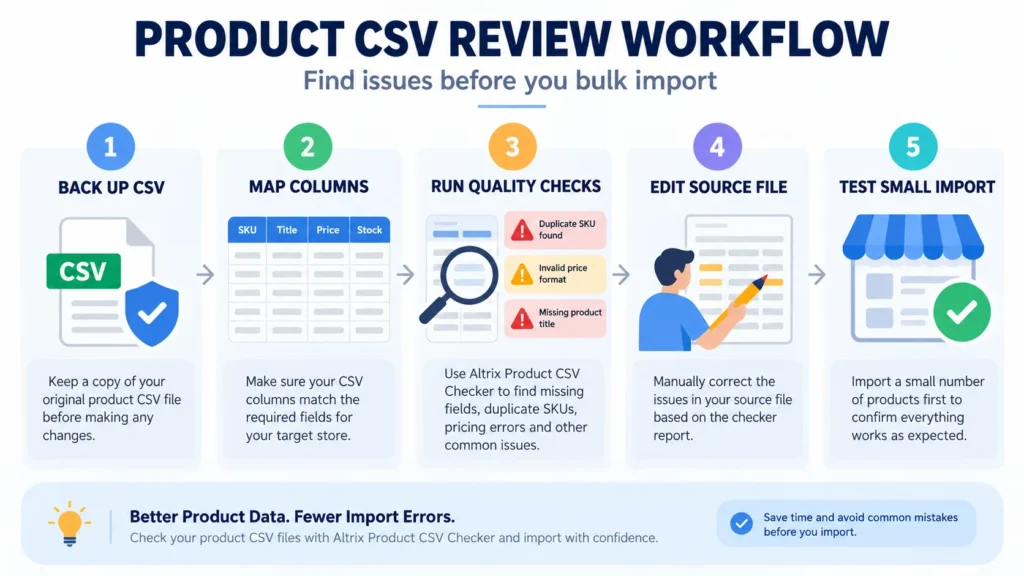
A safer five-step bulk-import workflow
Step 1 — Back up your data. Export and preserve the existing catalog, including any related inventory data your operation may affect. Name the backup clearly so you can distinguish it from the edited file.
Step 2 — Confirm the target schema. Download the platform’s current template, map each supplier column, and identify which fields you are creating, updating, or intentionally leaving unchanged.
Step 3 — Run a structured CSV review. Use Altrix Product CSV Checker for supported file-structure, SKU, price, title, variant, and completeness checks. The standalone tool opens locally in a desktop browser and supports a Shopify-style profile or a configurable generic profile. It produces findings that identify records to review.
Step 4 — Correct the source file yourself. Share the exported findings with a catalog assistant or supplier, make approved edits in the original spreadsheet, and export a fresh UTF-8 CSV. The checker does not automatically rewrite the file, import products, or alter your live store.
Step 5 — Test a small import first. Import a limited subset into a development or staging environment where possible. Check product pages, prices, images, variants, and inventory behavior before attempting the full catalog. After the main import, spot-check records and review the platform’s import logs.
Shopify vs WooCommerce: apply the checklist to the right importer
For Shopify: Use a current Shopify product CSV sample or a fresh export, preserve the expected headers, and check handle and variant relationships. A Shopify import can overwrite included columns for products with matching handles when the overwrite option is selected. Shopify also recommends backing up product data and testing a subset for larger migration work. See Shopify’s official CSV import guide.
For WooCommerce: Use the WooCommerce product CSV importer documentation and confirm product IDs, SKUs, variation structures, and field mapping. WooCommerce includes its own product importer and recommends testing smaller batches for extensive imports. Remember that the generic profile in Product CSV Checker does not implement WooCommerce’s full parent/child record format or every marketplace-specific import rule.
The same quality principles apply across platforms, but the final import file must satisfy the platform you actually use.
How Altrix Product CSV Checker supports your quality-control process
Altrix Product CSV Checker is a practical pre-import review tool, not a replacement for your e-commerce platform’s importer. It works with a file you select on your computer, without requiring admin credentials, API access, or a store connection.
After opening the downloaded application’s START-HERE.html file in a desktop browser, you choose a CSV, TSV, or supported delimited text file, confirm the mappings, and run the relevant checks. You can review findings by issue and source line, export a findings CSV, and print or save a summary for a team member or client.
Useful supported checks include missing titles, repeated or blank SKUs, invalid numeric prices, compare-at pricing inconsistencies, option combination issues, selected missing descriptions/categories/images, and CSV structure problems. Its Shopify profile includes selected handle and continuation-row checks. It does not check every possible platform requirement, fetch image URLs, confirm stock quantities, fix your CSV automatically, or guarantee an error-free import.
If you regularly process supplier spreadsheets or migrate large catalogs, this type of repeatable pre-import review can make your handover and correction process clearer. Explore Altrix Product CSV Checker to see its features and purchase options.
Frequently asked questions
What is a product data quality checklist?
It is a structured set of checks used to verify that product identifiers, prices, descriptions, variants, images, and file formatting are suitable for a planned catalog import or update. The exact requirements depend on the destination platform and the operation.
Can a CSV import succeed even if the product data is wrong?
Yes. A platform may accept correctly formatted rows that contain incorrect prices, outdated descriptions, mismatched images, or unintended product statuses. Import success and business data accuracy are different things, so verify the storefront after the upload.
Are duplicate SKUs always an error?
No. Duplicate SKUs deserve investigation, but whether they are wrong depends on how your business and destination platform use identifiers. Check whether the repeated value belongs to the same sellable item, separate variants, or unrelated products before changing it.
Does Product CSV Checker fix CSV files automatically?
No. Altrix Product CSV Checker identifies supported issues and lets you export findings. You correct the original spreadsheet and run a new review. It also does not upload products to Shopify or WooCommerce.
Does the checker upload sensitive product data to a server?
The product page describes local browser processing: the chosen catalog is checked on your computer rather than uploaded to an external scanning service. You remain responsible for protecting your source file and any exported reports.
Should I test a small CSV before a large import?
Yes. A limited test helps reveal mapping, image, variant, and overwrite behavior before a full import changes a large catalog. Back up your original product data first, then review both the import report and the resulting product pages.
Final takeaway: review first, import second
A dependable bulk product upload starts with good source data. Use this product data quality checklist to confirm CSV structure, titles, identifiers, prices, variants, image references, and business-critical merchandising fields before making large changes. Fix high-impact problems, document exceptions, and always test a small sample.
For a more consistent first-pass review, Altrix Product CSV Checker can flag supported data issues and generate a practical correction report—while keeping the decision-making and final import under your control.