
Missing prices in WooCommerce variations can be frustrating, especially when a product has several sizes, colors, or configurations. You may have entered all the product details, uploaded images, and published the item, only to discover that a particular option cannot be selected or purchased.
Finding missing prices in WooCommerce variations early can prevent product availability issues and help customers select the correct options.
The problem often starts with a blank variation price, but an incorrect attribute combination, disabled variation, import issue, or storefront conflict can create similar symptoms. The important thing is to identify the cause before changing your entire product setup.
This guide explains where WooCommerce stores variation prices, how to find missing values, how to correct them safely, and how to check a larger catalog without opening every product one by one.
Quick answer: Open Products → All Products, edit the affected variable product, and go to Product data → Variations. Expand each affected variation and check its Regular price. Enter the intended amount, save the variation changes, and update the product. Then test the size or color selection on the storefront. If no variation exists for that option, you must create it rather than edit its price.
Table of Contents
Why Missing WooCommerce Variation Prices Matter
A variable product is one item offered in multiple combinations. A clothing store might sell a T-shirt in three sizes and four colors, while an electronics store might offer different storage capacities. Each combination is a separate variation with its own settings, including price, SKU, stock status, and sometimes an image.
WooCommerce uses those variation records to determine which options customers can buy. In the standard WooCommerce setup, a variation needs a Regular price to be available for purchase. An empty value is not the same as a legitimate price of zero. According to WooCommerce’s variable product documentation, variations without prices are not shown as purchasable options in the normal storefront workflow.
The consequences depend on your store’s configuration. A missing price may make one option unavailable, cause the wrong impression that an item is out of stock, or leave customers unable to complete a purchase. It can also complicate product imports, catalog reviews, and ongoing maintenance. These are reasons to treat variation pricing as a routine quality check, not just a one-time launch task.
How WooCommerce Variation Pricing Works
Before troubleshooting, it helps to understand the difference between a parent variable product and its individual variations.
The parent product contains shared information such as the product name, main description, and available attributes. The individual variations represent combinations such as Blue / Small or Red / Large. Their prices can differ. For example:
| Variation | Regular price | Sale price | Result |
|---|---|---|---|
| Blue / Small | $24 | — | Priced normally |
| Blue / Medium | $29 | $25 | Discounted when the sale is active |
| Red / Large | Blank | — | Needs a price review |
This example is illustrative; it is not a screenshot or live store result.
A variable product does not rely on one shared parent-level regular-price field in the same way as a simple product. You normally enter pricing inside each variation. A Sale price is optional; it does not replace the need to configure the variation correctly. When a product is intentionally free, enter a valid zero price rather than leaving the field empty.
If your store uses a specialized pricing extension, such as a quote-request or customer-entered-price system, its rules may differ. Check that extension’s documentation before applying standard pricing changes.
Common Reasons a WooCommerce Variation Has No Price
The most common causes of missing prices in WooCommerce variations include empty regular price fields, incomplete product imports, and incorrectly configured variation records.
1. The Regular Price Field Was Left Blank
This is the first thing to inspect. It is easy to generate many variations and forget to assign a price to one or two of them. The attributes and images can look complete in the dashboard even when the essential price is missing.
Open the variation and confirm whether Regular price contains an actual numeric value. Do not assume that a sale price or a price shown elsewhere on the parent product makes the variation ready.
2. The Expected Variation Was Never Created
A color or size appearing under Attributes does not guarantee that every combination has a variation record. For instance, you might add a new XXL size to the product attributes without generating the new color-and-size combinations.
In this case, there is no missing price to edit because the variation does not exist. Review the Variations tab, compare it with your intended combinations, and create the genuinely required variation. Avoid automatically generating every theoretical combination if some sizes or colors are not sold.
3. The Variation Is Disabled or Has an Availability Problem
A correctly priced option may still be unavailable when its Enabled setting is off. Stock status, visibility rules, or a store option that hides out-of-stock items can also affect what shoppers see. These problems can resemble a pricing issue.
Check the variation’s enabled state and its stock or backorder settings separately. Adding a price will not solve an intentionally disabled variation or an out-of-stock item.
4. Product Attributes or Combinations Are Incorrect
Variable products depend on a consistent relationship between parent attributes and variation values. A variation can behave unexpectedly when an attribute was removed, renamed, or configured incorrectly after variations were created.
Verify that the parent product includes the intended attribute values and that the variations use the correct combinations. When an attribute is intended to define variations, make sure it is configured for that purpose.
5. An Import or Bulk Update Changed Prices
Product spreadsheets, migration tools, supplier feeds, and bulk-editing operations can overwrite existing variation data. A CSV with blank price cells, incorrect field mapping, or mismatched variation identifiers may leave some entries without their intended prices.
Review the last import file and update history before making further changes. If the issue started after a bulk operation, restore the intended values from a verified source rather than entering guesses.
6. Prices Are Configured but Not Displayed Correctly
Sometimes the Regular price is present in the WooCommerce editor, but shoppers do not see the expected price. This points toward a different problem: caching, a theme customization, a pricing plugin, or a JavaScript error affecting variation selection.
Test the product in a private browser window. If the problem persists, troubleshoot caching and compatibility on a staging copy of the website. Do not overwrite valid prices merely because a front-end price element is missing.
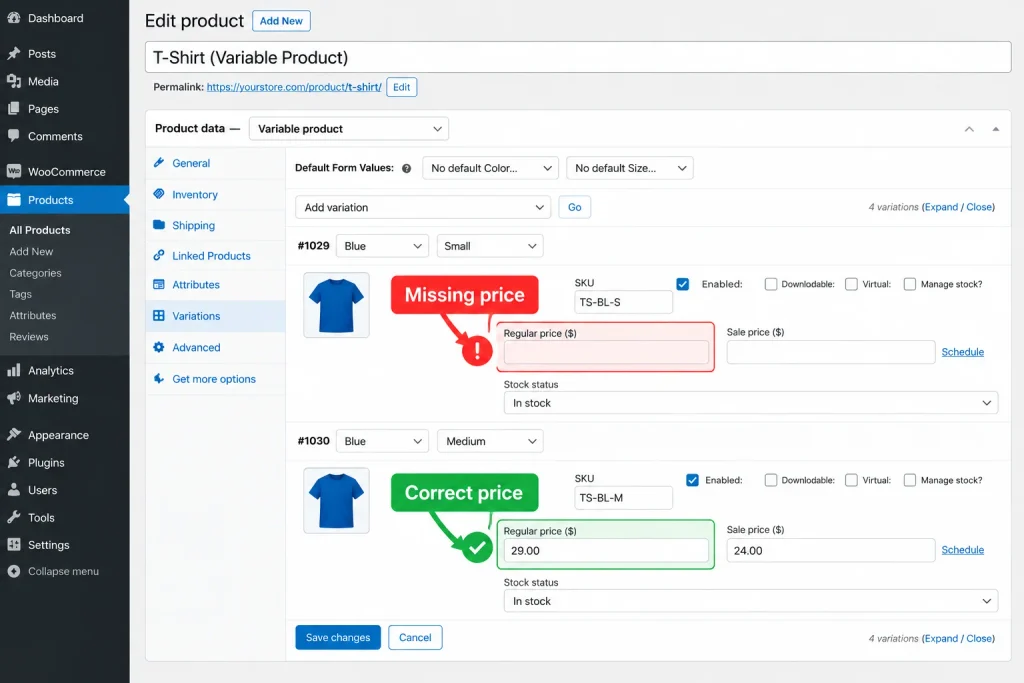
How to Fix Missing Prices in WooCommerce Variations: Step by Step
Before fixing missing prices in WooCommerce variations, confirm the intended selling price and make sure the correct variation record exists. The following process works well for a small number of affected products and provides a reliable basis for reviewing larger catalogs.
Step 1: Make a Backup and Confirm the Intended Price
Before editing live product data, make sure a recent usable backup exists. If you are correcting imported products, retain the original import spreadsheet and confirm the expected price with your product catalog, supplier list, or pricing policy.
A price should not be invented to clear an error warning. The goal is to restore the correct selling information, not simply fill every blank field.
Step 2: Open the Variable Product
In your WordPress dashboard, go to Products → All Products. Search for the affected item, then select Edit.
Scroll to the Product data panel and confirm that the product type is Variable product. If the item is actually a simple product, its price is managed differently, usually under Product data → General.
Step 3: Open the Variations Tab
Inside the Product data panel, select Variations. WooCommerce lists the existing combinations for that parent product.
If the product has many variations, review the available pages and use the variation labels or IDs to locate the affected combination. Remember that attributes such as size and color help identify a variation, but they are not a substitute for inspecting its actual price field.
Step 4: Check the Regular Price and Sale Price
Expand the affected variation. Find Regular price, and enter the correct amount. If you are running a promotion, check the optional Sale price and its schedule as well.
For example, suppose Blue / Small should cost $24 but the regular-price box is empty. Enter 24 as the regular price in a store configured to use US dollars. If the variation should be on sale for $20, enter that separately in the Sale price field and confirm the timing.
Use the store’s configured currency and pricing rules. A free product should be explicitly priced at zero when that is your intended business model. Avoid adding a token price merely to make the variation appear.
Step 5: Review the Variation’s Other Settings
While the variation is open, confirm that it is enabled and that its attributes identify the intended item. Check stock status where applicable. A missing SKU or image may not be the direct cause of the missing price, but those details are worth reviewing during the same visit.
If the size or color you expected is absent from the Variations list, return to the product’s Attributes settings and create the missing variation combination rather than changing another variation’s price.
Step 6: Save the Variation and Update the Product
Select Save changes within the Variations panel, then select Update on the product page. WooCommerce interfaces can vary slightly by version or editor, so look for the equivalent save controls in your installation.
Do not close the editor immediately. Reopen the affected variation and confirm that the intended value is still present. If it disappears again, investigate permissions, custom code, or an extension that may be updating the record.
Step 7: Test the Product as a Customer
Open the product page in a private browsing window. Choose the affected attributes and confirm that the expected variation can be selected, its correct price is displayed, and the add-to-cart flow behaves properly.
Also test one unaffected variation to make sure the fix did not change unrelated options. Where practical, check on both desktop and mobile. On a live store, avoid placing unnecessary real orders merely for testing; use an appropriate test environment or permitted payment method.
Step 8: Check for a Display or Compatibility Problem if Needed
If the editor shows a valid price but the storefront still does not, temporarily bypass page caching for the test and make sure your theme, WooCommerce, and relevant extensions are compatible. Browser console errors or cached variation data can provide useful clues.
Test plugin or theme changes on staging, not by disabling critical checkout features on a busy live site. If custom pricing code is involved, review it with the developer who maintains the store.
Step 9: Record the Fix and Recheck the Catalog
For a store with multiple administrators, note which product was corrected, the intended selling price, and the reason for the change. If missing prices came from an import, repair the upstream spreadsheet or feed so the next update does not recreate the problem.
A corrected product is the beginning of a reliable process; preventing the same error from recurring is the larger win.
How to Check Many WooCommerce Variations for Missing Prices
Checking missing prices in WooCommerce variations manually becomes time-consuming when a store contains hundreds of product combinations.
Manual inspection works for a handful of variations. It becomes slower and more error-prone when a store has dozens of variable products or hundreds of color-and-size combinations.
WooCommerce includes Bulk actions in the Variations panel, including price-setting actions for the variations of the product you are editing. These actions can save time when all selected combinations genuinely need the same update. However, a bulk price change can also overwrite legitimate differences between sizes, configurations, or premium options.
Use bulk editing only after confirming the scope and intended amounts. It should not be treated as a safe universal fix for every missing-price warning.
For multi-product audits, a read-only variation scanner can help you identify which existing variation records need attention before you open them in the WooCommerce editor. That separates finding potential problems from deciding the correct fix.
Find Missing Variation Prices With Altrix Variation Readiness
Altrix Variation Readiness for WooCommerce is a free, read-only plugin that helps administrators review existing variation records for missing effective prices, missing SKUs, and image-readiness issues. It presents findings in an admin dashboard rather than changing products automatically.
For stores needing deeper catalog review, Altrix Variation Readiness Pro adds advanced attribute validation, stock-related warnings, and CSV reporting. You can export all results or focus on records requiring attention, then review and correct them in WooCommerce using your normal editing workflow.
A practical audit sequence is:
- Run a scan to identify existing variations with missing effective-price warnings.
- Review the affected product and variation information.
- Confirm the correct price from your own pricing source.
- Make the correction manually in WooCommerce.
- Run another scan and verify the storefront behavior.
The scanner does not assign prices, repair product data, guarantee that every possible attribute combination exists, or replace human review. Its value is helping you find and organize possible issues more efficiently.
Want a clearer variation audit? Explore Altrix Variation Readiness Pro or start with the free WordPress.org edition.
How to Prevent Missing Variation Prices in the Future
A simple quality-control routine can reduce repeat problems:
- Before publishing: Verify the intended variation combinations, regular prices, and stock settings.
- After importing: Check a sample of products and review the import report for empty or mismapped price fields.
- Before bulk updates: Keep a backup, verify variation identifiers, and test a small controlled batch first.
- After theme or plugin changes: Confirm that prices appear correctly on the storefront, not only in the dashboard.
- During regular maintenance: Revisit products with newly added sizes, colors, or supplier updates.
Document exceptions, too. An intentionally free variation is different from an accidentally blank price, and a custom quote-based pricing extension may follow different rules from a standard WooCommerce product.
Frequently Asked Questions
Why is my WooCommerce variation not showing a price?
The variation may have an empty Regular price, an inactive or invalid sale configuration, or a front-end display conflict. Open the product’s Variations tab and inspect the affected combination first. If the regular price is present, investigate theme, caching, or pricing-extension behavior instead of overwriting valid data.
Does every WooCommerce variation need its own price?
In the standard variable-product setup, each purchasable variation needs an appropriately configured price. Different variations can share the same amount, but they still need valid pricing data. Certain specialized pricing extensions can use different rules, so check their documentation if your store does not follow the standard model.
Can I enter zero as a WooCommerce variation price?
Yes, a zero price can be intentional for a genuinely free item. Enter 0 explicitly when that is the correct amount. An empty price field is not the same as an intentional zero-price variation.
Can I set prices for multiple variations at once?
WooCommerce provides bulk actions for variation pricing within a variable product. Use them carefully, because an action that applies a common price can overwrite valid price differences. Always confirm your intended scope and review the results afterward.
Why is a variation missing even after I added a price?
It may be disabled, out of stock under your display settings, misconfigured, or not created at all. Check whether the precise attribute combination exists, whether the variation is enabled, and whether customers can select it. A price cannot fix a variation record that does not exist.
Will Altrix Variation Readiness Pro automatically fix missing prices?
No. Altrix Variation Readiness Pro is a read-only diagnostic and reporting tool. It can flag missing effective prices in existing variations, while administrators choose the correct values and make changes through the standard WooCommerce editor.
Final Checklist: Fix the Price, Then Verify the Storefront
Preventing missing prices in WooCommerce variations requires accurate product data, regular catalog checks, and careful verification after bulk updates.
When a WooCommerce variable product appears to have a missing price, begin with the variation record rather than guessing. Confirm that the correct variation exists, inspect its Regular price, make only the necessary changes, save them, and test the customer-facing product page. If the price is valid in the editor but invisible on the site, troubleshoot display behavior separately.
For a larger store, build a repeatable process around backups, reliable import data, manual corrections, and read-only audits. That approach helps protect legitimate pricing while keeping product information easier to maintain.
If reviewing variations individually has become too time-consuming, see how Altrix Variation Readiness Pro can help you identify and report pricing, SKU, image, attribute, and stock-related warnings. You stay in control of every product change.