
Migration Comparison Tool for Product CSVs
Your products moved. Did the important details match?
Compare old and new exports to find missing products, added items, price changes and stock differences. Get a clear report before completing your migration or handing a store over to a client.
Runs locally in your browser. No store login, API key or server setup required.
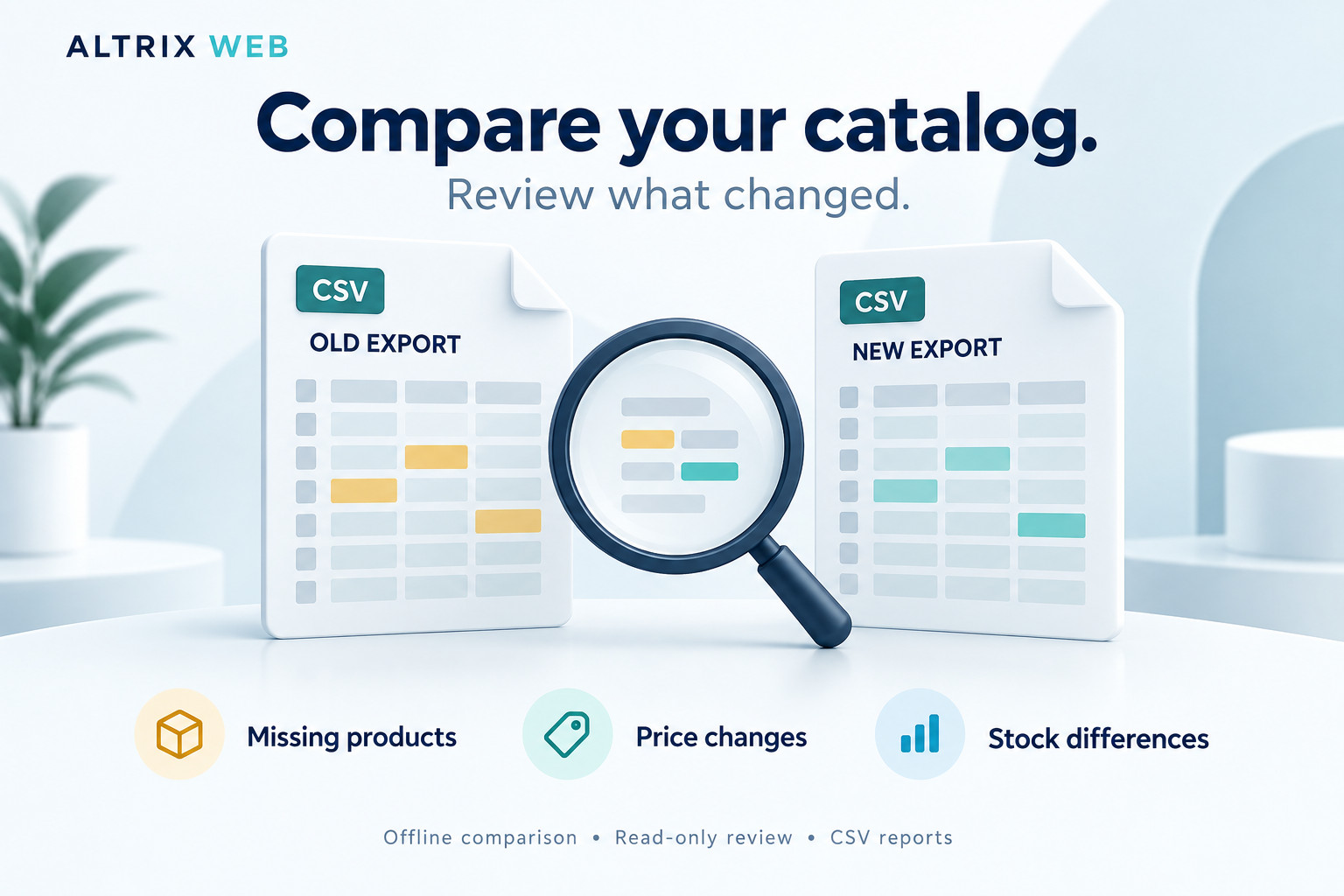
An import can finish while differences remain.
A successful import message does not tell you whether every expected identifier, price and stock value matches your source export.
Check what arrived
Identify keys present only in the old export and investigate records that may be missing from the destination.
Review what changed
See price and stock differences for matched records, with old and new values available for inspection.
Document the findings
Export a report with source line references and comparison settings for your own review or client handoff.
Migration Comparison Tool Features
The Migration Comparison Tool compares identifier presence and your selected price and stock columns across two exports.
Missing & added records
Find identifiers that appear only in one file. Review missing products, intentional additions and changes in export coverage.
Adjustable price tolerance
Compare mapped prices and optionally ignore small differences. A tolerance of 0.01 permits a difference of up to one cent when prices are in dollars.
Exact stock comparison
Highlight differences in stock quantities. Blank or invalid numbers require review; they are not silently treated as zero.
Single or composite keys
Match using SKU or another stable identifier. Add a second column on both sides, such as location, when one identifier is insufficient.
Duplicate & blank key warnings
Identify records that cannot be matched confidently. Duplicate-key groups are flagged instead of automatically paired or summed.
Search, filter & export
Filter by status or search by key and issue. Export the full report or every filtered result, including rows beyond the visible page.
How to Use the Migration Comparison Tool
Follow four practical steps to turn your exports into a reviewable comparison report.
-
Open the tool
Extract the downloaded ZIP and open
index.html. Keep the assets folder alongside it. -
Select two exports
Choose your old source CSV and new destination CSV. Use comparable product coverage and export times.
-
Confirm the mapping
Choose match keys and map price, stock or both. Review suggested columns and select the decimal format.
-
Compare & report
Review the results and download a CSV report. Make any corrections separately in your store.
Start with the included sample exports or built-in sample comparison to learn the workflow.
See the old value. See the new value. Decide what to do.
The example below illustrates how comparison results can guide a review. It is sample data, not a customer result or an application screenshot.
| Example key | Field | Old export | New export | Result |
|---|---|---|---|---|
| A-001 | Price | 29.00 | 32.00 | Changed |
| A-002 | Stock | 20 | 16 | Changed |
| A-003 | Record | Present | Absent | Missing |
| A-005 | Record | Absent | Present | Added |
| DUP | Match key | Two records | One record | Review |
Five clear result statuses
- Missing: the identifier appears only in the old file.
- Added: the identifier appears only in the new file.
- Changed: a mapped price differs by more than your selected tolerance, or stock differs.
- Unchanged: mapped values match within the selected rules.
- Review: a blank key, duplicate key or invalid value needs attention.
Reports with useful context
Exported rows include identifiers, fields, old and new values, source line references, filenames, comparison time and mapping settings.
One record can produce several report rows. Review counts represent issues; the other status counts represent keys. A record may have both a changed field and a review issue.
Unchanged refers only to the fields you mapped. It does not certify that the entire product or store is correct.
Who Can Use the Migration Comparison Tool?
Developers completing a migration
Compare source and destination exports before signing off the product-data portion of a migration. Investigate missing keys and unexpected numeric differences.
Agencies preparing a handoff
Use an exportable report to document what was checked and highlight records requiring a client decision.
Store owners reviewing updates
Compare catalog snapshots before and after a bulk edit to spot price or stock changes that need investigation.
Catalog teams checking imports
Review two exports with stable identifiers and comparable coverage after a supplier import or catalog update.
Migration Comparison Tool: Local, Read-Only Review
The application processes files locally in your browser. No catalog upload, store connection, online account or external scanning API is required.
It does not change the original exports or make corrections in your store. Review the findings, decide which differences matter and make changes separately.
A straightforward offline workflow
- No store passwords or API keys required.
- No application installation or server setup.
- No automatic writes to your catalog.
- Reload or clear to remove the current analysis.
- Downloaded reports remain on your device.
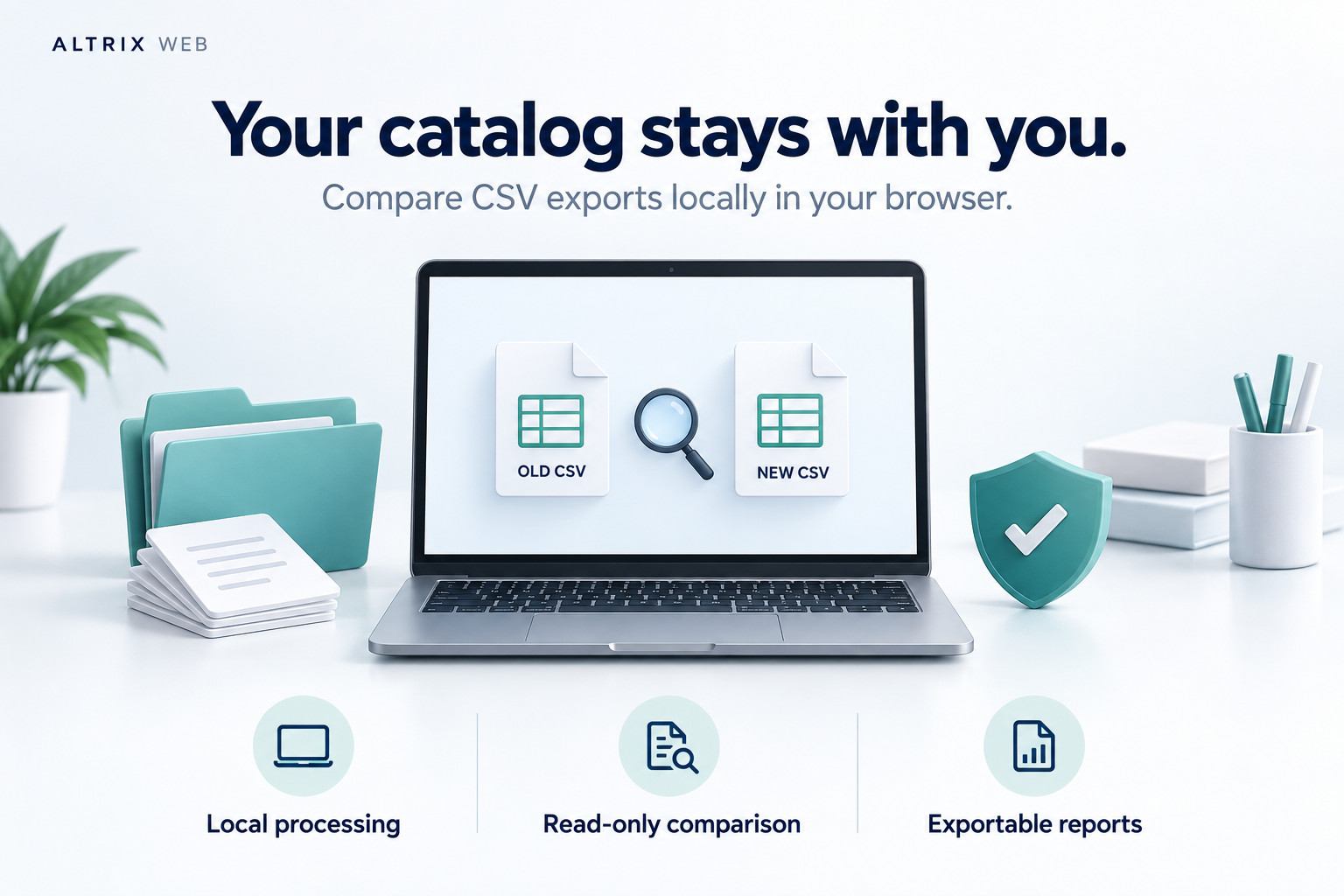
Flexible CSV mapping. A clearly defined scope.
What your files need
- UTF-8 CSV with comma, semicolon or tab separators.
- Up to 20 MB and 100,000 data rows per file.
- Unique, non-empty headers and consistent row lengths.
- A stable identifier shared by both exports.
- A price column, stock column or both.
- Plain numeric values without currency symbols or thousands separators.
Use the same decimal format for both files. Save Excel workbooks as CSV UTF-8 first. Processing time and memory use depend on the device and file contents.
What this version does not compare
- Images, descriptions, categories or other unmapped fields.
- Orders, customers, reviews or checkout behaviour.
- Currency conversions or tax-basis adjustments.
- Stock totals aggregated across multiple locations.
- Live store data or platform-specific schema validity.
Suitable Shopify, WooCommerce and other exports can be mapped. Compatibility depends on the columns and values present in your files.
Make your next catalog review easier to follow.
Altrix Migration Comparison Tool gives you a focused comparison workflow and a report you can keep.
Download the package, extract it and open the application in your desktop or laptop browser. The product page shows current pricing and purchase details.
This is standalone software, not a WordPress plugin or a migration service.
Altrix Migration Comparison Tool
- Offline comparison application and required assets.
- Identifier, price and stock comparison.
- Search, status filters and CSV report exports.
- Sample old and new product exports.
- User guide and validation notes.
Delivered as a ZIP. Extract the files before
opening index.html.
Migration Comparison Tool FAQs
Is this a WordPress plugin?
No. It is standalone browser-based software.
Extract the download and open index.html.
Do not install it through the WordPress Plugins screen.
Does it move products or fix my store automatically?
No. It compares two existing exports and reports differences. It does not migrate products, import files or update either store.
Can I use Shopify and WooCommerce exports?
Yes, when both files contain suitable stable identifiers and numeric columns. Review the mapping yourself. Platform-specific schemas are not automatically validated.
Can I compare product variants?
Use a unique identifier for each variant, such as variant SKU. A shared parent identifier can create duplicate-key warnings. Image-only rows with blank SKUs are flagged for review.
What happens if an SKU changes during migration?
Unless you select another stable identifier shared by both files, the old SKU appears as missing and the new SKU appears as added.
How are duplicate identifiers handled?
Duplicate-key groups are marked for review and excluded from automatic matching. Add a suitable second key on both sides, or investigate the source records before comparing again.
Can I compare inventory across locations?
If both exports contain location columns, choose SKU and location together as the match key. The tool compares individual records and does not aggregate quantities across locations.
Does it need internet access?
No. Once downloaded and extracted, the application processes local files offline. Opening external help links or visiting the store requires internet access.
Can I export or print the results?
Export the complete report or all filtered results as CSV. Printing includes only the current page of filtered results, up to 100 rows. Use CSV for a complete report.
Does an unchanged result mean the migration is complete?
No. It means the mapped numeric fields match within the selected rules. You should separately review images, descriptions, categories, storefront behaviour and any other parts of your migration.
Know what changed before you call it complete.
Bring old and new exports together, investigate the differences and keep a clear record of your catalog review.
Built by Altrix Web for practical e-commerce catalog review.