
Supplier price and stock updates can become a costly guessing game when a new supplier spreadsheet arrives with different column names, duplicate SKUs, changed prices, and uncertain quantities. The safest approach is not to upload everything immediately. Instead, prepare your product spreadsheet, compare it with a fresh store export, review the exceptions, and import only approved changes.
This guide explains nine practical steps for preparing supplier CSV data, whether you manage a small WooCommerce catalog or review product files for several clients. You will learn which columns matter, how to spot errors, why markup and margin are different, and where a dedicated comparison tool can make the process easier.
Table of Contents
Why Supplier Spreadsheets Need Preparation Before Importing
A supplier may send a file named weekly-stock.csv, but its numbers are not automatically ready to become your storefront’s stock and selling prices.
A column called Available may describe warehouse availability rather than stock reserved for your business. A column called Price may mean wholesale cost, suggested retail price, or a tax-inclusive amount. And two businesses may use different codes for the same item.
Directly importing unclear information can create overselling, lost margin, unexpected price changes, and tedious manual corrections.
A safer workflow separates data preparation, change review, and the final store import. It also keeps a backup of the original export so that any disputed update can be investigated.
Step 1: Decide Exactly What Your Update Should Change
Before opening the supplier file, write down the fields you intend to update.
For most routine jobs, the scope should be narrow: available quantity, regular selling price, or both.
Do not update descriptions, images, categories, attributes, or product status merely because those fields happen to be in a supplier feed.
Confirm the supplier’s update date, your store’s export date, the currency, tax basis, and whether the values refer to individual variations or parent products.
Assign one person to approve unusually large price changes. Set a review threshold appropriate to your business—for example, manually inspect proposals that change a selling price by more than 20%.
That threshold is a policy choice, not a universal rule.
A controlled scope makes supplier price and stock updates easier to test and safer to repeat next week.
Step 2: Export the Current Product Data From Your Store
Your existing catalog is the reference against which new supplier values should be compared.
In WooCommerce, open Products → All Products → Export, choose suitable columns, and download a fresh product CSV.
Make sure the export includes the identifier, product type, regular price, and relevant stock fields.
For managed inventory, confirm that products or variations actually use numeric stock quantities.
Keep the untouched export as your backup.
Work on a copy with a date-based name such as store-products-YYYY-MM-DD.csv.
If customers are placing orders while you prepare the spreadsheet, remember that live stock can change after the export.
Keep the review-to-import interval short and check critical quantities immediately before applying the update.
WooCommerce’s built-in importer can update existing records by matching identifiers such as IDs and SKUs.
Always verify the mapping and test on a staging site or a small group of products first.
The official WooCommerce CSV importer guide explains the import options.
Step 3: Convert the Supplier File Into a Clean, Usable CSV
Supplier data can arrive as XLSX, CSV, TSV, or a delimited text export.
If it arrives as an Excel workbook, save a separate CSV UTF-8 version for your comparison workflow.
Preserve the original workbook for reference. Never assume the CSV conversion kept identifiers and decimals unchanged.
Open the converted file and look for these common problems:
- A promotional heading or merged cells above the real column names.
- Blank headers, repeated header names, or inconsistent delimiters.
- Formulas exported as unexpected text instead of final values.
- Currency symbols or commas inside fields that should contain plain numbers.
- Leading zeroes removed from SKUs when a spreadsheet treats them as numeric values.
- Rows describing totals, notes, or section breaks instead of actual products.
Use one header row and one row per sellable SKU or variation.
If the same supplier stocks an item in multiple warehouses, decide how to select a location-specific quantity; do not silently add all warehouse quantities together.
Step 4: Prepare the Essential Spreadsheet Columns
You do not need dozens of columns to begin.
The following is a practical review worksheet layout—not a ready-made import template for every platform:
| SKU | Supplier Stock | Supplier Cost | Current Regular Price | Proposed Regular Price | Review Status |
|---|---|---|---|---|---|
| TSHIRT-BLK-M | 24 | 12.00 | 20.00 | 21.00 | Check price |
| MUG-WHITE | 0 | 4.50 | 9.00 | 9.00 | Check zero stock |
| CAP-NAVY | 36 | 8.00 | 15.00 | 15.00 | Stock change |
These figures are fictional examples. Your actual store export, supplier headers, and pricing policy may differ.
SKU is the primary matching identifier.
Supplier Stock is the quantity reported by the source.
Supplier Cost is what you pay the supplier, not necessarily what customers should pay.
Current Regular Price comes from your store.
Proposed Regular Price follows your agreed price rule.
Review Status records whether a change is acceptable, requires investigation, or should be left alone.
When preparing WooCommerce files, keep the product Type information needed by the selected export workflow.
Existing simple products and individual variations must be distinguished correctly.
A parent variable product and each sellable variation are not interchangeable stock records.
Step 5: Match Products by SKU and Investigate Exceptions
A reliable update begins with a unique, stable SKU for each sellable record.
Normalize accidental leading or trailing spaces, but do not casually remove hyphens or change letter case without checking how your store identifies products.
An SKU such as 00125 must not become 125 during a spreadsheet import.
Separate problematic rows rather than forcing a match:
- Duplicate SKU: The same key occurs more than once within a file.
- Blank SKU: The row has no reliable identifier.
- Supplier only: A supplier SKU has no matching existing store record.
- Store only: An existing store SKU does not appear in the latest supplier file.
- Changed: A matching SKU has a different mapped stock or regular-price value.
- Unchanged: Mapped values agree under your chosen comparison rules.
A product missing from the supplier’s latest list is not automatically out of stock.
It may have been omitted from a partial export, discontinued, assigned a different code, or restricted to another location.
Hold it for review and leave its store value unchanged until you have evidence.
Step 6: Validate Quantities, Prices, and Currency Consistency
Before applying business rules, check that numeric fields are genuinely numeric.
A quantity of 15 is straightforward; values such as 15 units, N/A, 1,000, or -8 need interpretation or correction.
Likewise, 29.90 and 29,90 can represent the same price in different locales, but a parser may not treat them identically.
Inspect zero quantities separately.
Zero can mean an actual stockout, but it can also mean a temporary feed error or a supplier-side placeholder.
Investigate surprisingly large increases or decreases, especially for high-volume products.
Confirm that supplier costs and store prices use a consistent currency and tax basis.
A dollar-denominated wholesale cost cannot be safely compared with a euro-denominated retail price without conversion.
Tax-inclusive and tax-exclusive figures also cannot be treated as equivalent.
Standardize these inputs before you calculate a proposed selling price.
Step 7: Apply Deliberate Pricing and Safety-Stock Rules
There is an important difference between markup and gross margin.
If an item’s cost is $40 and you apply a 25% markup, the proposed selling price is $50:
$40 × 1.25 = $50
If instead you want a 25% gross margin, the price is approximately $53.33:
$40 ÷ (1 − 0.25) = $53.33
Those calculations exclude shipping, payment fees, tax, returns, and other operating expenses.
They are useful starting points, not proof that a product will be profitable.
Define a minimum acceptable margin according to your full business costs and review any price proposal that exceeds your chosen change threshold.
For stock updates, consider a safety buffer.
If a supplier reports 18 available units and your approved buffer is 3, the proposed available quantity becomes 15.
A buffer is useful when multiple resellers rely on the same warehouse, but it cannot replace a trustworthy inventory policy.
Never subtract a buffer twice if the supplier has already reserved stock for you.
Step 8: Compare, Review, and Approve Only the Changes You Want
Now compare the cleaned supplier CSV with the current store CSV.
A useful report should show the SKU, old value, proposed value, change type, and reason for any review warning.
Focus attention on actual differences rather than re-importing hundreds of unchanged products.
For example, suppose CAP-NAVY has stock 12 in your store and stock 36 in the supplier file.
You can approve that change if the supplier quantity reflects stock available for your store.
If TSHIRT-BLK-M moves from $21 to $49, do not approve the new price until you verify the cost and pricing rule.
And if a duplicate SKU appears twice, resolve the ambiguity instead of guessing which row wins.
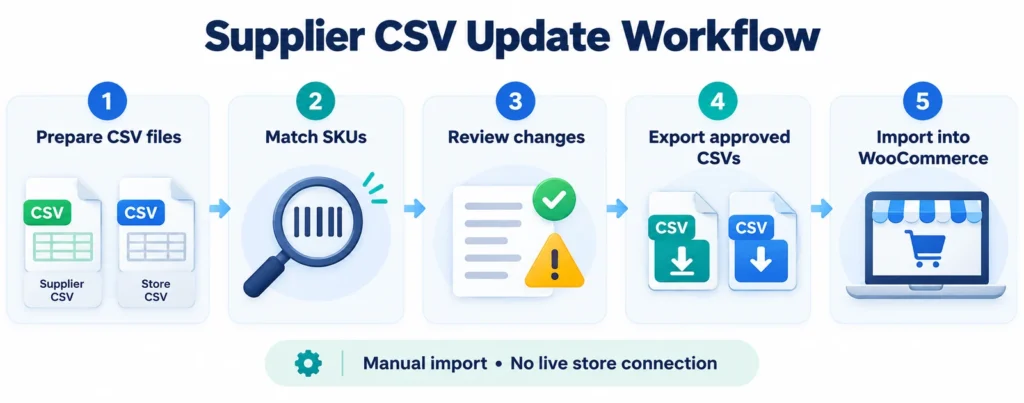
The Altrix Supplier Stock & Price Update Assistant is designed for this review-first approach.
It runs locally in a desktop browser and compares supplier and store files by SKU.
Its Free Trial supports comparison and issue review on files containing up to 50 rows and 2 MB each.
Pro supports larger files, up to 100,000 rows and 20 MB per file, and adds selected WooCommerce stock and regular-price exports, cost-based rules, margin checks, stock buffers, and reusable mapping profiles.
Actual processing capacity depends on your device.
Important: The software does not connect to your live store, change store records automatically, or produce native Shopify import templates.
Its generic changes report can be useful for other catalogs, but you must adapt outputs to the target platform’s required format.
Step 9: Export Approved Updates, Test, and Verify the Result
Once you approve a set of matching, eligible WooCommerce rows, prepare only the intended changes.
For the Altrix Pro workflow, price and stock updates are exported as separate CSV files.
This makes it easier to test one type of change at a time and review the impact independently.
In WooCommerce, navigate to Products → All Products → Import, choose your file, enable Update existing products, and carefully review column mapping before running the import.
Test a few representative products first, including a simple product and a variation with its own SKU if applicable.
Ensure the stock fields are set up for managed stock before relying on numeric stock updates.
After the test, open the affected product records and storefront pages.
Verify the displayed regular price, stock quantity, variation selection, and any relevant sale pricing.
Only then consider a larger import.
Record the time, file names, approver, and any skipped or failed rows.
Keep the original export so that you can investigate unexpected differences later.
For Shopify, use Shopify’s own supported product or inventory CSV formats and the appropriate import workflow.
Shopify inventory files can be location-specific; a generic SKU comparison report must not be uploaded as if it were a Shopify-ready inventory template.
Consult Shopify’s inventory CSV guidance before updating inventory.
Common Supplier Spreadsheet Mistakes to Avoid
Even an experienced catalog manager can run into avoidable problems.
The most common ones are uploading the wrong week’s supplier file, assuming a cost column is a retail-price column, converting identifier strings into numbers, combining inventory from unrelated locations, and treating missing supplier rows as stockouts.
Other risks include mixing tax-inclusive and tax-exclusive prices, importing all columns when only one needs updating, using an outdated store snapshot, and failing to confirm whether WooCommerce variations manage stock individually or through their parent.
Prevent these mistakes with a documented mapping profile and a short pre-import review.
If you work with multiple suppliers, keep a separate profile and file naming convention for each one.
A supplier that calls quantity QTY_AVAILABLE may use completely different fields from another that calls it Free Stock.
The definitions matter more than the names.
A Repeatable Weekly Update Checklist
Use this checklist whenever a new supplier file arrives:
- Save the original supplier spreadsheet without editing it.
- Export the current store catalog and keep a dated backup.
- Confirm currency, tax treatment, quantity meaning, and update scope.
- Convert supplier data to UTF-8 CSV and preserve SKU formatting.
- Map SKU, stock, price, cost, and product type where required.
- Investigate duplicates, blank IDs, invalid numbers, and unmatched rows.
- Apply approved price rules and any stock safety buffer.
- Review changed records and hold suspicious exceptions.
- Export only eligible, approved changes, then test a small import.
- Verify store results and archive the reports for the next cycle.
A consistent checklist reduces confusion when staff change, when suppliers revise their file layout, or when an agency needs to explain an update to a client.
Frequently Asked Questions
Can I update supplier prices and stock using an Excel spreadsheet?
Yes. Excel is useful for cleaning and reviewing data.
For the Altrix assistant, save the worksheet as a UTF-8 CSV file first; the application does not directly open XLS or XLSX workbooks.
Keep the original workbook as your source copy.
What should I do if a supplier SKU does not match WooCommerce?
Investigate the product identifier and mapping.
Check for accidental whitespace, leading-zero changes, variant-specific codes, and discontinued SKUs.
Do not create or overwrite an unrelated product to force a match.
Should missing supplier products automatically become out of stock?
No. A missing row may mean a partial export or a supplier catalog change.
Review it separately.
The Altrix assistant leaves unmatched store-only records unchanged.
Can the Altrix software automatically synchronize my WooCommerce or Shopify store?
No. It is a standalone local comparison and export tool.
You must review the changes and perform the final store import yourself.
Its ready-to-import update exports are designed for eligible WooCommerce records, not Shopify inventory templates.
How often should I perform supplier price and stock updates?
The right frequency depends on supplier volatility, sales velocity, and your exposure to overselling.
High-turnover catalogs may need frequent reviews, while a slow-moving catalog might be checked weekly.
Choose a schedule that allows you to validate current store data before import.
Is markup the same as gross margin?
No. A 25% markup adds 25% of the cost to the cost amount, while a 25% gross margin means gross profit equals 25% of the selling price.
These methods produce different proposed prices.
Remember to account separately for shipping, tax, fees, and returns.
Conclusion: Review Supplier Changes Before They Reach Your Store
Accurate supplier price and stock updates start with reliable identifiers, consistent numeric data, and a clear review process.
Export the current catalog, prepare the supplier spreadsheet, investigate questionable rows, and apply only the changes you approve.
You can save time without sacrificing control of your product data.
If you regularly manage supplier spreadsheets, try the Altrix Supplier Stock & Price Update Assistant.
Begin with the free trial and sample files to see how SKU matching and exception review work.
When you need reviewed WooCommerce price and stock CSV exports, explore the Pro edition and test a small import before updating your catalog.