
Website migrations can improve performance, usability, security, and business operations. However, moving a website without correctly verifying its redirects can create broken pages, lost referral traffic, confusing user journeys, and search engine indexing problems.
Whether you are migrating WordPress to Shopify, redesigning an e-commerce store, changing domains, or restructuring website URLs, learning how to check 301 redirects is essential.
A 301 redirect indicates that a URL has permanently moved to another location. When properly implemented, it helps visitors and search engines find the intended replacement page.
But a redirect returning HTTP 301 does not automatically mean everything is working correctly.
Some redirects point to missing pages. Others lead to unrelated content, create unnecessary chains, or trigger endless redirect loops. These problems can go unnoticed unless you inspect the full redirect path.
In this practical guide, you will learn how to check 301 redirects manually, verify hundreds of URLs using CSV files, identify common migration problems, and monitor your website after launch.
We will also explain how the Altrix Redirect Verification Tool can simplify the verification process for website owners, developers, and SEO professionals.
1. What Is a 301 Redirect and Why Is It Important?
A 301 redirect is an HTTP status code indicating that a resource has permanently moved to a new URL.
For example, suppose your existing product page uses:
Following migration, the replacement page is located at:
A properly configured permanent redirect tells the browser to visit the new address.
This is important because customers may still access the old URL through bookmarks, search engine results, marketing materials, or external websites.
Without an appropriate redirect, users may encounter a 404 error instead of reaching the content they expected.
Permanent redirects also help search engines process URL changes and consolidate indexing signals.
According to Google Search Central’s official redirect documentation, permanent server-side redirects are a strong signal that the destination should become the canonical URL.
However, redirects do not guarantee that rankings or traffic will remain unchanged after a migration.
Search engines must still discover the new URLs, process the changes, and evaluate the destination content.
Common situations requiring 301 redirects
Permanent redirects are commonly used when:
- Moving a website to a new domain.
- Changing WordPress permalink structures.
- Migrating from WooCommerce to Shopify.
- Reorganizing categories or product URLs.
- Consolidating similar articles.
- Switching from HTTP to HTTPS.
- Replacing outdated service pages.
- Updating product URL structures.
The objective is straightforward: an old URL should lead to the most relevant new destination.
2. How to Check 301 Redirects After a Website Migration
The first step is to create a complete list of the URLs affected by the migration.
Do not begin by checking random pages. A documented redirect map makes the process more reliable and easier to audit.
Create an old-to-new URL mapping
Open Excel, Google Sheets, or another spreadsheet application.
Create two columns:
- Source URL
- Expected destination URL
For example:
| Old website URL | Expected new URL |
|---|---|
https://oldsite.example/about.html | https://newsite.example/about/ |
https://oldsite.example/services | https://newsite.example/services/ |
https://oldsite.example/blog/article-1 | https://newsite.example/blog/article-1/ |
https://oldsite.example/product/item-1 | https://newsite.example/products/item-1/ |
This spreadsheet becomes your reference for checking live redirects.
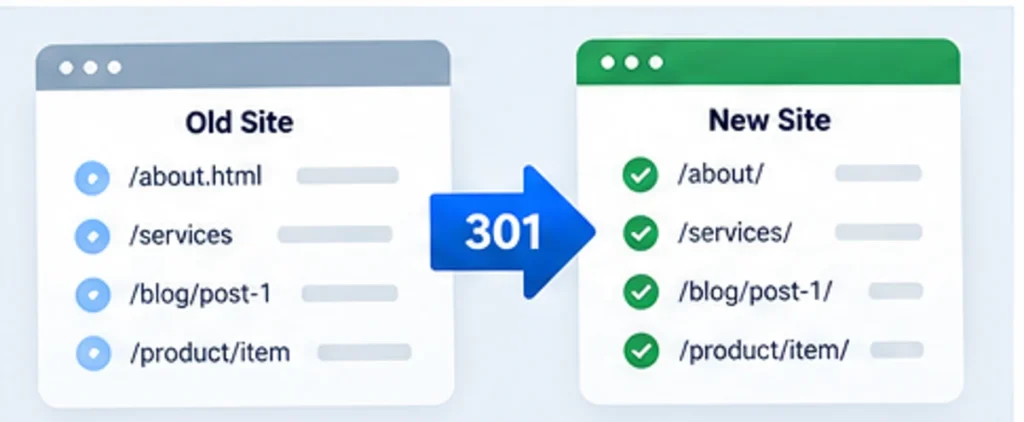
Table of Contents
Where can you find old website URLs?
Collect URLs from several sources:
- Previous XML sitemaps.
- Google Search Console performance reports.
- Analytics landing-page reports.
- Website crawls completed before migration.
- Server access logs.
- WordPress or Shopify product exports.
- Important externally linked pages.
- Existing internal navigation and footer links.
Include URLs that previously generated organic visits, enquiries, purchases, or valuable backlinks.
For a large e-commerce migration, prioritize products, categories, collections, and high-traffic informational pages.
Also document pages intentionally removed without replacement.
If an old page has no equivalent or relevant substitute, a genuine 404 or 410 response may be more appropriate than redirecting it to an unrelated homepage.
3. How to Check 301 Redirects Manually
If you only need to verify a handful of URLs, manual checking is a practical starting point.
Open an old URL in your browser and confirm that it reaches the intended new page.
However, observing the final page alone does not reveal the complete HTTP response sequence.
To check the actual redirect status, use your browser’s developer tools.
Method 1: Browser developer tools
Follow these steps:
- Open Google Chrome, Mozilla Firefox, or another modern browser.
- Open the browser’s Developer Tools.
- Select the Network tab.
- Enable the option to preserve the network log, if available.
- Enter the old URL.
- Inspect the first document request.
- Check its HTTP response status.
- Review the Location response header.
- Confirm that the final destination loads correctly.
Ideally, a permanent move should use an appropriate permanent redirect status, and the intended final page should normally return HTTP 200.
If you see an unexpected 302 response, investigate whether the redirect is temporary or incorrectly configured.
Method 2: Check redirects using curl
Developers can inspect redirect headers with the curl command-line tool.
For example:
curl -I https://oldsite.example/old-page
The -I option requests response headers.
You might see a response containing:
HTTP/1.1 301 Moved Permanently
and:
Location: https://newsite.example/new-page
To inspect the sequence of redirects, use:
curl -L -I https://oldsite.example/old-page
The -L option follows redirects.
Some web servers respond differently to HEAD requests than normal GET requests. If you receive unexpected results, verify the same URL through a normal browser request or a GET-based HTTP check.
Understanding how to check 301 redirects manually is especially useful when troubleshooting critical homepage, checkout, product, and category URLs.
4. Understand 301, 302, 308, and Common HTTP Errors
A redirect verification process should distinguish permanent moves from temporary redirects and failed destinations.
| HTTP status | Meaning | Recommended action |
|---|---|---|
| 200 | Successful response | Confirm the correct content loads |
| 301 | Permanent redirect | Verify the destination |
| 302 | Temporary redirect | Confirm whether a temporary move is intended |
| 307 | Temporary redirect | Review intended behavior |
| 308 | Permanent redirect | Verify the destination |
| 404 | Page not found | Investigate if the page should exist |
| 410 | Content gone | Confirm intentional removal |
| 500 | Internal server error | Investigate server configuration |
| 503 | Service unavailable | Check server availability |
For permanent site moves, Google recommends server-side permanent redirects such as 301 or 308.
A temporary redirect is not necessarily harmful, but it communicates a different intention.
One common migration mistake is assuming that the presence of a 301 response guarantees success.
Consider this redirect:
Old URL → 301 → New URL → 404
The original URL returns a permanent redirect, but the visitor reaches a missing destination.
To verify the outcome, examine the complete request sequence instead of stopping at the first status code.
5. How to Check 301 Redirects for Redirect Chains
A redirect chain occurs when a URL passes through several redirects before reaching its final destination.
For example:
Old URL → Intermediate URL A → Intermediate URL B → Final Page
Although browsers can follow many redirect chains, unnecessary intermediate steps introduce additional requests and make website maintenance more complicated.
For a permanent migration, a cleaner arrangement is usually:
Old URL → Final Page
How to identify redirect chains
Inspect the network requests generated when opening the old URL.
Alternatively, use a redirect-checking application that reports every redirect hop.
Review the number of redirects and identify unnecessary intermediate destinations.
For example:
/old-products/shoes/ → /shop/shoes/ → /collections/shoes/
If /collections/shoes/ is the approved final destination, the original source should ideally redirect there directly.
How to fix redirect chains
Update the redirect configuration so the source URL points directly to the correct final address.
Then test the source URL again.
Be careful when changing redirects controlled by multiple systems, such as WordPress plugins, hosting control panels, reverse proxies, and content delivery networks.
Always identify which configuration currently handles the redirect before modifying it.
6. Find and Fix Redirect Loops
A redirect loop happens when two or more redirect rules repeatedly send the browser between addresses.
For example:
/page-a/ → /page-b/ → /page-a/
The browser never reaches a final page.
Visitors may see an error indicating that the website redirected too many times.
Common causes include:
- Conflicting HTTPS enforcement settings.
- Incorrect www and non-www redirection rules.
- Multiple WordPress redirect plugins.
- CDN and origin-server configuration conflicts.
- Incorrect canonical hostname settings.
- Duplicate server redirect rules.
How to troubleshoot a redirect loop
Begin by inspecting the Location header returned at each step.
Identify where the request returns to an earlier URL.
Next, inspect the relevant server, CMS, or CDN configuration.
Remove or correct the conflicting rule and retest the original address.
If the problem affects HTTPS or hostname redirection, verify that the public domain, reverse proxy, and origin server agree about the intended protocol and hostname.
Avoid adding more redirect rules before identifying the cause.
7. Check for Broken URLs and Incorrect Redirect Destinations
Broken destinations are among the most important problems to identify after migration.
Imagine that an old product page redirects to a new product URL that no longer exists.
The initial redirect might return 301, but the final page returns 404.
This prevents customers from reaching the product.
Other common problems include:
- Incorrect URL spelling.
- Deleted products.
- Unpublished category pages.
- Server errors.
- Expired destination domains.
- Invalid SSL certificates.
- Redirects to unrelated pages.
- Unexpected authentication requirements.
Why checking the final destination matters
A redirect is not automatically correct merely because the final page returns HTTP 200.
For example, a product page about a laptop should not redirect to an unrelated clothing category.
Such behavior can confuse visitors and may be interpreted as a soft 404 by search engines.
Always compare the actual destination with your approved URL map.
This is one of the main reasons learning how to check 301 redirects properly is more valuable than simply scanning a list of HTTP status codes.
How to fix incorrect destinations
For every failed mapping:
- Identify the source URL.
- Record the actual final destination.
- Compare it with the intended destination.
- Review the relevant redirect rule.
- Correct the mapping if necessary.
- Repeat the verification.
Keep a record of any exceptions that cannot be resolved immediately.
8. How to Check 301 Redirects in Bulk Using a CSV File
Manually checking a few URLs is manageable.
Checking hundreds or thousands of product and category URLs individually is much more difficult.
A bulk verification workflow makes the process repeatable and easier to document.
Start by preparing a CSV file containing each source URL and its expected destination.
For example:
source_url,expected_destination
https://oldsite.example/about.html,https://newsite.example/about/
https://oldsite.example/products/shirt,https://newsite.example/products/shirt/
https://oldsite.example/blog/post,https://newsite.example/blog/post/
Save the spreadsheet in CSV format.
A bulk redirect verifier can then inspect the live behavior of each URL and compare it against the expected mapping.
Introducing the Altrix Redirect Verification Tool
The Altrix Redirect Verification Tool is a standalone application designed to help website owners, developers, and SEO professionals verify migration redirects.
Instead of checking every source URL manually, you can import a CSV mapping and examine the results in one structured workflow.
The tool supports:
- Importing source and expected destination URLs from CSV.
- Checking up to 500 redirects per run.
- Following redirect chains.
- Identifying permanent and temporary responses.
- Comparing actual final URLs with expected destinations.
- Detecting redirect loops.
- Flagging HTTP 4xx and 5xx errors.
- Reporting DNS, TLS, and timeout problems.
- Exporting CSV verification reports.
How to use the Altrix Redirect Verification Tool
Step 1: Prepare the mapping. Create a CSV file containing source_url and expected_destination columns.
Step 2: Import the file. Load the mapping into the application.
Step 3: Configure comparison settings. Select the appropriate handling of trailing slashes, www differences, query strings, and request timeouts.
Step 4: Run verification. The application checks the source URLs and follows their redirect paths.
Step 5: Review the results. Investigate broken mappings, incorrect destinations, unexpected temporary redirects, and excessive chains.
Step 6: Export the report. Save the CSV results for troubleshooting, development tasks, or client handover documentation.
The tool operates locally and does not require a WordPress or Shopify account connection.
It supports Windows, macOS, and Linux and requires Node.js 20 or later.
The application is read-only. It checks website behavior and generates reports but does not modify redirect configurations or repair server errors automatically.
Website security systems, rate limits, and network settings can also affect automated requests. Unusual findings should be verified manually when necessary.
For agencies managing multiple migrations, having a documented verification report makes it easier to assign corrections and demonstrate the work completed.
Explore the Altrix Redirect Verification Tool — $49 One-Time Purchase
9. Monitor Website Migration SEO in Google Search Console
Once redirects have been verified, continue monitoring your website.
Website migration does not end when the new pages become accessible.
Google must discover and process the new URLs before its search results fully reflect the changes.
According to Google’s official website migration guide, website owners should prepare URL mappings, configure redirects, and monitor traffic after the move.
Review page indexing
Open Google Search Console and select the relevant website property.
Check the Page indexing report for unexpected problems involving important destination URLs.
Investigate missing pages, server errors, indexing exclusions, and unusual redirect behavior.
Not every excluded URL represents a problem. For example, an intentionally redirected old URL should not normally remain indexed as a separate canonical page.
Inspect important new URLs
Use URL Inspection to check critical destination pages.
Confirm that Google can access the content and identify the intended canonical URL.
Pay particular attention to:
- Your homepage.
- Main service pages.
- Popular blog articles.
- Important product pages.
- High-traffic category pages.
- Primary landing pages.
Update your XML sitemap
Generate an XML sitemap containing the new canonical URLs.
Avoid using old redirecting URLs as the primary entries in your new sitemap.
Submit the updated sitemap in Search Console.
Monitor clicks and impressions
Compare organic search performance before and after migration.
Some fluctuations are normal while Google processes the changes.
However, persistent declines affecting important landing pages should trigger further investigation.
Review technical problems, content differences, indexing status, internal linking, and the redirect map before assuming that redirects are the only cause.
Complete Website Migration SEO Checklist
After completing the nine essential redirect checks, review these additional technical elements.
Update internal links
Replace links pointing to old URLs with links to the new final destinations.
Check navigation menus, breadcrumbs, product descriptions, related articles, and footer links.
Internal links should generally point directly to the intended destination rather than relying on redirects.
Verify canonical tags
Confirm that destination pages use appropriate canonical URLs.
Canonical references to obsolete addresses can send confusing signals to search engines.
Check robots.txt and noindex settings
During development, websites are sometimes blocked from indexing.
Confirm that temporary restrictions have been removed where indexing is intended.
Verify images and downloads
Website migrations can affect image files, PDFs, documents, and other downloadable resources.
Check important assets, particularly those used on product and service pages.
Maintain redirects after launch
Google recommends maintaining redirects for at least one year following a site move.
Keeping them longer can be beneficial when old URLs continue to receive visitors or external links.
Document verification results
Maintain records showing:
- Original URLs.
- Expected destinations.
- Actual destinations.
- HTTP response codes.
- Redirect chains.
- Errors found.
- Corrections made.
- Final verification status.
This documentation helps website administrators review the migration and gives clients evidence of completed quality assurance work.
Common 301 Redirect Mistakes to Avoid
Even experienced developers can overlook small redirect configuration problems.
Redirecting every old page to the homepage
This may appear easier than mapping individual URLs, but it often results in a poor user experience.
Whenever possible, redirect to the closest relevant replacement content.
Ignoring redirect chains
A final page may load successfully despite passing through multiple redirects.
Verify the full redirect path and simplify it when practical.
Forgetting product and category URLs
E-commerce migrations often involve large numbers of changing URLs.
Include products, categories, collections, and important filtered or campaign URLs where appropriate.
Assuming every 301 is successful
A redirect can return 301 and still point to a broken or unrelated page.
Always inspect the destination.
Not checking redirects after launch
Redirects may change when plugins, themes, hosting rules, or website structures are updated.
Rechecking important URLs after significant changes helps uncover new problems.
Frequently Asked Questions
How do I check if a 301 redirect is working?
Open the old URL and inspect its HTTP response using browser developer tools, curl, or a redirect verification application. Confirm that the request reaches the expected final destination and that the destination loads correctly.
Can 301 redirects affect SEO rankings?
Yes. Correct redirects help search engines understand permanent URL changes. Incorrect mappings, broken destinations, and other migration problems can negatively affect accessibility and organic search performance. However, ranking changes are influenced by multiple factors.
What is the difference between 301 and 302 redirects?
A 301 represents a permanent move, while a 302 normally represents a temporary redirect. Permanent migrations generally require permanent redirect signals.
How can I check hundreds of 301 redirects at once?
Prepare an old-to-new URL mapping CSV and use a bulk redirect verification tool. The Altrix Redirect Verification Tool supports up to 500 rows per run.
Can I check Shopify and WooCommerce redirects?
Yes. Redirect verification works through HTTP requests and is not limited to a particular content management system.
Can a redirect return 301 but still be broken?
Yes. A source URL may return HTTP 301 while the destination returns 404, 500, or another error. The complete redirect path must be checked.
Does the Altrix Redirect Verification Tool repair redirects automatically?
No. The tool is read-only. It identifies issues and exports reports so website administrators can correct the underlying rules.
How long should I keep 301 redirects after migration?
Google generally recommends maintaining redirects for at least one year after a site move. Longer retention may be useful when old URLs continue to attract traffic or backlinks.
Final Thoughts
Understanding how to check 301 redirects is essential for maintaining website accessibility during a migration.
A successful migration is not simply a matter of redirecting the old homepage to the new domain. Important product pages, categories, articles, and landing pages should reach their intended replacements.
Start with a complete URL mapping. Verify the HTTP responses, inspect redirect chains, identify loops, and confirm that the final pages load correctly.
For larger migrations, bulk verification reduces repetitive work and makes the results easier to document.
Continue monitoring Google Search Console after launch, update internal links and sitemaps, and investigate technical problems as they arise.
If you need a structured way to compare expected destinations against real website behavior, explore the Altrix Redirect Verification Tool.
Verify every important redirect, resolve the exceptions, and give your next website migration a stronger technical foundation.